
Activation
In this article, we walk you through activating the Modern Events Calendar Pro license on your WordPress website.
Before You Start
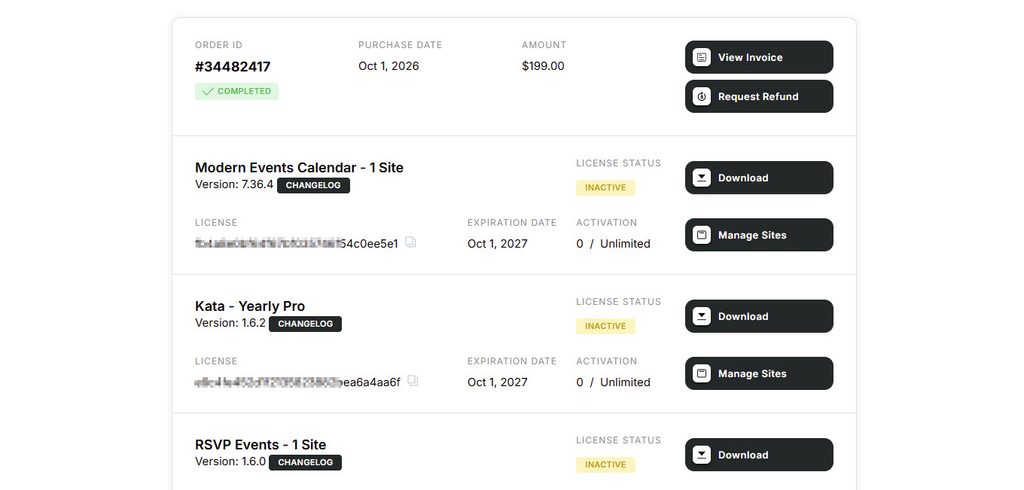
Your MEC Pro purchase code is a 32-character license key that you receive after purchasing from webnus.net. To find it:
- Log in to your account at my.webnus.net (the My Orders page).
- Your dashboard lists your orders and licenses — with summary cards such as All Orders and Active Licenses at the top.
- Find the panel of the product you want to activate (for example, MEC Plugin) and locate its License section.
- Click the copy icon next to the license key to copy it.
Activating MEC
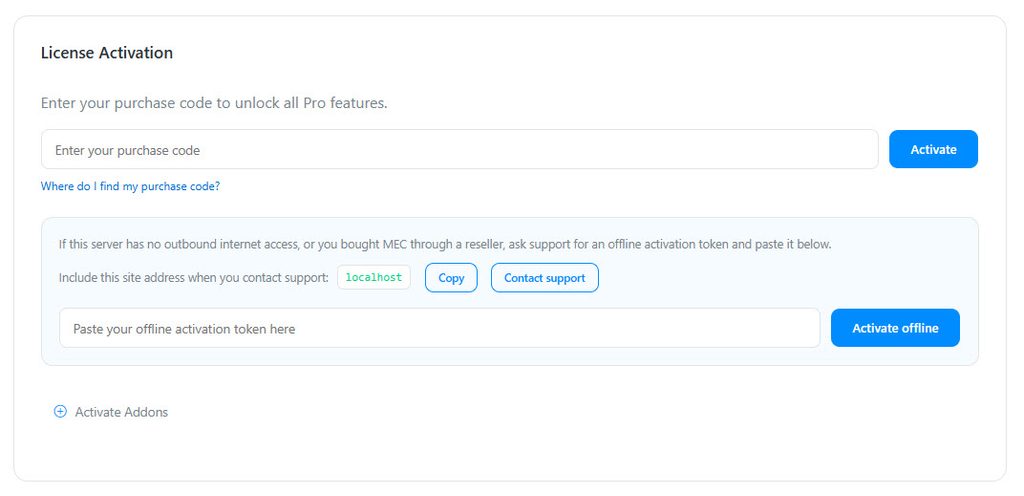
- In your WordPress admin, go to Dashboard > MEC > Dashboard (the MEC welcome page).
- While your license is not yet active, the License Activation box sits directly under the page header — this is the first thing you see.
- Paste your purchase code into the field and click Activate. The field is masked by default; use the eye icon next to it if you want to double-check the code before submitting.
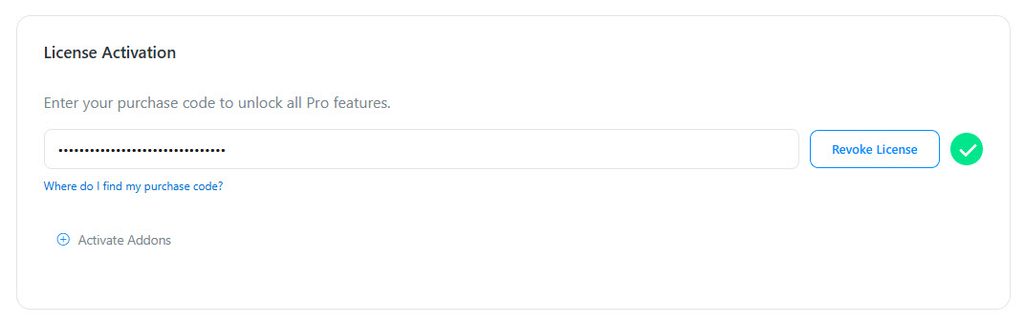
- MEC verifies the code with our licensing server and activates immediately. The box turns to its green success state and its button changes to Revoke License — that is how you know everything is working. The box stays on the dashboard, so you can check your license status at any time.
Good to know: your license covers your website as a whole. Activating with or without www is treated as the same site, and a site installed in a subdirectory (for example example.com/events) counts as one site, not two.
What Happens After Activation
- MEC stores your license as a signed token that is bound to your domain. Activation is done once — MEC does not need a permanent connection to our servers to keep the Pro features running.
- If our licensing server is temporarily unreachable, your activated site is not affected. A server outage no longer deactivates MEC on licensed websites.
- To receive automatic updates, keep your license active. See the Auto Update article.
- To move your license to another domain, see Change License Domain.
Special Setups
Your situation | What to do |
|---|---|
You bought the X theme from Themeco (MEC Pro is bundled) | You do not need a MEC purchase code. Activate with your Themeco license key — see MEC and X Theme Activation. |
You develop on localhost / a staging site | Activate with your real purchase code — staging activations do not consume your license activations. See Staging and Local Activation. |
Your server cannot reach our licensing server, or you bought through a reseller | Use an offline activation token. See Offline Activation. |
You run a WordPress Multisite network | Activate the license once on the network’s main site. Every subsite inherits the license — its license box simply shows a Network license notice, and no purchase code is needed (or accepted) on the subsites. |
Frequently Asked Questions
Where do I find my purchase code?
In your account at my.webnus.net — the product’s panel on the My Account dashboard shows the license key in its License section. See Before You Start above.
Does MEC phone home after activation?
No. After a successful activation, the license is validated locally. MEC only contacts our servers when you activate, deactivate, or check for updates.
I activated on localhost first. Did I waste an activation?
No. Localhost and staging environments do not consume your activation slots. See Staging and Local Activation.
Activation failed — what now?
See MEC Activation Issue for a step-by-step checklist and a table of every activation message and what it means.
Updated on: 04/10/2026
Thank you!