
Attendees Page
Overview
The Attendees Page is a dedicated interface that allows you to view and manage all attendees of a specific event in one place. Instead of navigating through bookings or reports, this page provides a clean, event-focused view of attendee data, ticket distribution, and attendance status.
How to Access
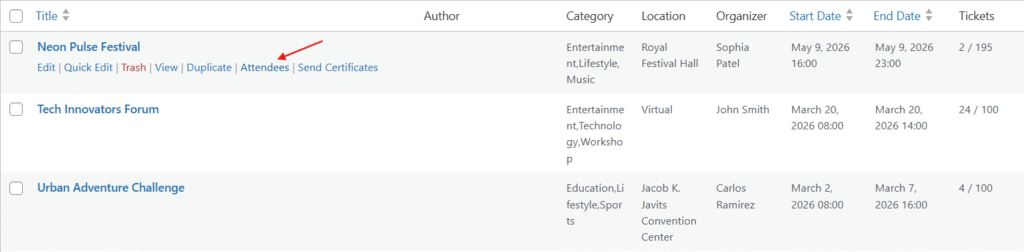
- Go to MEC → Events
- Locate your desired event in the list
- Click on the “Attendees” option under the event title
This will open the attendees page for that specific event.
Page Structure
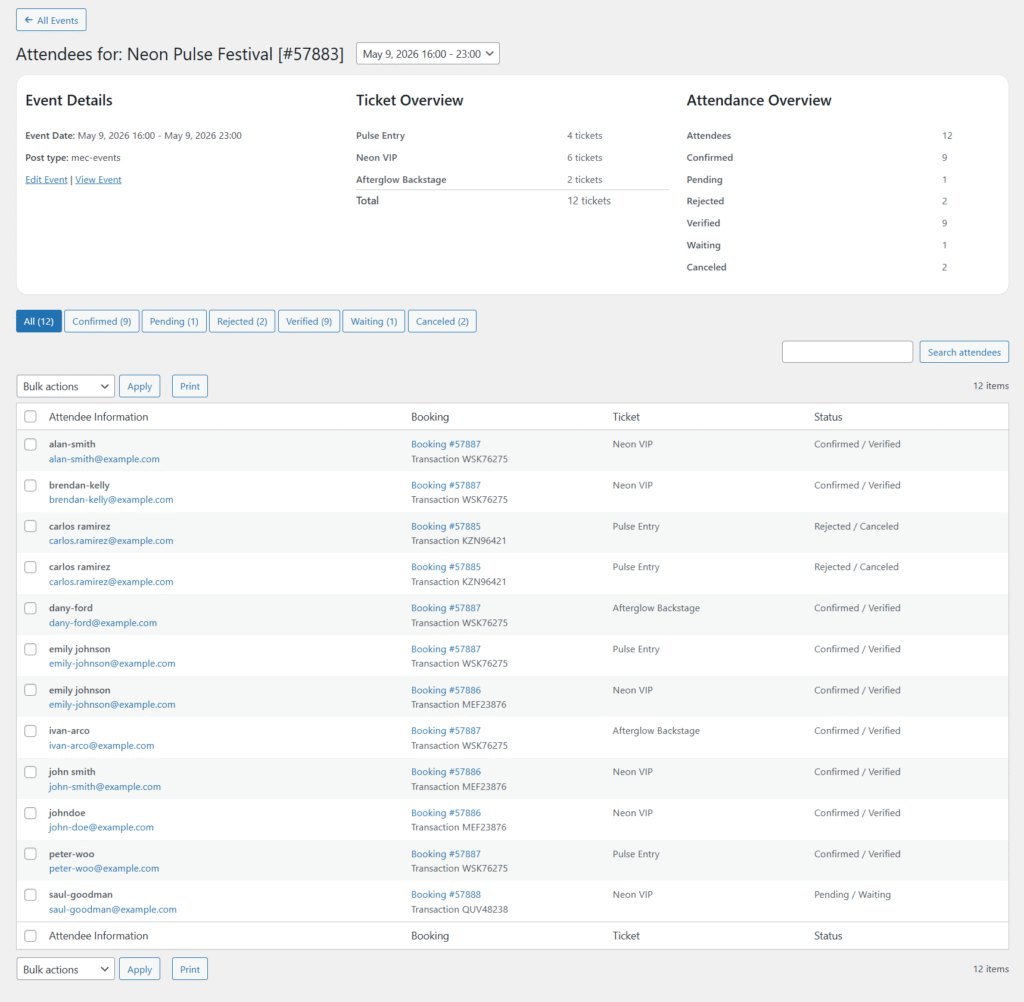
The Attendees Page is divided into three main sections:
1. Event Details
Displays basic information about the selected event:
- Event date and time
- Post type
- Quick links:
- Edit Event
- View Event
2. Ticket Overview
Provides a breakdown of tickets associated with the event:
- Ticket names (e.g., Standard, Exclusive, etc.)
- Number of tickets sold per type
- Total tickets issued
This helps you quickly understand ticket distribution without digging into bookings.
3. Attendance Overview
Summarizes attendee statuses:
- Total Attendees
- Confirmed
- Pending
- Rejected
- Verified
- Waiting
- Canceled
- Checked-in
This section gives you a quick snapshot of the event’s booking and attendance health.
Attendees List
Below the overview sections, you’ll find the full list of attendees.
Included Information:
- Attendee Name
- Email Address
- Booking ID
- Transaction ID
- Ticket Name
- Status (e.g., Confirmed / Verified)
Pagination & Screen Options
The attendees list uses the default WordPress pagination system to help manage large attendee lists more efficiently. You can navigate between pages using the pagination controls displayed below the attendees table. Additionally, the number of attendees shown per page can be customized through the Screen Options panel located at the top-right corner of the page. This allows you to adjust how many attendee records are displayed on each page based on your preference.
Filters
You can filter attendees based on their booking status using the tabs:
- All
- Confirmed
- Pending
- Rejected
- Verified
- Waiting
- Canceled
This makes it easy to isolate specific groups, like pending approvals or verified attendees.
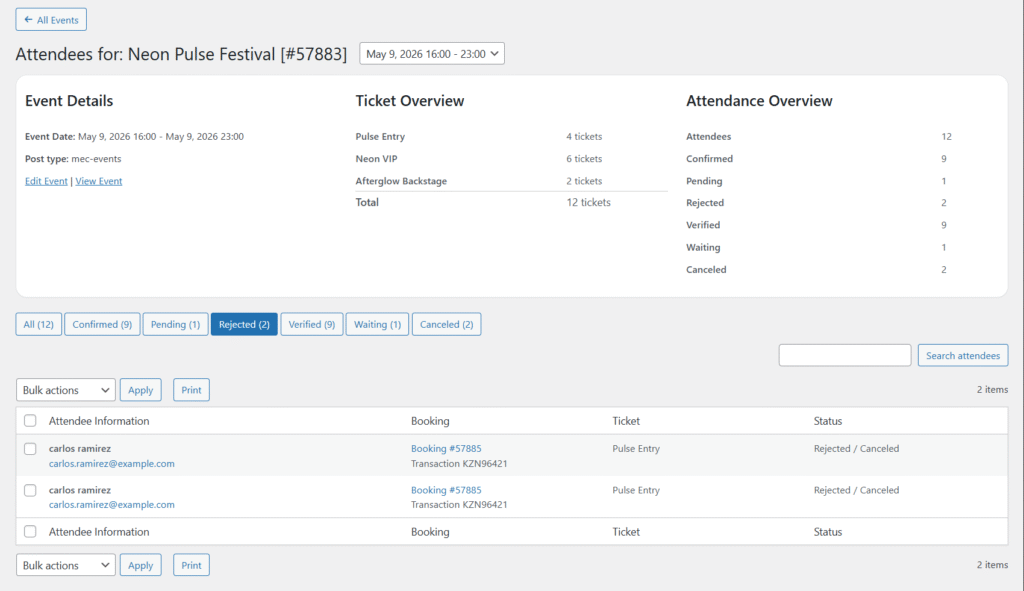
Bulk Actions
You can select multiple attendees and apply bulk actions using the dropdown menu.
Search Functionality
A search bar is available to quickly find attendees by name or email.
Export All Attendees
The attendees page includes an Export All Attendees button for downloading attendee data.
What it does:
- Exports the full attendees list for the selected event
- Includes attendee and booking-related information
- Useful for external reporting and record keeping
Use cases:
- Sharing attendee lists with event staff
- Creating backups of attendee data
- Importing attendee information into external systems
Print Feature
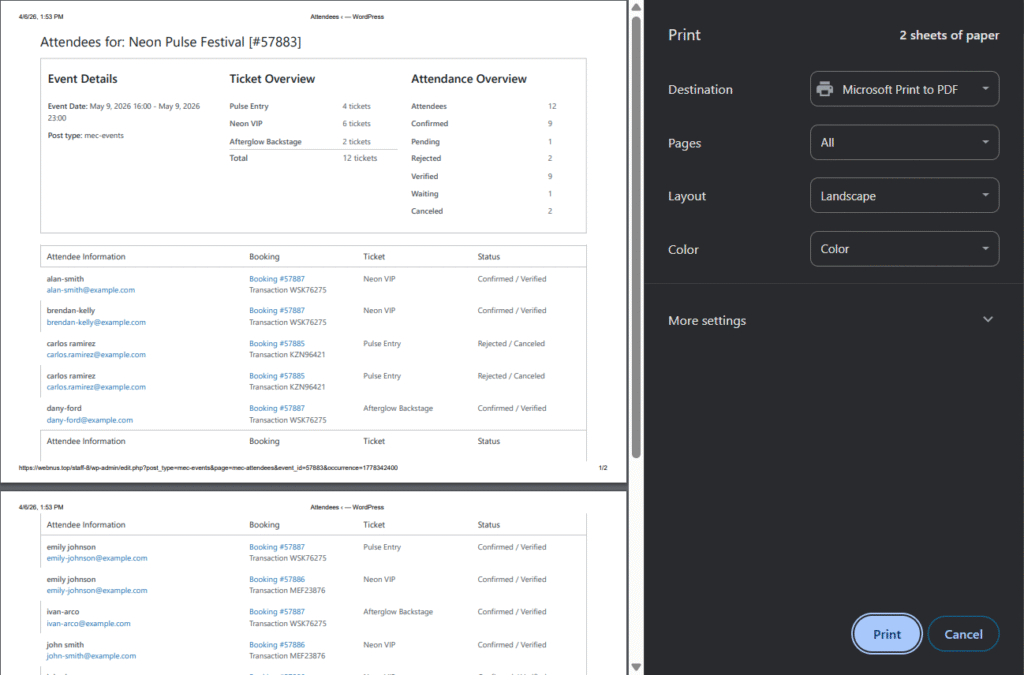
At the bottom of the attendees list, there is a Print button.
What it does:
- Generates a clean, printable version of the attendees list
- Includes:
- Event summary (Event Details, Ticket Overview, Attendance Overview)
- Full attendee table
Use cases:
- On-site check-in sheets
- Physical records
- Offline access during events
Key Benefits
- Event-specific attendee management
- Clear visibility of ticket distribution
- Quick filtering by booking status
- Printable attendee reports
- No need to navigate between multiple sections
Notes
- This page is event-specific; each event has its own attendees view.
- Data shown here reflects the current booking and attendance status in real time.
- The Print layout is optimized for simplicity and readability.
Updated on: 21/05/2026
Thank you!