
General Settings
In General Settings, you will have access to modify the main global settings of the Modern Events Calendar, such as SEO, categorizing, and indexing for search engines. Not to mention sorting out your events.
In this section, you will find two tabs: Basic and Advanced. The Basic tab includes the essential settings necessary for MEC to operate correctly. The Advanced tab contains more intricate settings that allow users to add additional features to their calendars.
General Settings Basic Tab
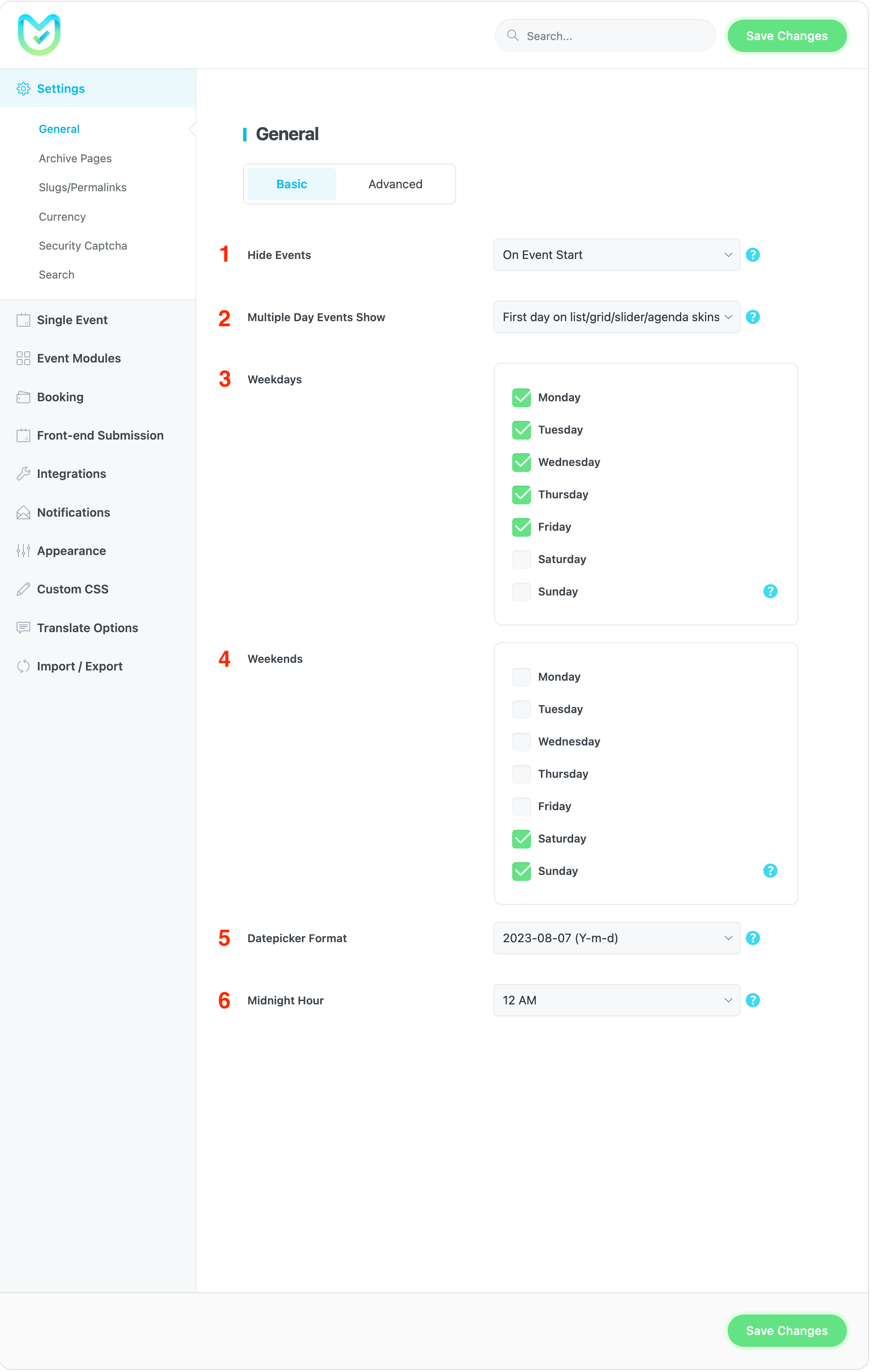
1\. Hide Events
This feature displays the events’ start and end times on the website’s front end. It includes options for On Event Start, +1 Hour after Start, +2 Hours after Start, and On Event End, all of which indicate when the event disappears from the Shortcodes.
2\. Multiple Day Events Show
When displaying multiple-day events on the front end, you can show either all days or just the first day. To display only the date for the first day of the event, choose the First day on the list/grid/slider/agenda skins or the First day on all skins. Alternatively, if you want to display the dates for all event days, select All Days.
Note: This option doesn’t work on the General Calendar view.
3\. Weekdays
You can adjust the days of the week according to your geographical location.
4\. Weekends
You can customize the last day of the week based on your location.
5\. Datepicker Format
You have the option to modify the date picker format on MEC.
6\. Midnight Hour
This feature allows you to display events that span across two days as a single-day event. By default, midnight is considered as 12 AM. However, if your event ends after midnight and you want to avoid being counted as a multi-day event, you can adjust the default setting.
Note: This option doesn’t work on the General Calendar view.
General Settings Advanced Tab
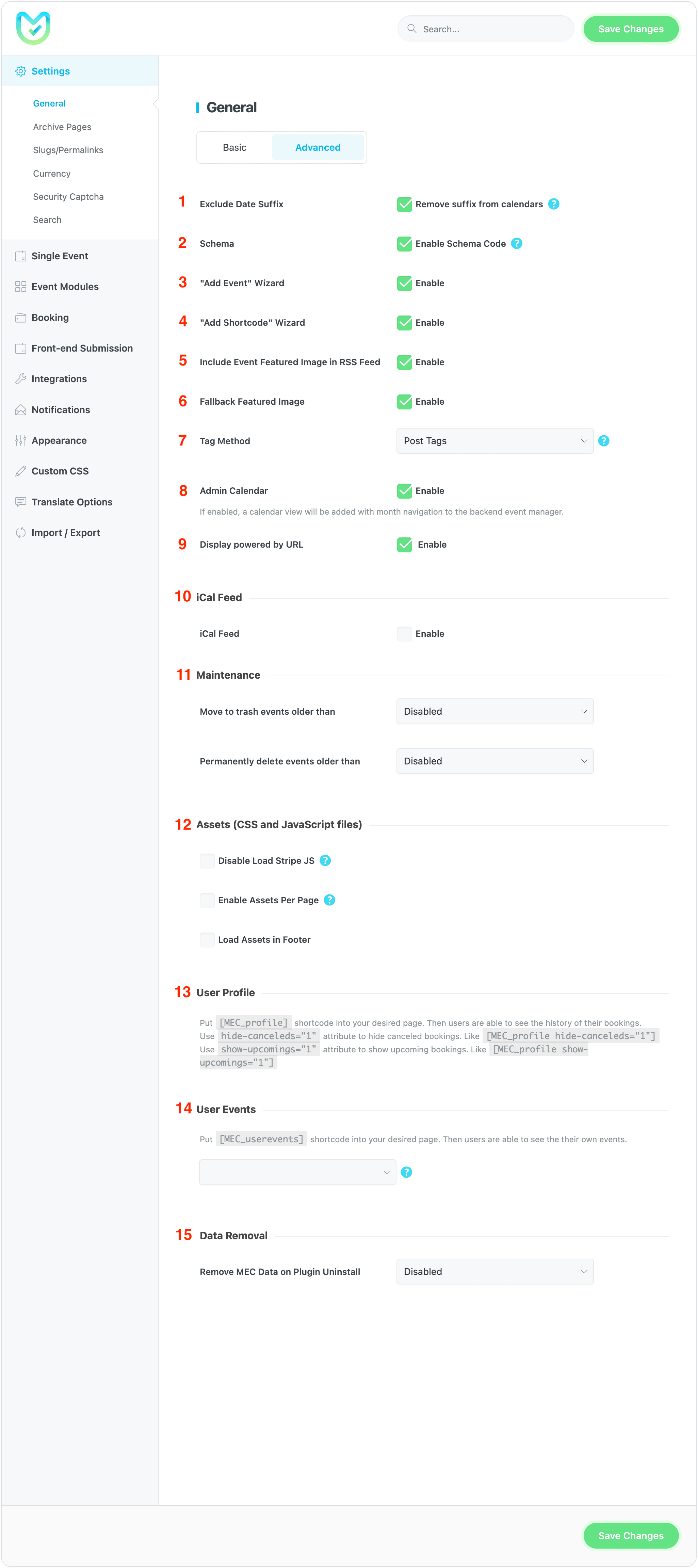
1\. Exclude Date Suffix
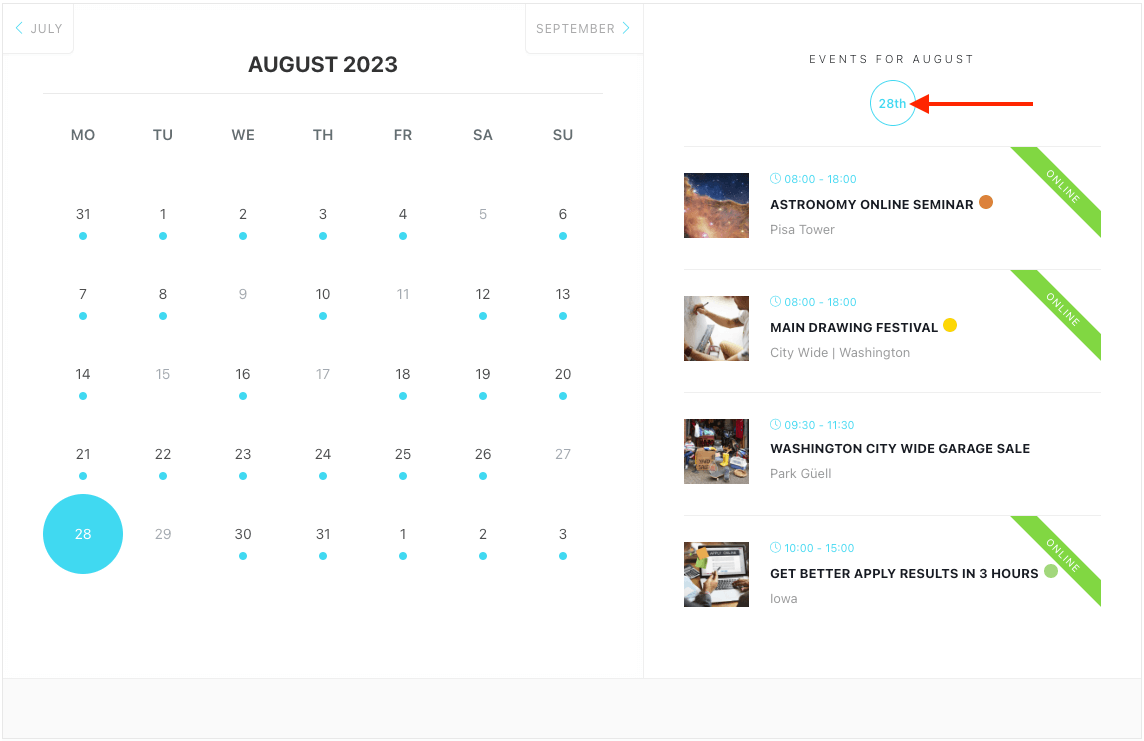
If you enable this option, the ‘th’ suffix will be removed from the dates in the monthly view skin. For example, ’12th’ will be displayed as ’12’.
2\. Schema
You can turn Schema scripts on/off. (Learn more about Schema code).
3\. Add Event Wizard
Enabling this option will open your add event wizard as a popup window.
4\. Add Shortcode Wizard
Enabling this option will open your add shortcode wizard as a popup window.
5\. Include Event Featured Image in RSS Feed
Selecting this option will display the featured image of the events in the RSS feed.
6\. Fallback Featured Image
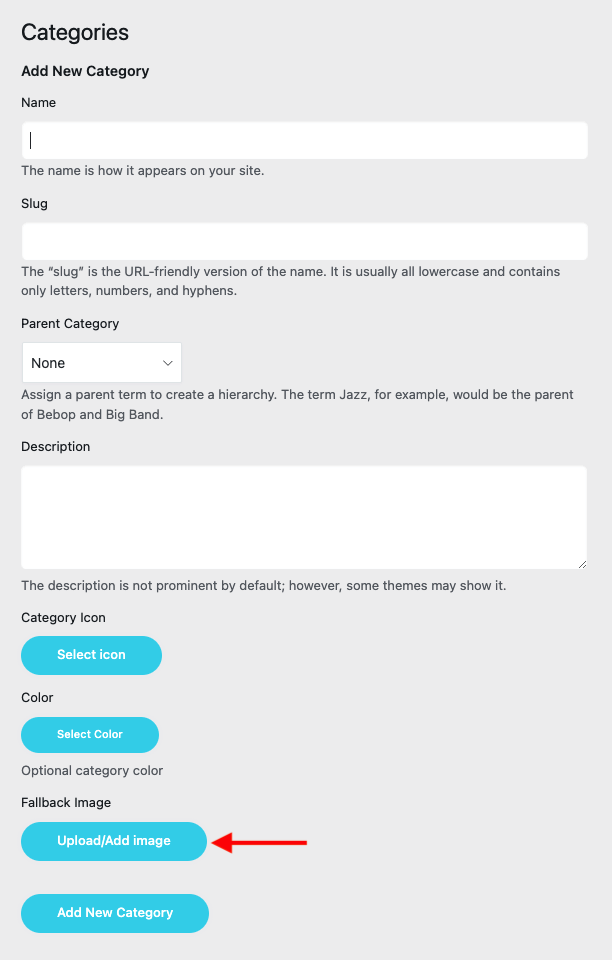
If you enable this option, you can add featured images to your event categories. To do this, go to the Categories section in the M.E. Calendar menu and scroll down to the bottom of the page to set the fallback image.
7\. Tag Method
You can establish a unique event tagging system by choosing this option. If you select Post Tags, the tags for your events will be shared with the default tags in WordPress. However, if you choose Independent tag, a new tagging system will be created specifically for MEC events.
8\. Admin Calendar
By enabling this feature, a calendar view will be included in the backend event manager with the ability to navigate through the months.
9\. Display powered by URL
Once enabled, a link to the MEC website will be displayed beneath the shortcodes. While not required, turning on this option will introduce MEC to your website visitors and greatly assist us.
10\. iCal Feed
By providing users with your iCal feed link, they can easily add all of your events to their calendars. The feed will be automatically checked by their calendar, ensuring that any changes are immediately reflected (as they are subscribed to your feed).
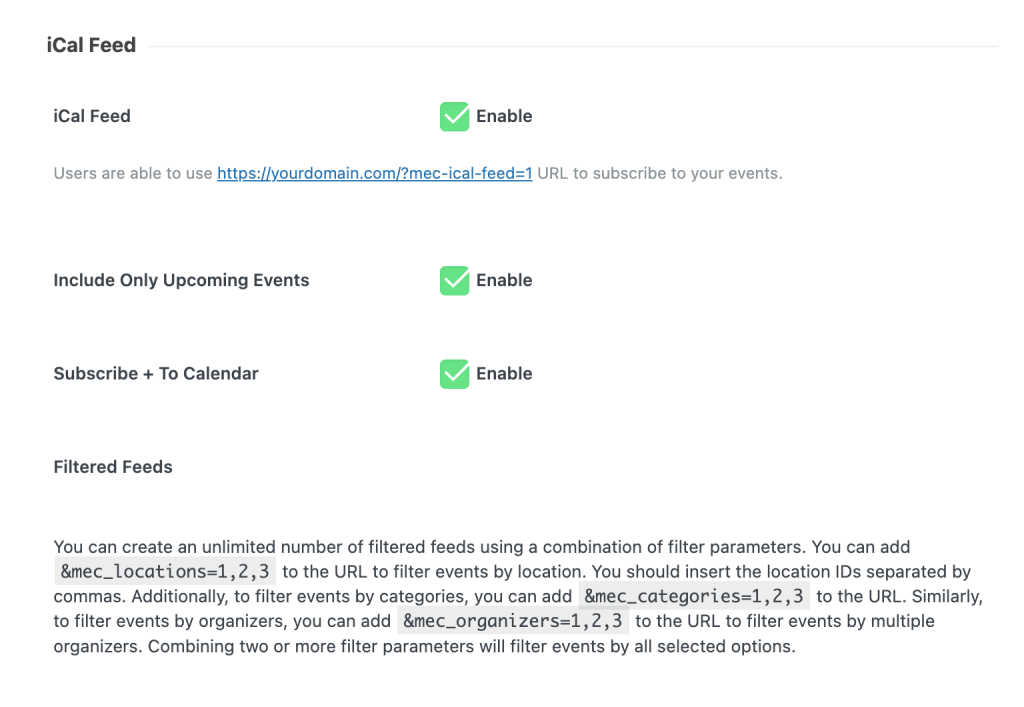
Include Only Upcoming Events
This option will only include the upcoming events in the calendar.
Subscribe To Calendar
By enabling this option, you can add the whole calendar to your calendar all in one click.
Filtered Feeds
You can create an unlimited number of filtered feeds using a combination of filter parameters. You can add &mec_locations=1,2,3 to the URL to filter events by location. You should insert the location IDs separated by commas. Additionally, to filter events by categories, you can add &mec_categories=1,2,3 to the URL. Similarly, to filter events by organizers, you can add &mec_organizers=1,2,3 to the URL to filter events by multiple organizers. Combining two or more filter parameters will filter events by all selected options.
Just a small reminder: to avoid any confusion with local time and daylight saving, please ensure that you set your timezone using the name of your city or another city within the same timezone.
11\. Maintenance
- Move to trash events older than This option will move events that are older than a certain amount of time to the trash.
- Permanently delete events older than This option will permanently delete the events that are older than a certain amount of time.
12\. Assets (CSS and JavaScript files)
Using this feature, you can have MEC’s assets under control. For instance, if you do not use MEC shortcodes on the Contact Us page, you can enable this feature to prevent the CSS and JS files from being loaded on that page.
How to Use Assets Per Page Option?
Go to MEC Settings > General > Advanced Tab and enable the check box.
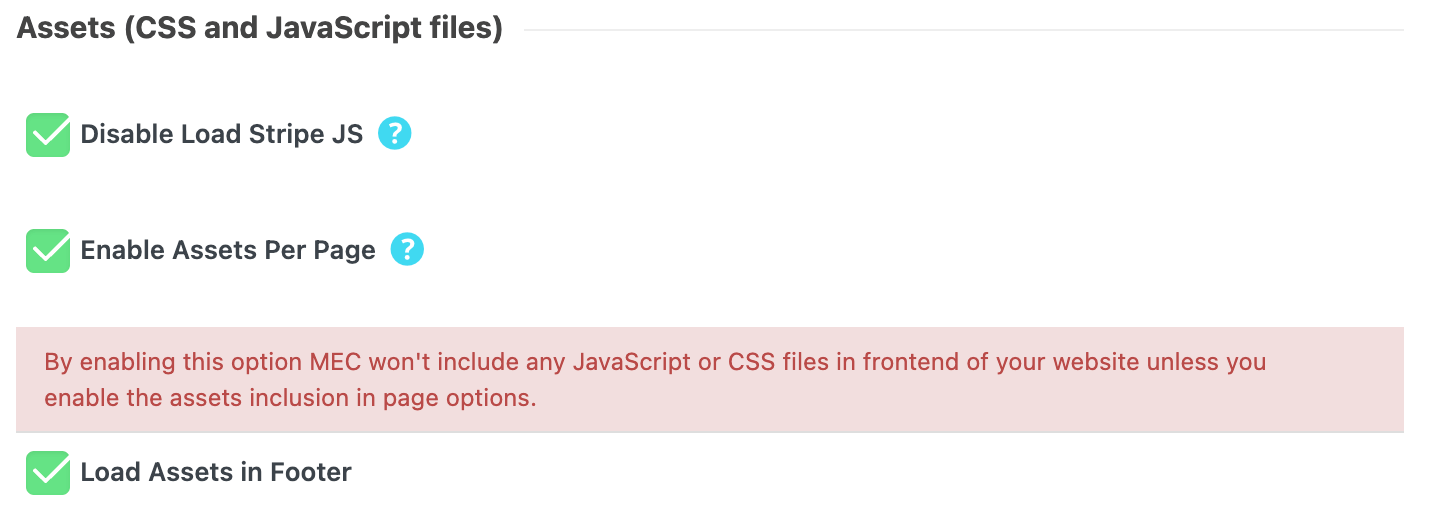
This feature is automatically enabled in the pages MEC creates by default, such as MEC Single Event Page, Category Archive Page, and Main Archive Page. But if you have put a shortcode on a specific page on your website, you must go to the WordPress dashboard’s page settings.
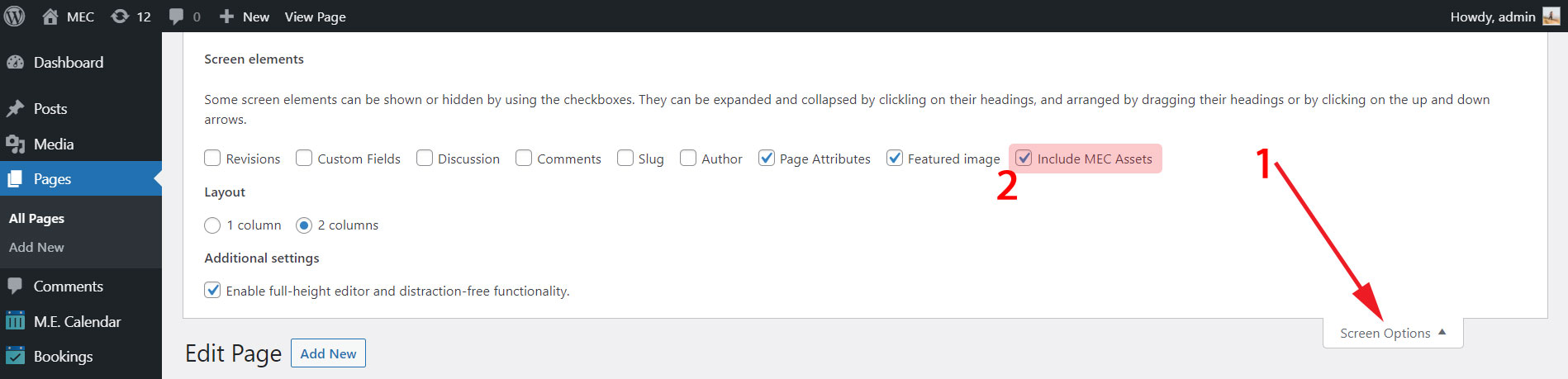
Look for the Include MEC Assets option. If you cannot find it, go to Screen Options (Classic Editor) or Options > Performances (Gutenberg Editor). You can enable it from there.
The MEC assets will be loaded on that specific page by checking the box.
Classic Editor
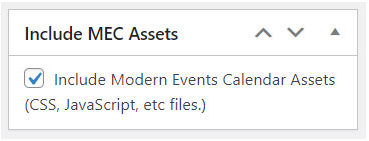
Gutenberg Editor
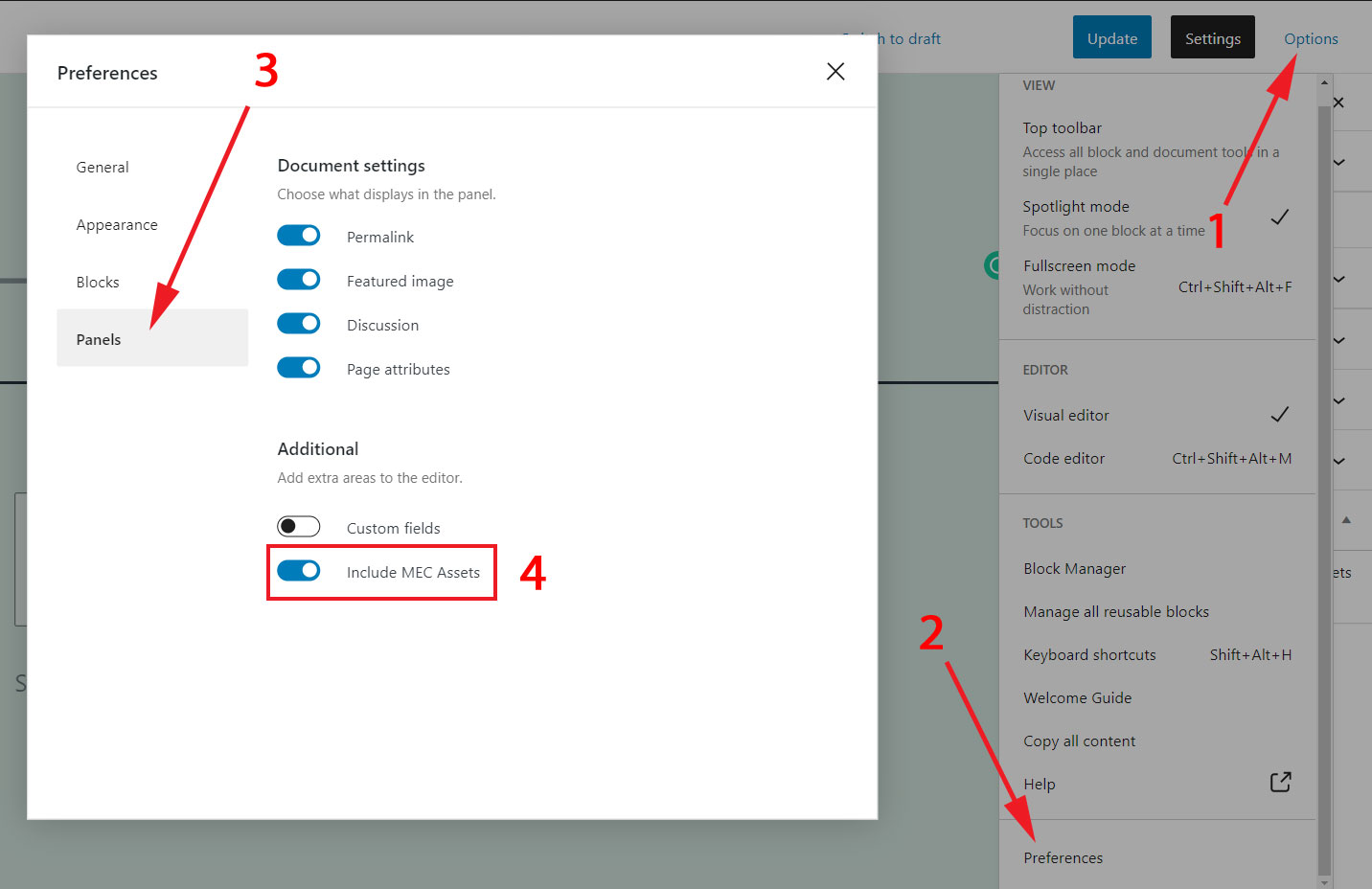
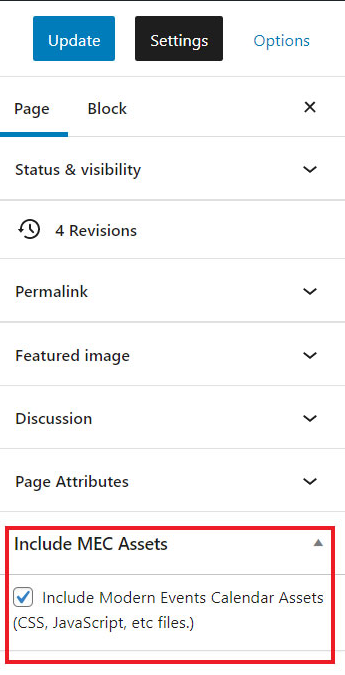
Following this procedure, you can determine where the assets should be loaded. This can help you increase the load speed of your website.
13\. User Profile
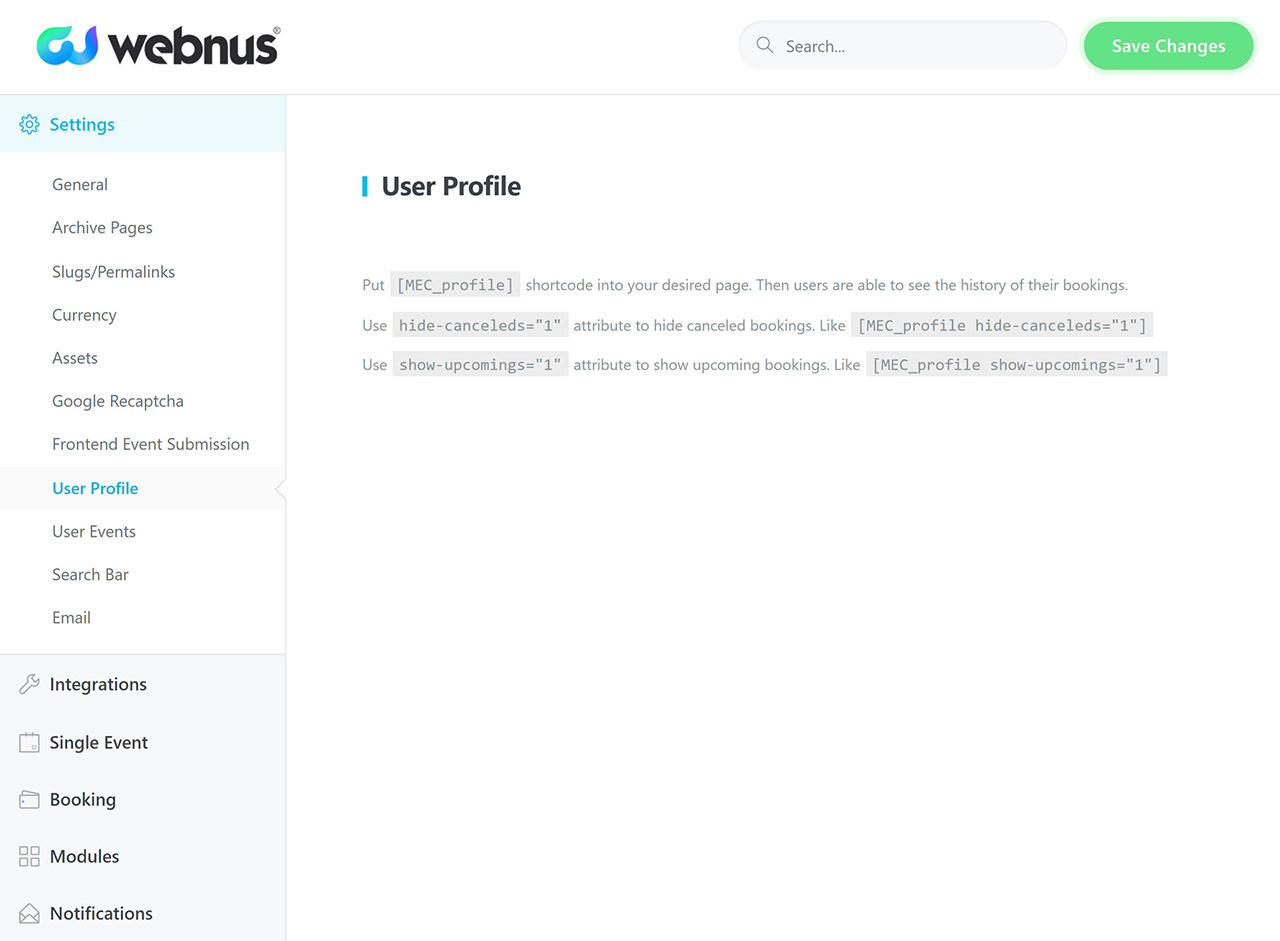
Modern Events Calendar allows you to create user profiles to keep track of their activities on your website. Each user will have columns designated for attendee status, invoice information, and overall status.
To inform users of their booking status, use the provided shortcode. Place it on a page where they can easily access their dashboard. Once logged in and on the designated page, users will see a list of their event reservations.
Put the following shortcode into your desired page:
[MEC_profile]
Use hide-canceleds=” 1″ attribute to hide canceled bookings:
[MEC_profile hide-canceleds="1"]
Use show-upcomings=” 1″ attribute to show upcoming bookings:
[MEC_profile show-upcomings="1"]
14\. User Events
With Modern Events Calendars’ User events feature, you can create a user events page so that users can have a record of their own events on the websites.
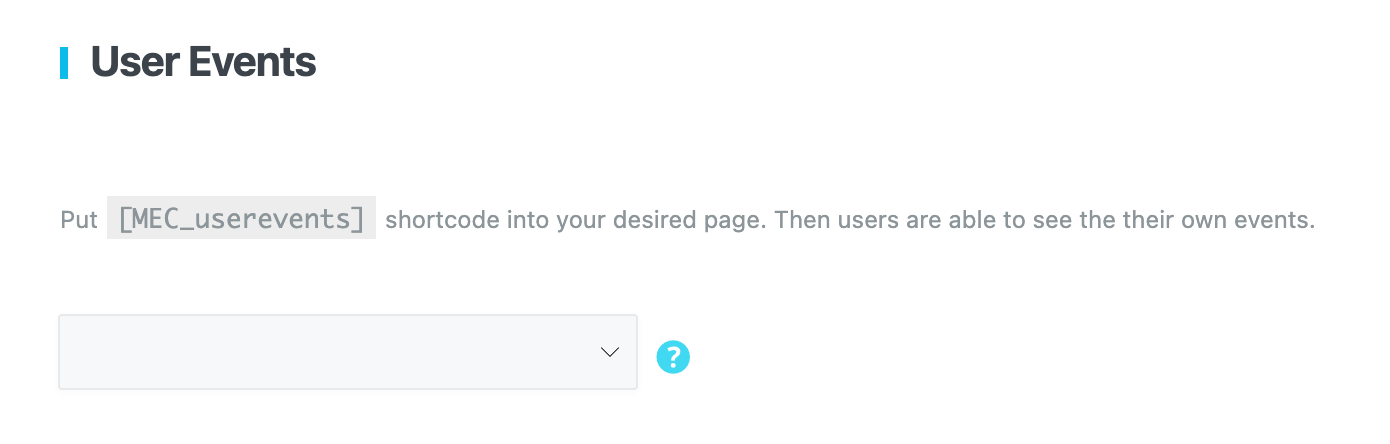
You can select the desired skin in the dropdown for displaying user events.
Put the following shortcode into your desired page. Then users are able to see their own events.
[MEC_userevents]
15\. Remove MEC Data on Plugin Uninstall
This option will clear all your data from the database after uninstalling the MEC plugin. If it is disabled and you delete MEC, your data will be kept in a database.
Archive Pages
Your Archive Pages consist of your event category page that can enhance your website’s structure.
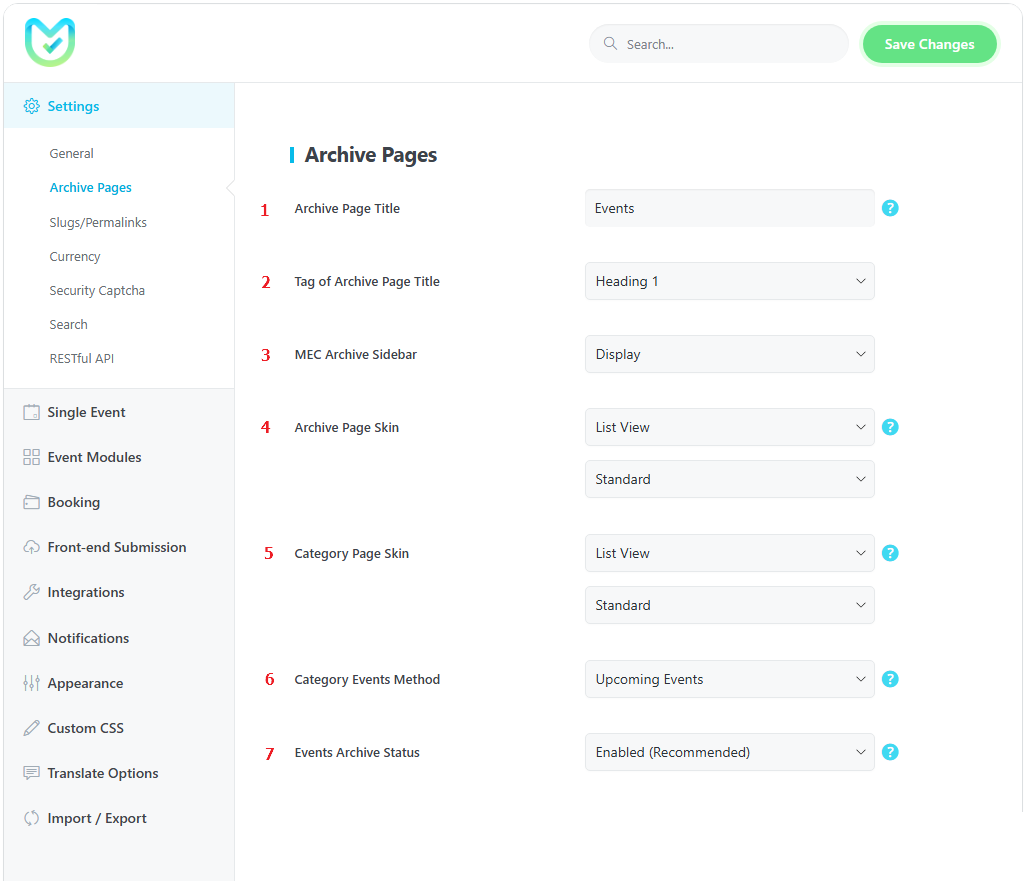
1\. Archive Page Title
You can change your archive page title using this field.
2\. Tag of Archive Page Title
This dropdown will let you change the HTML tag of the archive title (Heading 1 to 6, Division, Paragraph, Inline Bold Text, and Inline Text).
3\. MEC Archive Sidebar
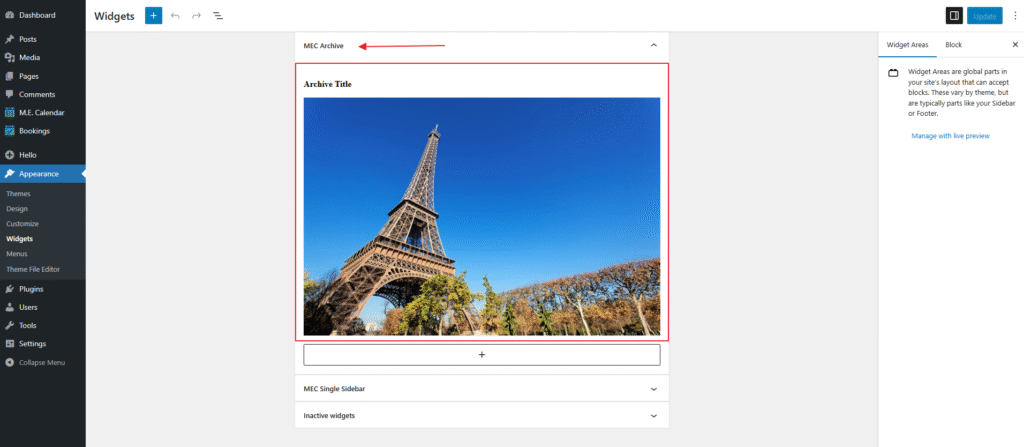
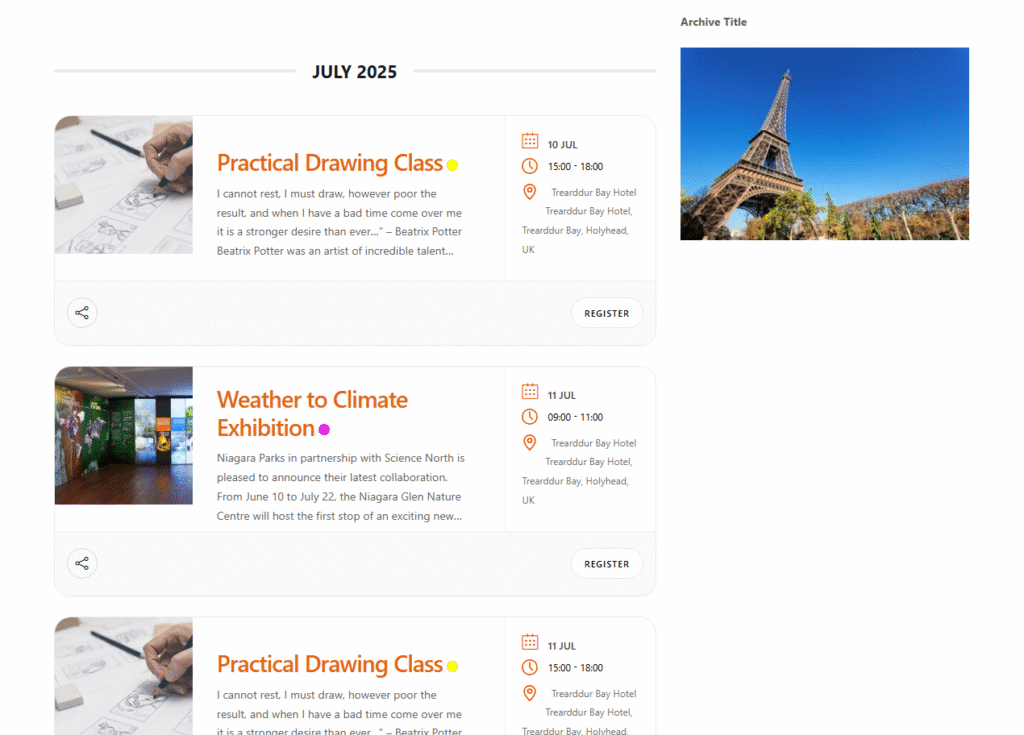
Enabling this option displays any widget added to the “MEC Archive” widget area on the event archive page, allowing you to customize the sidebar with widget-supported content.
4\. Archive Page Skin
You can select the template of your archive pages among the following skins:
- Full Calendar
- Yearly View
- Calendar/Monthly View
- Weekly View
- Daily View
- Timetable View
- Masonry View
- List View
- Grid View
- Agenda View
- Map View
- General Calendar
- Custom Shortcode
5\. Category Page Skin
You can select the template of your category pages among the following skins:
- Full Calendar
- Yearly View
- Calendar/Monthly View
- Weekly View
- Daily View
- Timetable View
- Masonry View
- List View
- Grid View
- Agenda View
- Map View
- General Calendar
- Custom Shortcode
6\. Category Events Method
You can select between “Upcoming Events” and “Expired Events” as your archive page events method.
7\. Events Archive Status
If you disable this option, you should create an archive page for MEC with an identical slug to the MEC main slug. Also, it will disable all of the MEC rewrite rules.
What Is the URL of Your Events RSS Feed?
Just add “feed” to the end of the archive page URL (i.e., yourwebsite.com/events/feed/)
Click here to see a live example.
Note: If you have changed the archive slug, then the feed URL will be changed to “_yourwebsite.com/custom-slug/feed/_“
How to Display Expired Events on The Archive Page?
Create a new shortcode and enable the “Include Expired Events” option in the shortcode settings, then navigate to MEC Settings > Archive pages > Archive Page Skin > Custom Shortcode and set your custom shortcode here.
Topic: How can I see past events on Archive Page?
Slugs/Permalinks
Slugs/Permalinks settings in the Modern Events Calendar allow you to change the Main Slug and Category Slug. This is a helpful feature since you can have a unique and shareable address for each event. Moreover, ranks better in Google.
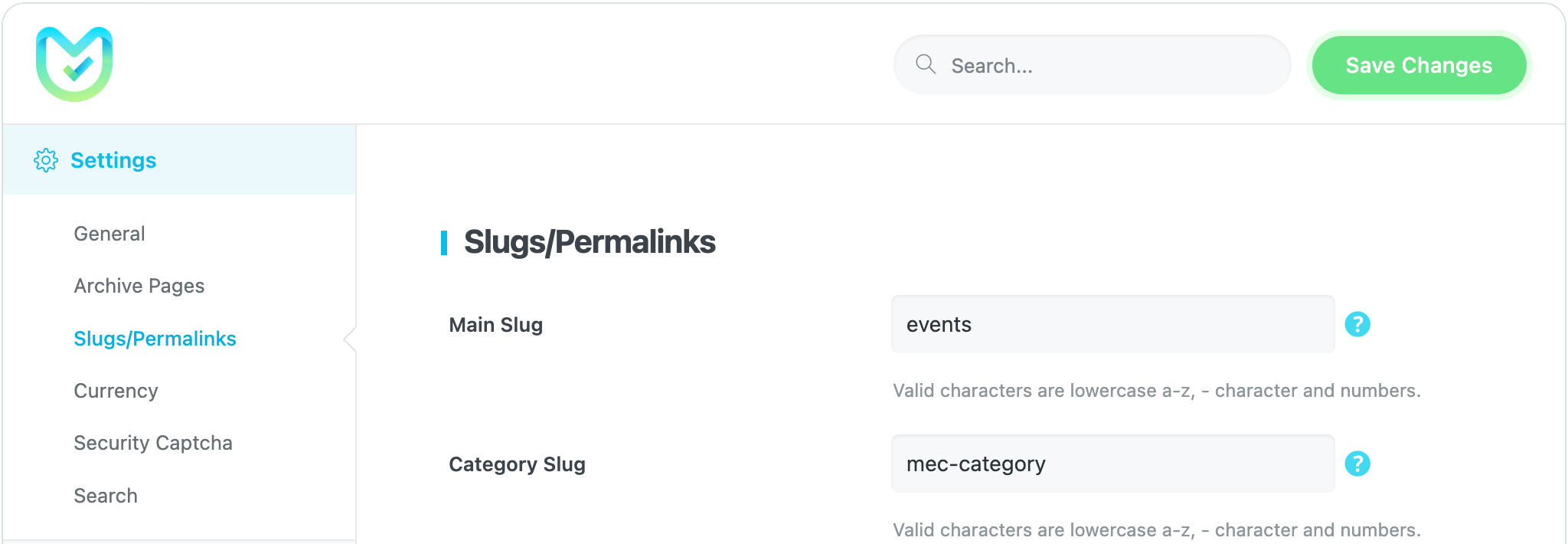
Setup slug for the categories and main events:
- Main Slug: Post slug is a post’s user-friendly and URL-valid name. Slugs are mainly used to create permalinks for posts.
- Category Slug: You can change the base slug of the categories in this field.
Currency
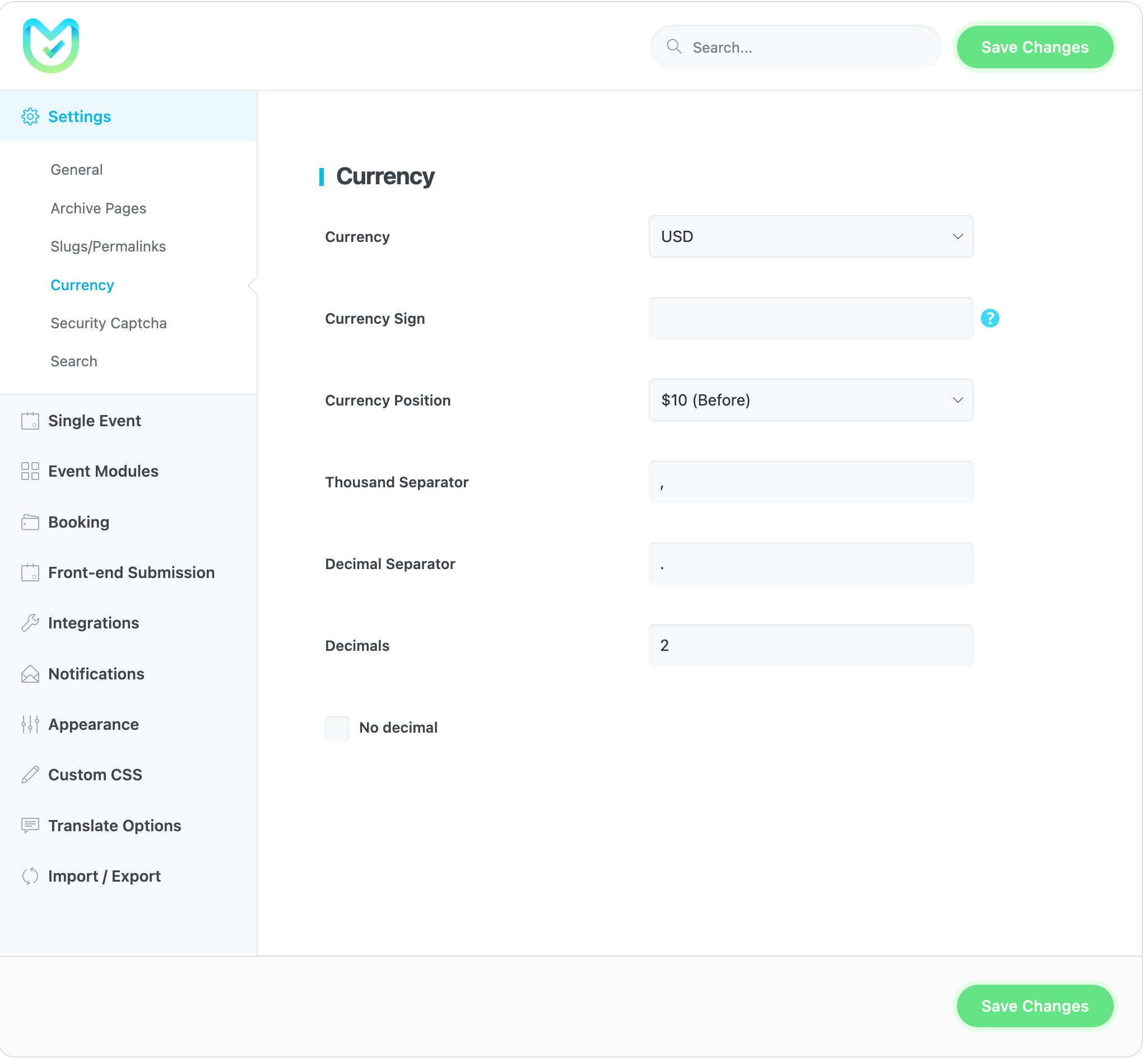
You can change the currency for your event prices and their appearance in this part of the MEC plugin settings. Setup your event calendar currency options like the below:
Currency
You can modify the currency for your tickets using this option.
Currency Sign
If you cannot find the currency label in the top dropdown box, you can manually add it here.
Currency Position
You can set where to display the currency label.
- After the number
- Before the number
Thousands Separator
Change the sign of the separator.
Decimal Separator
Change the sign of the decimal separator.
No decimal
Remove the decimals and show an integer.
Security Captcha
Securing the booking process is crucial in an event website, and Google reCaptcha options in MEC provide a reliable solution. To add it to your website, follow these steps:
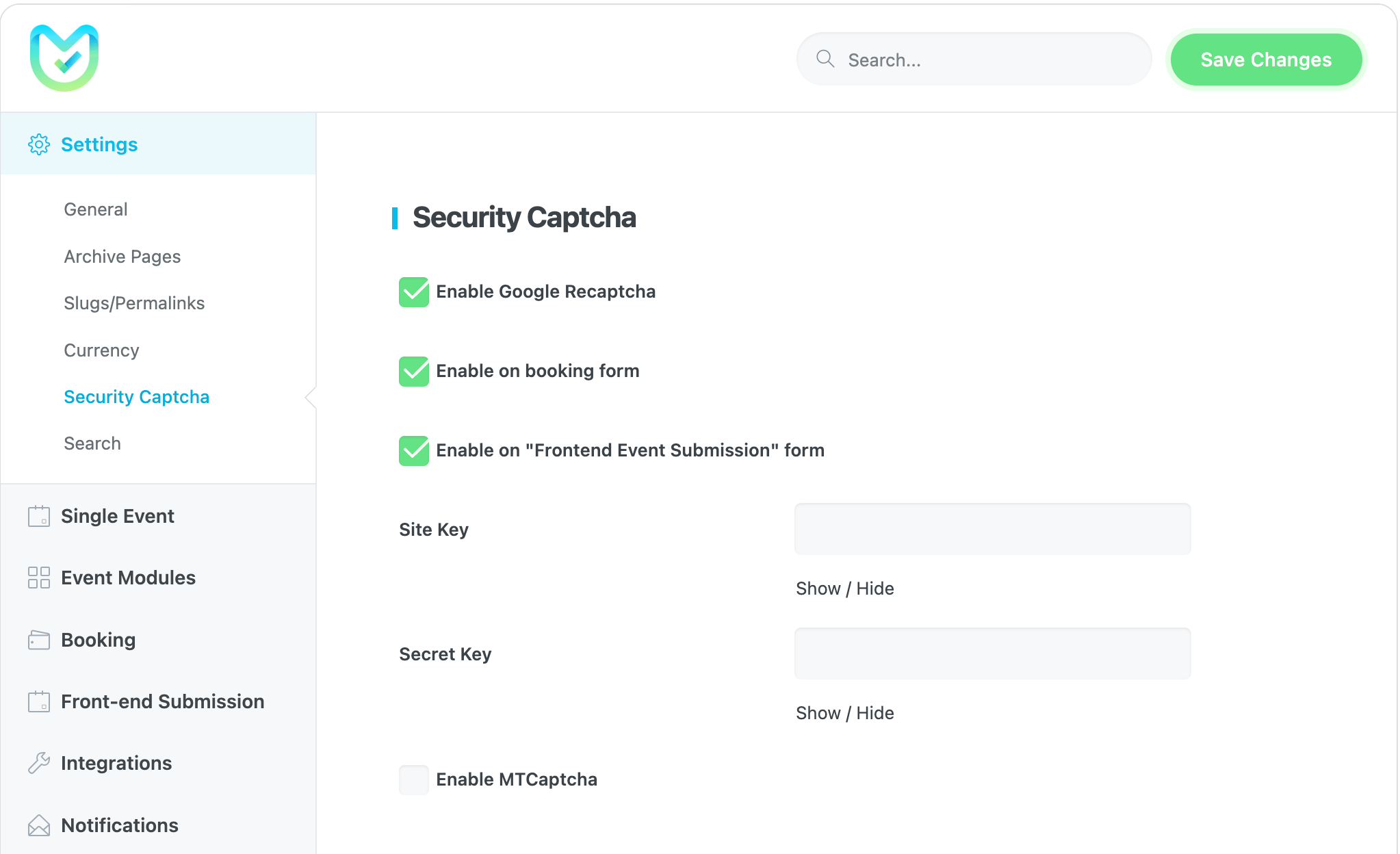
- Enabling Google reCAPTCHA V2 will run a module for connecting to the site key and the secret key that the users must create using Google reCAPTCHA.
- Enabling Google reCAPTCHA on the Booking Module simply by checking this option.
- Enable Google reCAPTCHA on Front Event Submission for both registered and guest users.
Search
The search bar allows the user to look for different events. For example, this can be placed on the event website homepage, and this way, the feature is added to your Homepage so that users can search for various events there. A search bar adds to your site’s SEO credibility, which is an essential compartment.
To set it up, go to MEC Settings and navigate to the Search option. Once you have set it up, you can use it on any page by simply adding the shortcode to that page. The shortcode will ensure that the function is displayed on that page.
[MEC_search_bar]
Search Bar Basic
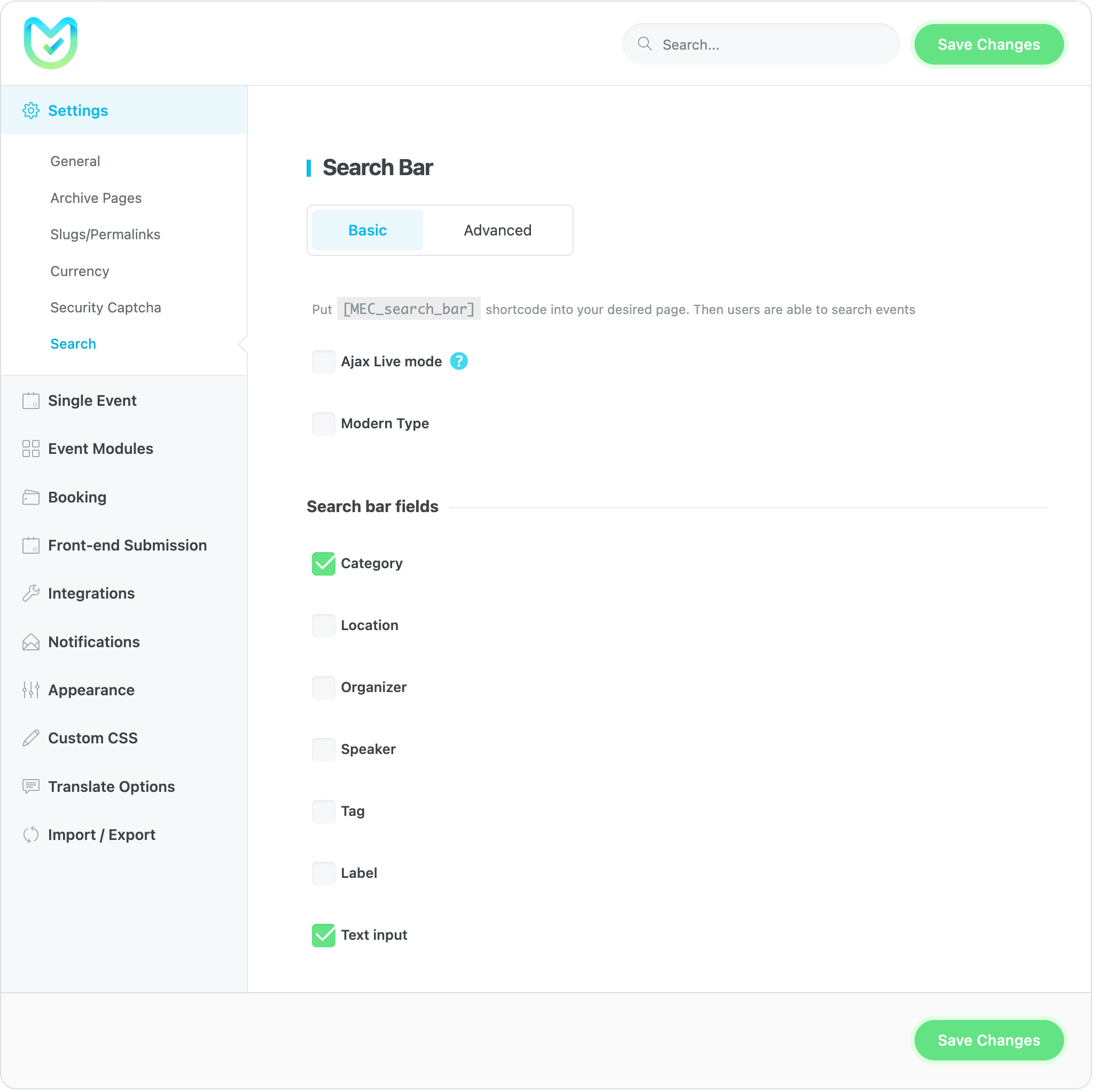
You can also add a search by category, location, organizer, speaker, tag label, and a text field to the form.
Search Bar Advanced
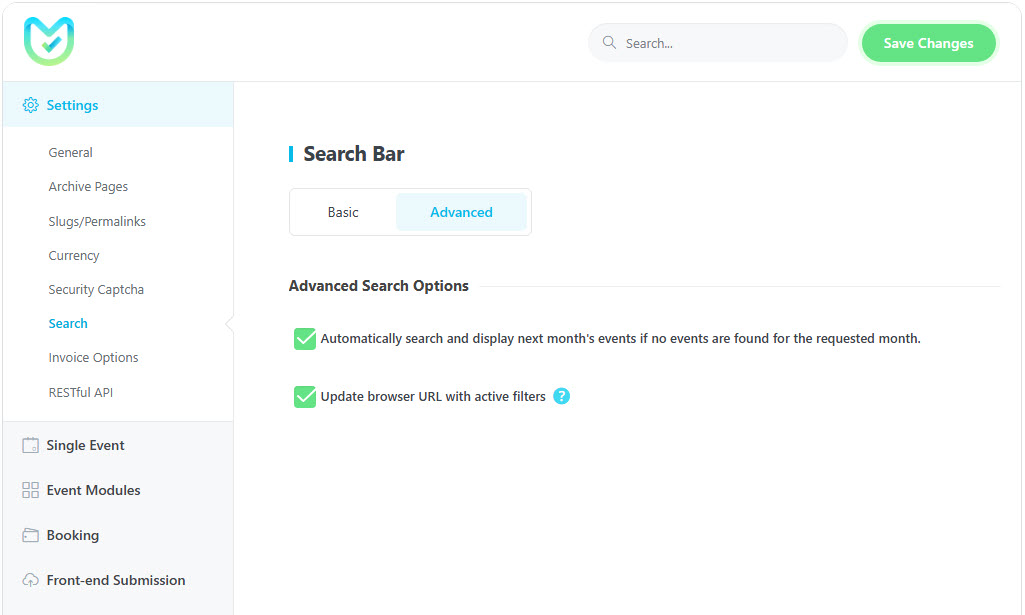
Automatically search and display next month’s events if no events are found for the requested month
When enabled, this option automatically triggers a search to display the events for the next month if no events are found for the current month being requested. This ensures that users will always see relevant events, even if there are no events available for the selected month.
Use Case: This feature is helpful for users who are searching for events and may be disappointed by the absence of events for the current month. With this option, they are automatically shown the events for the following month, making the search process more seamless.
Update browser URL with active filters
When enabled, applying filters on the search page updates the browser’s URL with query parameters reflecting the active filters. This allows users to share the filtered view by simply sharing the URL or to bookmark it for later use.
Behavior:
- With Active Filters: The browser URL will change based on the applied filters (e.g., selected category, location, or other filter criteria).
- When Resetting Filters: If the user resets the filters, the URL will revert to its original state, without any query parameters.
Impact on Search Form:
- This option also affects the Search Form displayed at the top of the shortcode skins when the Show Search Form option is enabled in the Shortcode Settings. With this setting enabled, when a user applies filters to the search form, the URL will be updated accordingly with the active filters.
Use Case: This feature is particularly useful for users who want to share their specific search results with others or quickly revisit the same set of filtered results. It allows for a more personalized search experience and easier access to specific content.
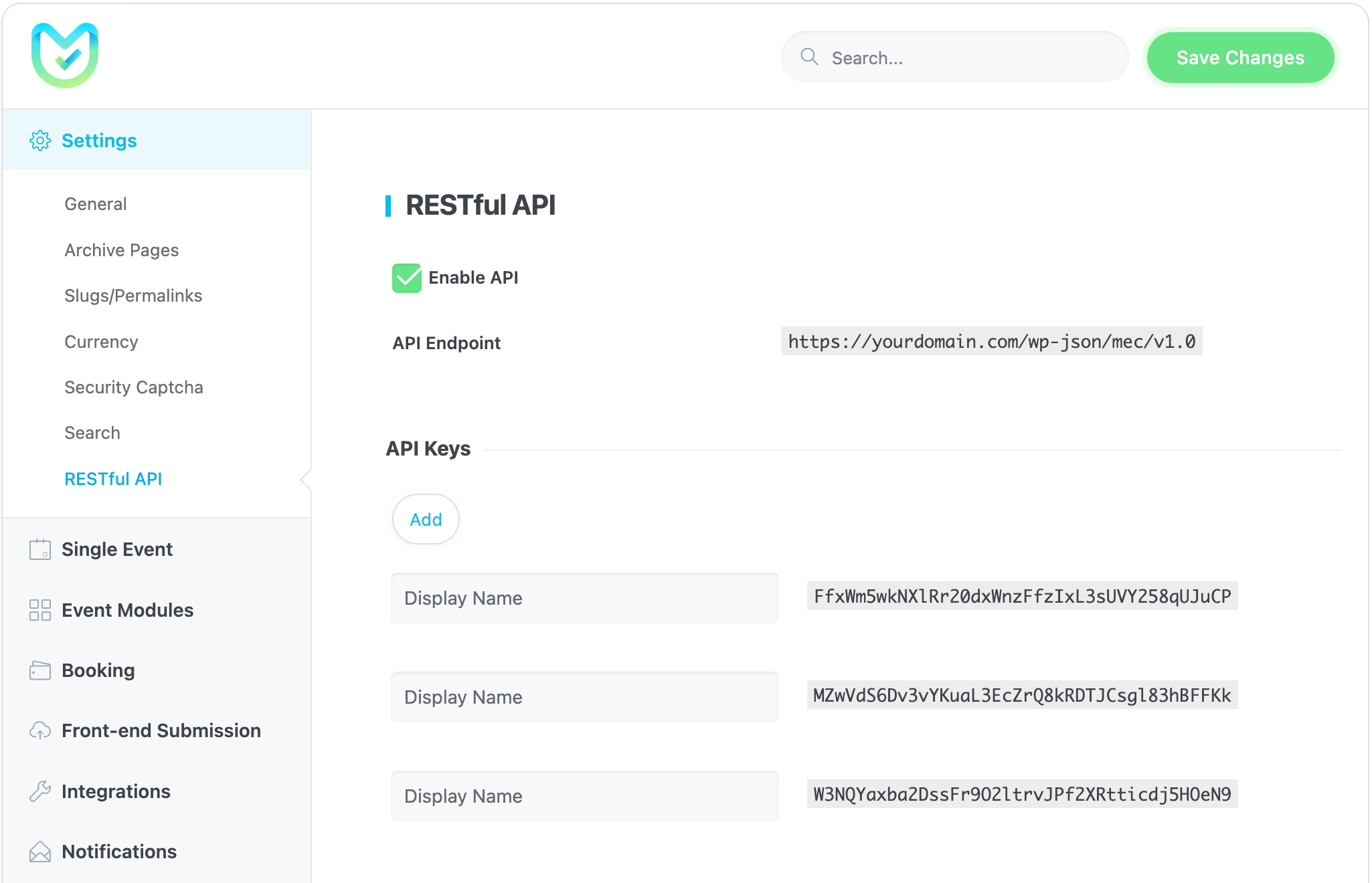
RESTful API
Updated on: 25/01/2026
Thank you!