
Booking Report
The Booking Report section in Modern Events Calendar provides tools for managing event attendees, sending targeted or mass emails, and exporting or cleaning up booking data. It includes three main tabs:
- Selective Email
- Mass Email
- Export & Purge
Each tab serves a specific purpose in the attendee management workflow.
1\. Selective Email
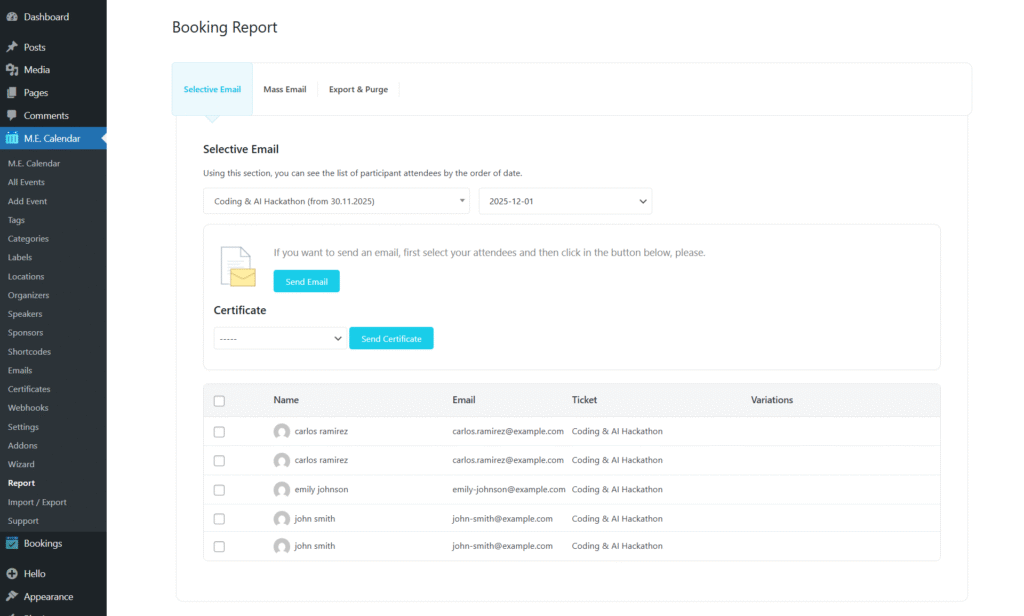
The Selective Email tab allows you to send emails or certificates to attendees of a specific event occurrence.
How It Works
Choose the Event and DateSelect the event and specific occurrence (start date). MEC will load all attendees for that date.
Select AttendeesYou can choose one attendee, multiple attendees, or all listed attendees.
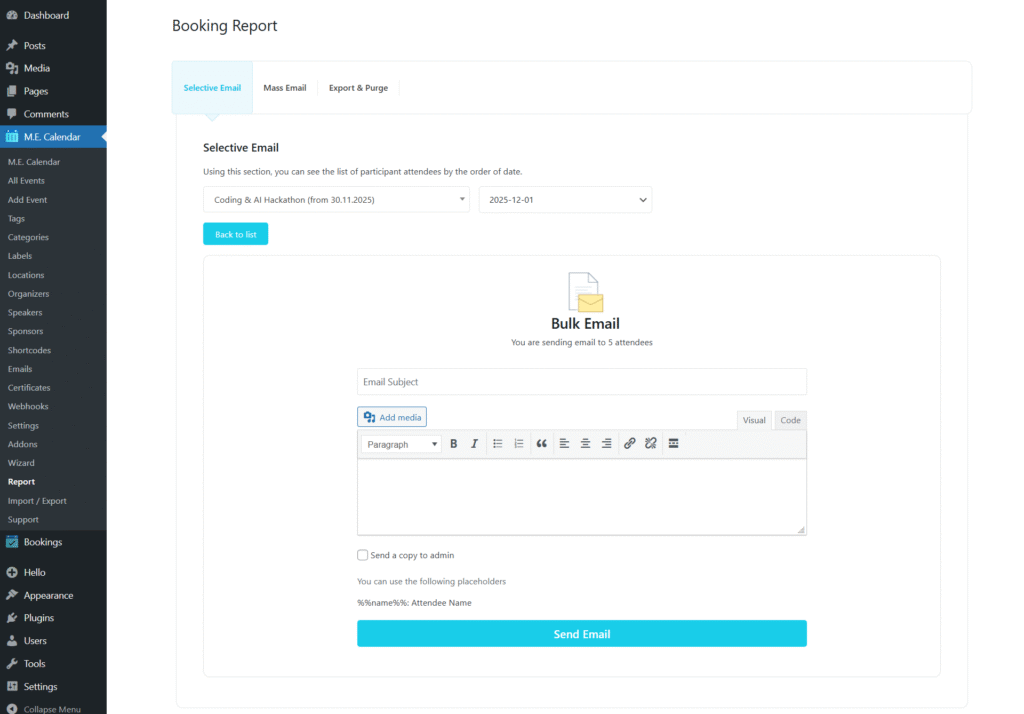
Send Email (Custom Subject & Content)Click Send Email. A section will appear on the same page where you can:
- Enter a custom email subject
- Write or edit the email message body
This allows you to customize messages for each event before sending.
Send CertificatesIf a certificate template exists:
- Select the template from the dropdown
- Choose attendees
- Click Send Certificate
This tab is ideal for targeted communication such as reminders, updates, or personalized messages for a specific event date.
2\. Mass Email
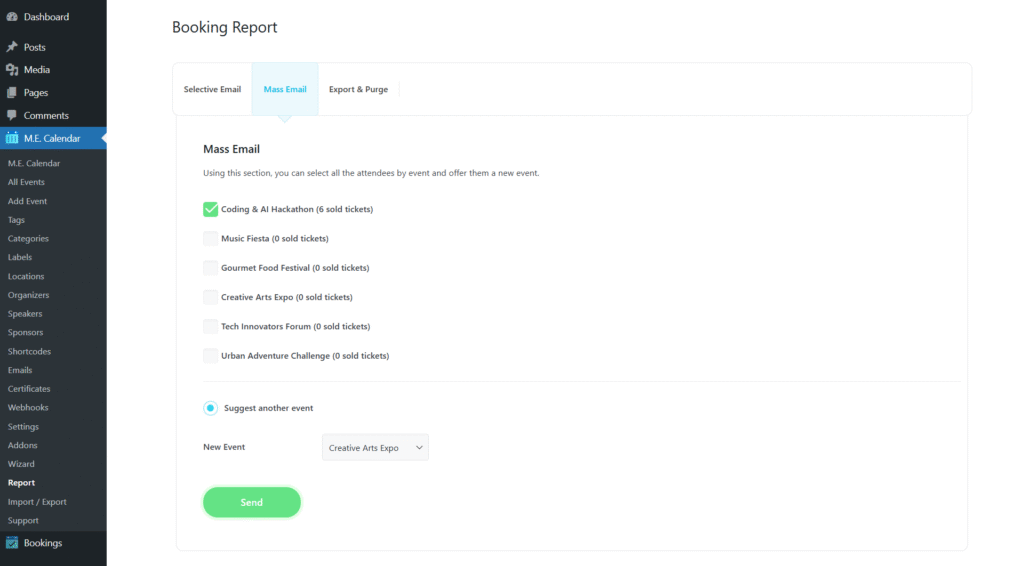
The Mass Email tab lets you send bulk emails to attendees of one or more selected events.
How It Works
- Select one or more events from the list.
- Choose the new event to promote.
- Click Send to email all attendees from the selected events and introduce the new event.
This feature is designed for cross-promotion and engagement with your existing attendee base.
3\. Export & Purge
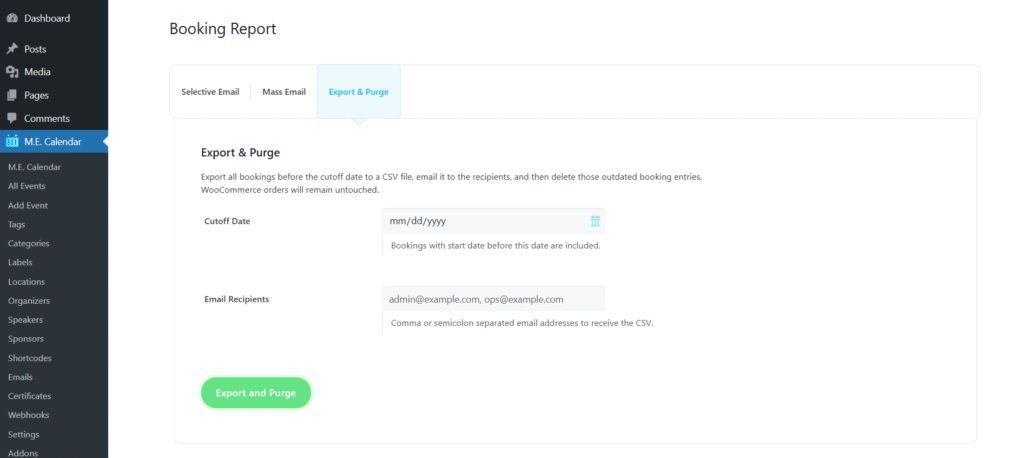
The Export & Purge tab allows you to export outdated booking records and remove them from the system.
How It Works
Cutoff DateEnter a date. All bookings before this date will be included in the export.
Email RecipientsEnter one or more email addresses (comma or semicolon separated). MEC will email the generated CSV file to these recipients.
Export and PurgeClicking the button will:
- Export applicable bookings to a CSV file
- Email the CSV to the specified recipients
- Delete the outdated bookings from the MEC database
Note: WooCommerce orders remain untouched and are not deleted.
This tool helps maintain optimal database performance.
Summary Table
Section | Purpose |
|---|---|
Selective Email | Send emails or certificates to attendees of a specific occurrence. |
Mass Email | Promote a new event to all attendees of a previous event. |
Export & Purge | Export old bookings and delete them from the database for improved performance. |
Updated on: 01/02/2026
Thank you!