
Translate MEC
Modern Events Calendar (MEC) offers robust support for multiple translation methods, enabling you to localize the plugin to fit your site’s specific needs. This guide provides comprehensive instructions on various translation options, including dynamic plugins, language file editing, quick string overrides, and advanced tools.
1\. Quick String Overrides: Translate Options (Inside MEC Settings)
Ideal for small tweaks or custom labels.
Navigate to MEC Settings → Translate Options to modify default strings like weekdays, taxonomy labels, booking button text, and other in-plugin messages—all without editing code. This method is perfect for minor adjustments and quick customizations.
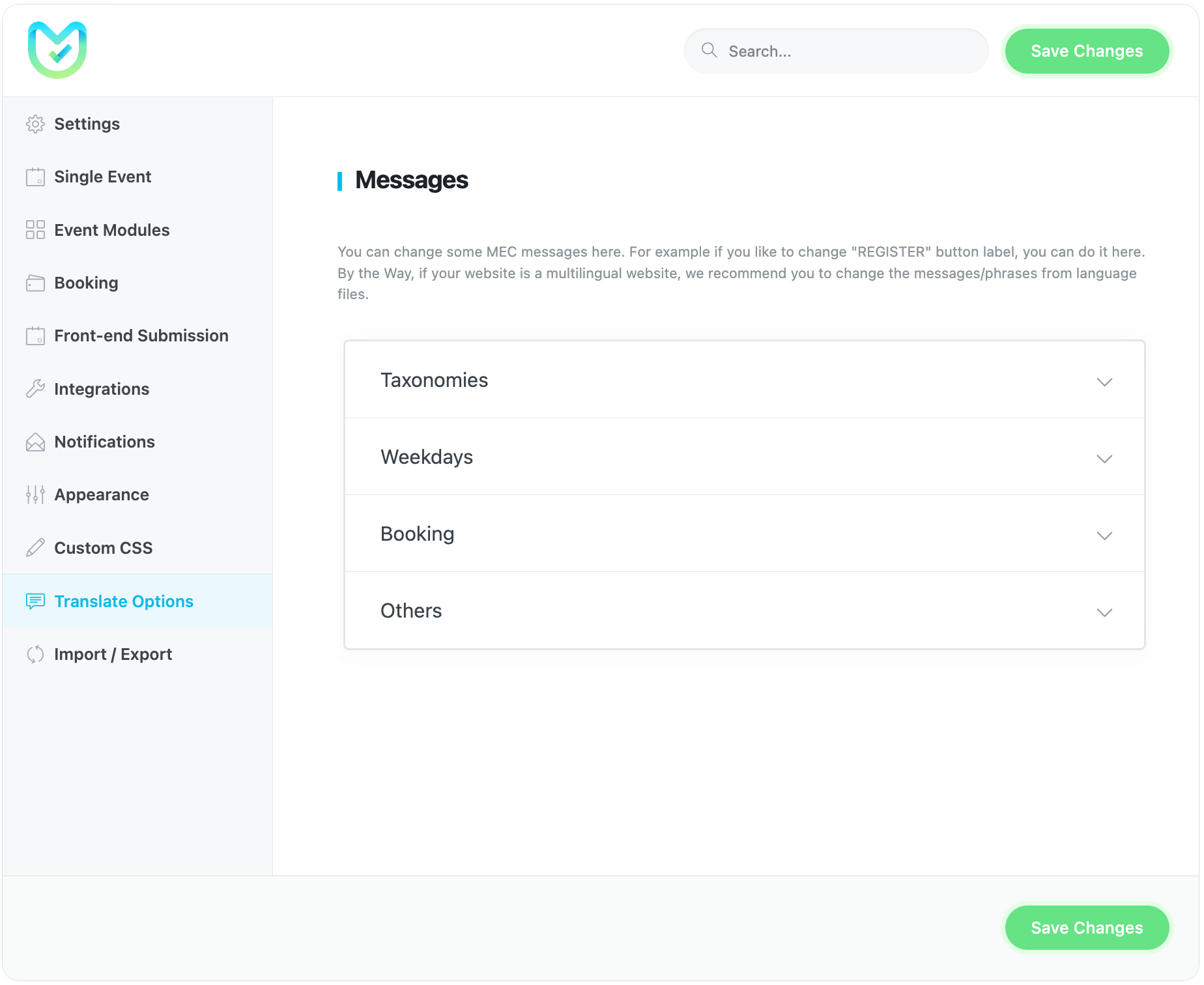
Note: For multilingual sites, full translation via language files is recommended instead.
Click here for more information about Translate Options in Modern Events Calendar.
Note: All of the available translations of the Modern Events Calendar have been done by users, and we do not accept or reject them. If you have any issues with them, you should try to fix them yourself.
2\. Traditional Localization: .po / .mo Files with Poedit or Similar Tools
Best for full plugin translation.
Use Poedit (or GlotPress, Launchpad, etc.) to open the MEC POT file and create a .po translation.
Name files correctly:
Pro version: mec-xx_YY.po / .mo (e.g., mec-fr_FR.po)
Lite version: modern-events-calendar-lite-xx_YY.po / .mo
Save the translated files into the plugin’s languages directory (e.g., wp-content/plugins/modern-events-calendar/languages/).
You can either translate the .po and .mo files, or you can use dynamic translation plugins as below.
3\. Translate MEC with Poedit
Download and Install Poedit.
Poedit provides a simple and straightforward interface that does not involve a steep learning curve. On top, you will see the translatable file. Below it, there is a table where the source text is on the left, and the target text is on the right.
When you’ve finished translating, simply save your file. Poedit will automatically create both .po and .mo files in your plugin’s language folder.
Now that MEC has been translated, you can upload it (first, you need to zip it again). You can either use FTP to upload the file or log in to your WordPress Dashboard and upload it by going to Plugins > Add Plugin. (Click here for more information about using FTP to upload the files to your WordPress website.)
You can send your .po and .mo files to our support email address (_[\email protected\]_) so that we can update our database to help other users with your language.
4\. Translate MEC with WPML
Full featured, ideal for serious multilingual sites (paid).
Ensure you have:
- WPML Multilingual CMS
- Translation Management
- String Translation
- Advanced Translation Editor (ATE)
We’ve prepared a comprehensive document about MEC translation using WPML, which you can access through the following URL: Translate with WPML Plugin
5\. Translate MEC with Loco Translate
Convenient in-dashboard translation with update protections.
- Install the Loco Translate plugin.
- Use Loco Translate to translate MEC directly from your WordPress admin.
For guidance, please see this video tutorial for more details.
6\. Translate MEC with Poeditor
Fast translation suitable for high-volume needs.
POEditor enables AI-driven translation for large numbers of strings.
- It’s a paid tool with a free tier limited to around 1,000 strings—perfect for large but manageable localization tasks
7\. Translate MEC with Say What

No file editing—just override strings on the fly.
- Install the Say What! plugin
- Enter the exact string as found in MEC and your customized replacement
- The plugin handles the rest, allowing in-dashboard string overrides without touching source files
Updated on: 25/01/2026
Thank you!