
Advanced Location Addon
The Advanced Location addon is a powerful extension designed to enhance event organization by providing dedicated profile pages for each specific venue or location. It allows you to showcase location lists and their associated events through flexible shortcodes, ensuring a professional and seamless integration into your website.
Initial Setup
Before you begin, ensure you have the following:
- MEC Lite or Pro: This addon is compatible with both the Lite and Pro versions of Modern Events Calendar.
- Plugin Installation: Ensure both MEC and the Advanced Location addon are installed and activated.
Enable Location Module: Navigate to MEC Settings > Event Module and ensure the Location feature is enabled.

Global Configuration
Once activated, you can access the configuration hub via the new menu in MEC Settings > Advanced Location.
Single Page Setup
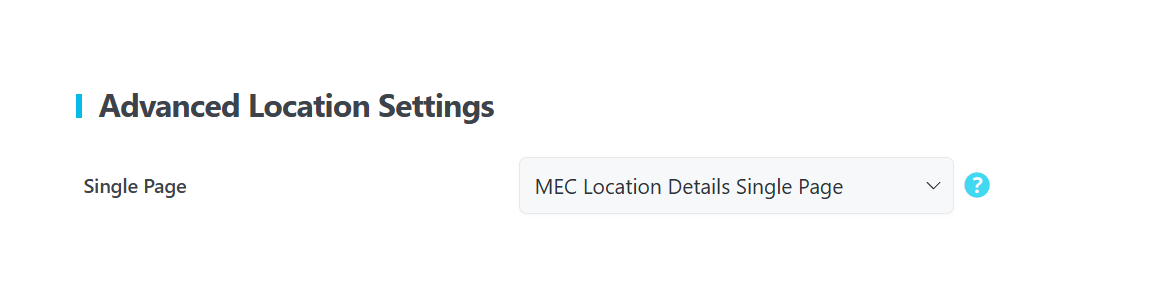
The addon automatically creates a custom page containing the \[advanced-location-single-public\] shortcode. This page serves as the hub for individual locations, displaying the Name, Address, Website, and Phone Number.
- Manual Page Creation: If the page is not created automatically, create a new WordPress page, paste the \[advanced-location-single-public\] shortcode, and publish it.
- Linking the Page: In the Advanced Location addon settings, select your custom page from the Single Page dropdown menu.
Location Default Settings
These settings control the global behavior of your location profiles and event lists.
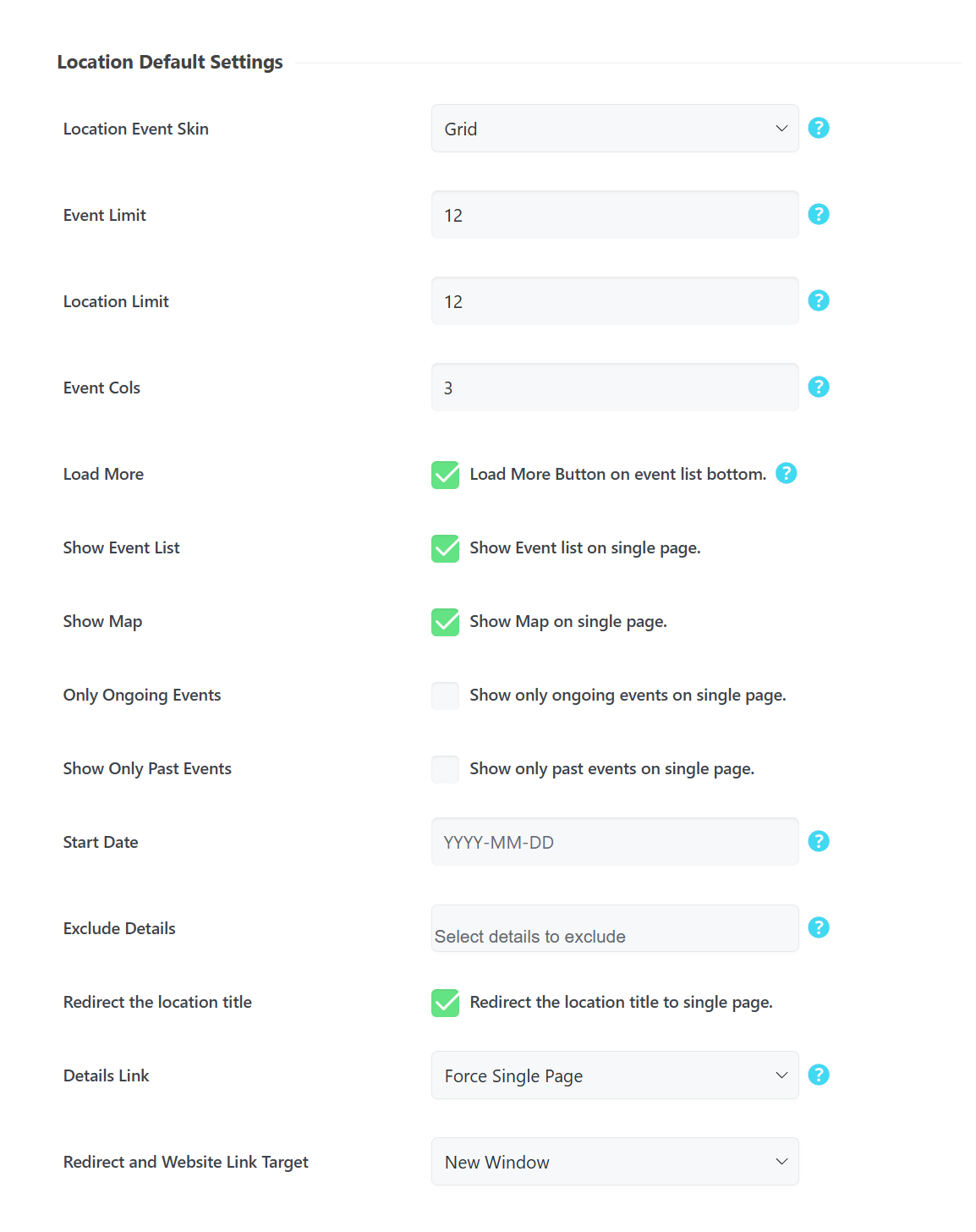
- Location Event Skin: Select the visual layout (skin) for displaying a location’s linked events.
- Event Limit: Set the maximum number of events displayed on a location’s list.
- Location Limit: Define how many locations appear on the main list page.
- Event Cols: Specify the number of columns for the event grid.
- Load More: Toggle this to show a Load More button at the bottom of event lists.
- Show Event List: Enable or disable the event list on the location’s single profile page.
- Show Map: Display a map for the location on the single page (Requires Google Maps API).
- Only Ongoing Events: Filter the list to show only currently active events.
- Show Only Past Events: Filter the list to show only completed events.
- Start Date: Use the date picker to filter and display events starting from a specific date onwards.
- Exclude Details: Check boxes to hide specific contact info, including Website, Address, Tel, and Email.
- Redirect the Location title: Enable this checkbox to redirect the location’s name to a specific link.
- Details Link (Prioritization): Choose how the title redirect behaves:
- Website on Input: Redirects to the URL entered in the location’s website field.
- Force Single Page: Always redirects to the location’s dedicated profile page.
- Force Website Link: Ignores the single page and forces a redirect to their external website.
- Redirect Link Target: Choose whether to open links in a New Window or the Current Window.
Pro Tip: Ensure every Location entry has complete content (address, website, etc.) in the taxonomy settings to fully leverage the “Exclude Details” and “Single Page” features.
Using Shortcodes
The Advanced Location Addon utilizes three primary shortcode types: Single (one location), List (all items), and Featured (items marked as featured).
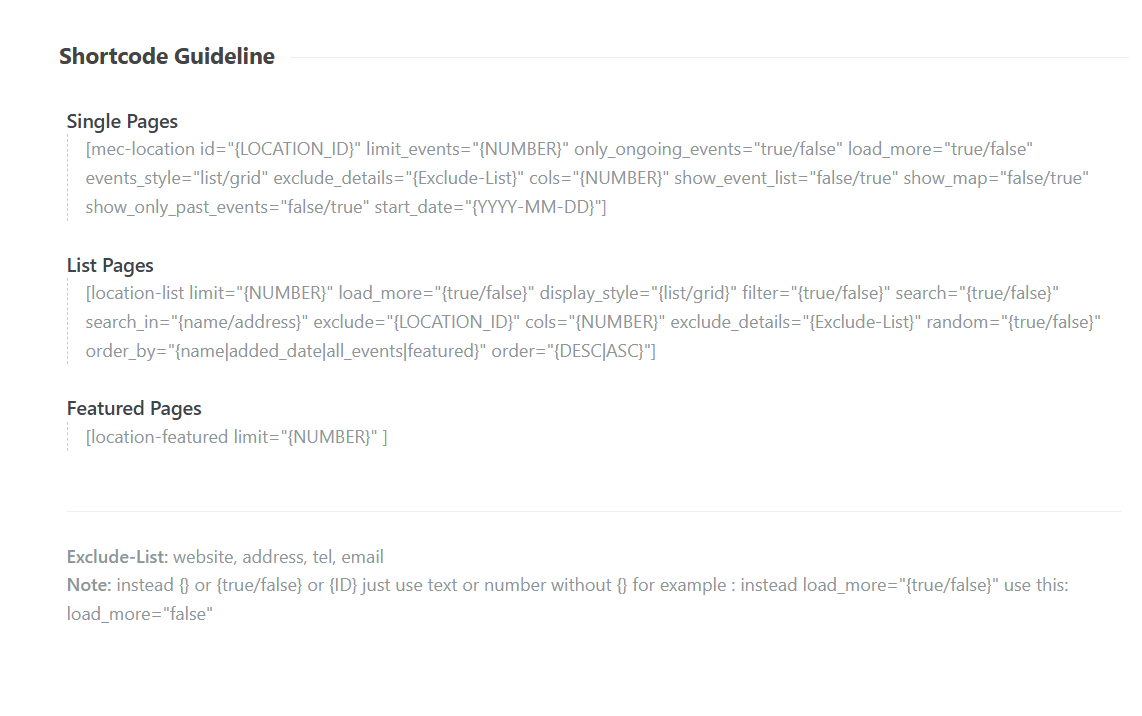
\[mec-location\] Attributes
Use this shortcode to display a specific location’s details.
- id=”{LOCATION_ID}”: The unique ID found in the location taxonomy list.
- limit_events=”{NUMBER}”: Limits events shown for this location.
- only_ongoing_events=”{true/false}”: Toggles ongoing event visibility.
- load_more=”{true/false}”: Enables/disables the Load More button.
- events_style=”{list/grid}”: Switches between list or grid layouts.
- exclude_details=”{Exclude-List}”: Comma-separated list to hide details (e.g., Tel, Email).
- cols=”{NUMBER}”: Sets columns for grid layout.
- show_event_list=”{true/false}”: Shows/hides the associated event list.
- show_map=”{true/false}”: Displays a map for the location.
- show_only_past_events=”{true/false}”: Displays only past events.
- start_date=”{YYYY-MM-DD}”: Filters events from this date onwards.
\[location-list\] Attributes
Use this to create a directory of all your event venues.
- limit=”{NUMBER}”: Total number of locations to display.
- load_more=”{true/false}”: Enable/disable the Load More option.
- display_style=”{list/grid}”: Choose the layout style.
- filter=”{true/false}”: Adds filter options to the list.
- search=”{true/false}”: Enables a search bar for the list.
- exclude=”{LOCATION_ID}”: Exclude a specific location by ID.
- random=”{true/false}”: Randomizes the order of locations.
- order_by=”{name|added_date|all_events|featured}”: Sorts the list by the chosen criteria.
- order=”{DESC|ASC}”: Sets ascending or descending order.
Use Cases (When This Addon is Useful)
- City-Wide Festival Management: Create a dedicated “Venues” page where attendees can browse every location involved in a festival and see a live list of upcoming performances at each site.
- Corporate Branch Directories: For businesses with multiple offices, use the \[location-list\] shortcode to allow employees to find training sessions or meetings scheduled specifically at their local branch.
- Featured Venue Spotlights: Use the Featured shortcode on your homepage to highlight premium partner venues or newly added locations to drive more traffic to their specific event calendars.
Situations This Addon May Not Be Ideal
- Simultaneous Time Filtering: The addon currently cannot display both past and future events at the same time on a single location page.
- Map Limitations: Full map functionality in certain skins requires MEC Pro and a valid Google Maps API; it will not work effectively without these.
- Non-WordPress Environments: This addon is built specifically for WordPress and requires the Modern Events Calendar plugin to function.
Troubleshooting for Beginners
- Shortcode Not Working? Ensure you have used double quotation marks (e.g., load_more=”true”) and check for extra spaces that might break the code. Do not use square brackets \[\] inside the attributes themselves.
- Missing Location Menu? Double-check that the Location feature is enabled in MEC Settings > Event Module.
- Map Not Displaying? Confirm you have entered a valid Google Maps API key in your MEC settings and that the “Show Map” toggle is enabled.
- Single Page Showing 404? Navigate to WordPress Settings > Permalinks and click Save Changes to refresh your site’s link structure.
FAQ
What is the primary function of the Advanced Location Addon for MEC (Modern Events Calendar)?
The Advanced Location addon enhances the event organization within MEC by providing dedicated pages for each location. It enables the display of location lists and their associated events seamlessly on a website through the use of shortcodes. This makes it easier for users to find events based on location and allows for a better user experience.
What are the initial steps required to use the Advanced Location Addon?
To begin using the Advanced Location addon, you need to ensure that both the MEC plugin and the Advanced Location addon are installed and activated. After activation, the location feature must be enabled in MEC Settings > Event Module.
How do I designate a specific page to display detailed information about a single location?
The addon will automatically create a single page for each location. However, if this does not occur automatically, you can create a custom page and add the shortcode \[advanced-location-single-public\]. Then, select this page from the “Single Page” dropdown menu within the Advanced Location Addon settings. This page will then be used to display specific information about any given location.
What kind of information will be displayed on the single location page?
The single location page will display detailed information about a specific location, including its name, address, website, phone number, and other relevant details. It also displays events associated with that location.
What is the purpose of the “Location Skin” and “Location Event Skin” options?
The “Location Skin” option allows you to choose a specific style for how the list of locations will be displayed. Similarly, the “Location Event Skin” option enables you to select a style for displaying the list of events associated with a location.
How can I control the number of locations or events shown on a page?
The “Location Limit” setting allows you to control the number of locations displayed on the location list page, while the “Event Limit” setting controls the number of events displayed on a single location’s event list.
How can I add a ‘Load More’ button to the event list for a location?
To add a ‘Load More’ button to the event list page, you can enable the ‘Load More’ option in the addon settings. Alternatively, you can include load_more=”true” in the relevant shortcode.
How can I show or hide the event list or a map on a single location page?
You can control whether the event list and the map are shown on a single location page by using the “Show Event List” and “Show Map” options within the addon settings.
What types of shortcodes are available with the Advanced Location Addon?
There are three main types of shortcodes available: Single, for displaying specific locations; List, for displaying all available locations; and Featured, for displaying locations that have been marked as featured.
How do I correctly use a shortcode with boolean options, such as the “load_more” option?
When using boolean options in a shortcode, replace the placeholder {true/false} with either “true” or “false”. For example, to enable the load more option, you would use load_more=”true”. Remember to include the quotation marks.
How do I correctly use shortcodes, and what are the common mistakes to avoid?
To use shortcodes, simply copy and paste the code onto the desired page. When implementing the shortcodes, you need to ensure that both opening and closing double quotation marks are present. Also, be mindful of spaces and avoid using square brackets within the shortcode itself.
How can I ensure the map displays correctly on my location pages?
To make sure the map works correctly on your location pages, you must have the Google Maps API enabled.
How do I display only ongoing events on a single location’s event list?
To display only ongoing events, use the option only_ongoing_events=”true” within the relevant shortcode. This ensures that only the events that are currently happening will appear on the location’s event list.
What are the redirection options for the Location title?
There are three ways to prioritize redirection of the Location title: * Website on Input: Redirects to the Location’s website if a URL is entered. * Force Single Page: Redirects to the Location’s single page. * Force Website Link: Redirects to the Location’s website, overriding the single page.
Updated on: 04/04/2026
Thank you!