
Elementor Single Builder Addon
The Elementor Single Builder Addon is a powerful tool designed to give you total creative control over your event pages. It allows you to move beyond standard layouts by using Elementor’s intuitive drag-and-drop editor to arrange event details, style widgets to match your brand, and create unique templates for specific event categories or individual listings.
Initial Setup & Requirements
Before you begin designing, ensure your environment meets the necessary requirements and the post type is correctly configured.
• Requirements: You must have MEC Lite or Pro (version 6.0 or higher) and Elementor (version 3.0 or higher) installed. Your server should run at least PHP 7.4 and WordPress 5.0.
• Installation: Upload the addon ZIP file via Plugins > Add New, then click Activate.
• Enabling the Post Type: To make event templates editable in Elementor, navigate to Elementor > Settings > General and check the box for the Events Single Builder post type.
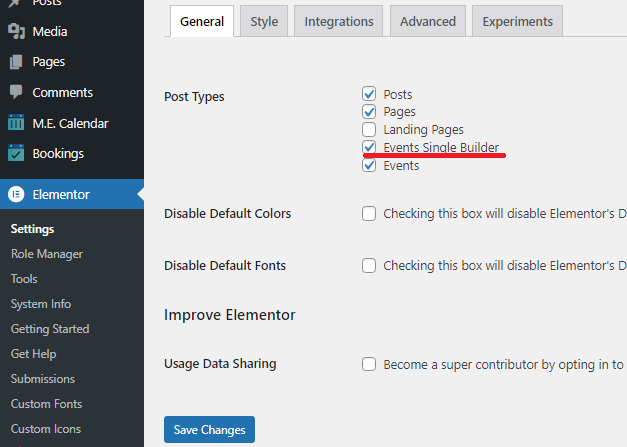
Designing and Assigning Templates
The core of this addon is the ability to create unlimited templates and assign them where they are needed most.
Creating a Template
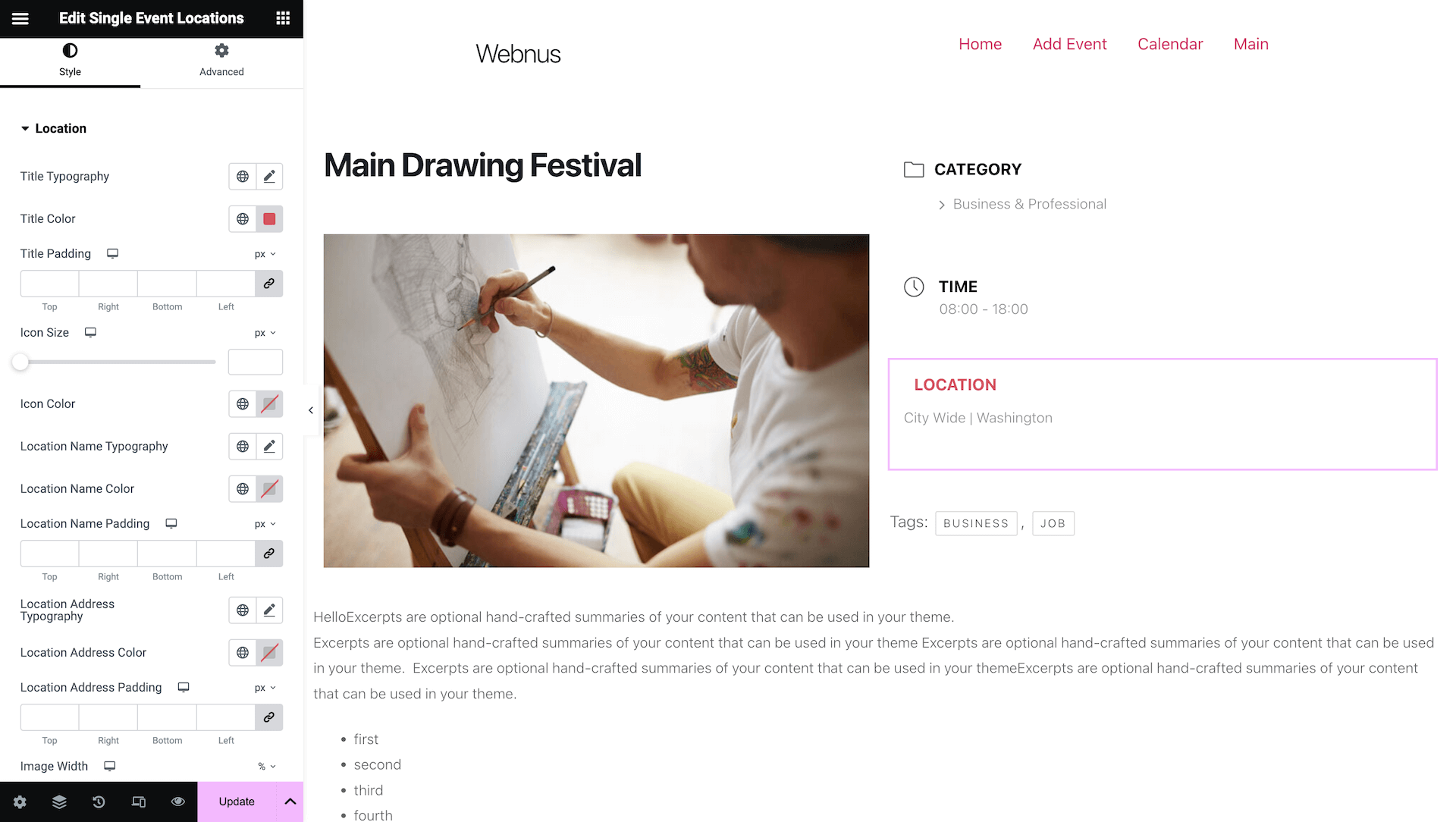
- Navigate to M.E. Calendar > Single Builder.
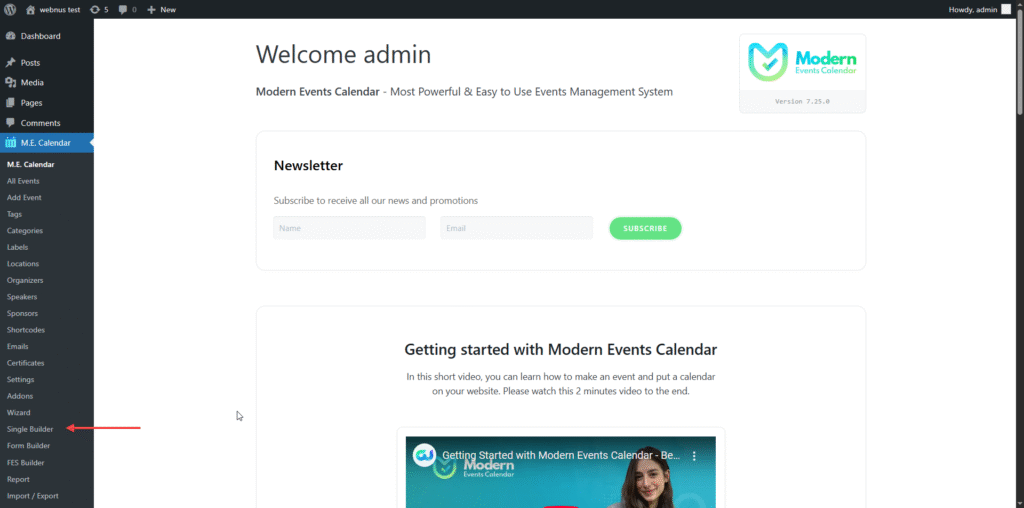
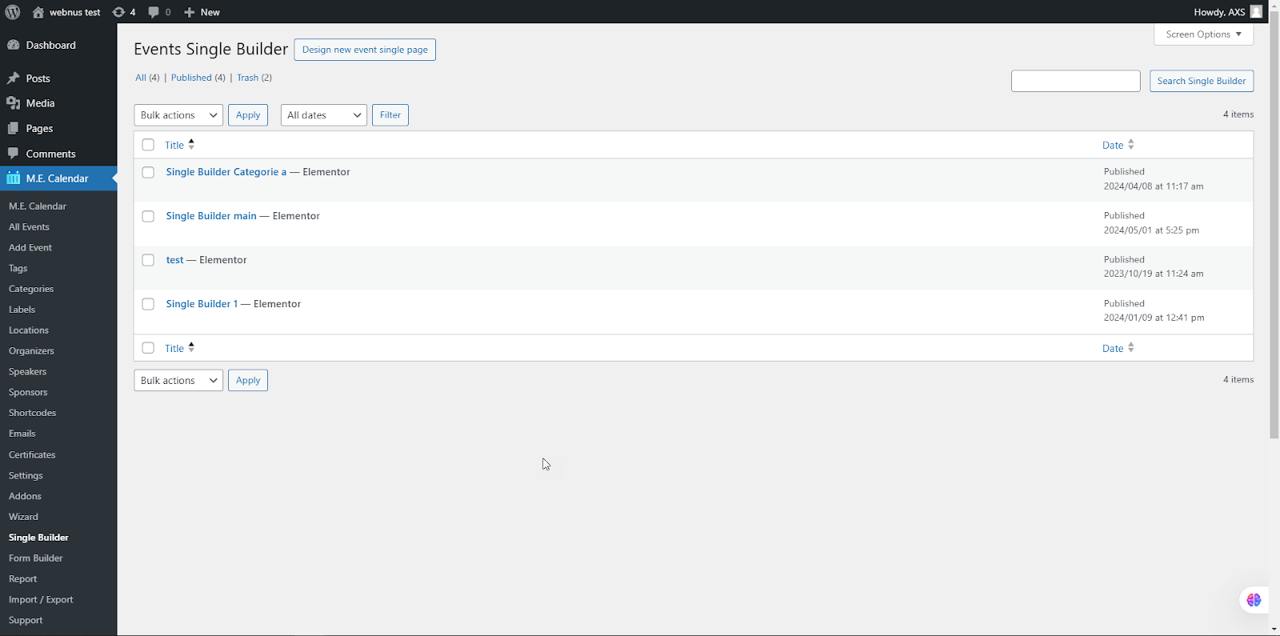
- Click to edit a template or create a new one using the Elementor Editor.
- In the Elementor sidebar, locate the MEC Single Builder category to find specific MEC widgets.
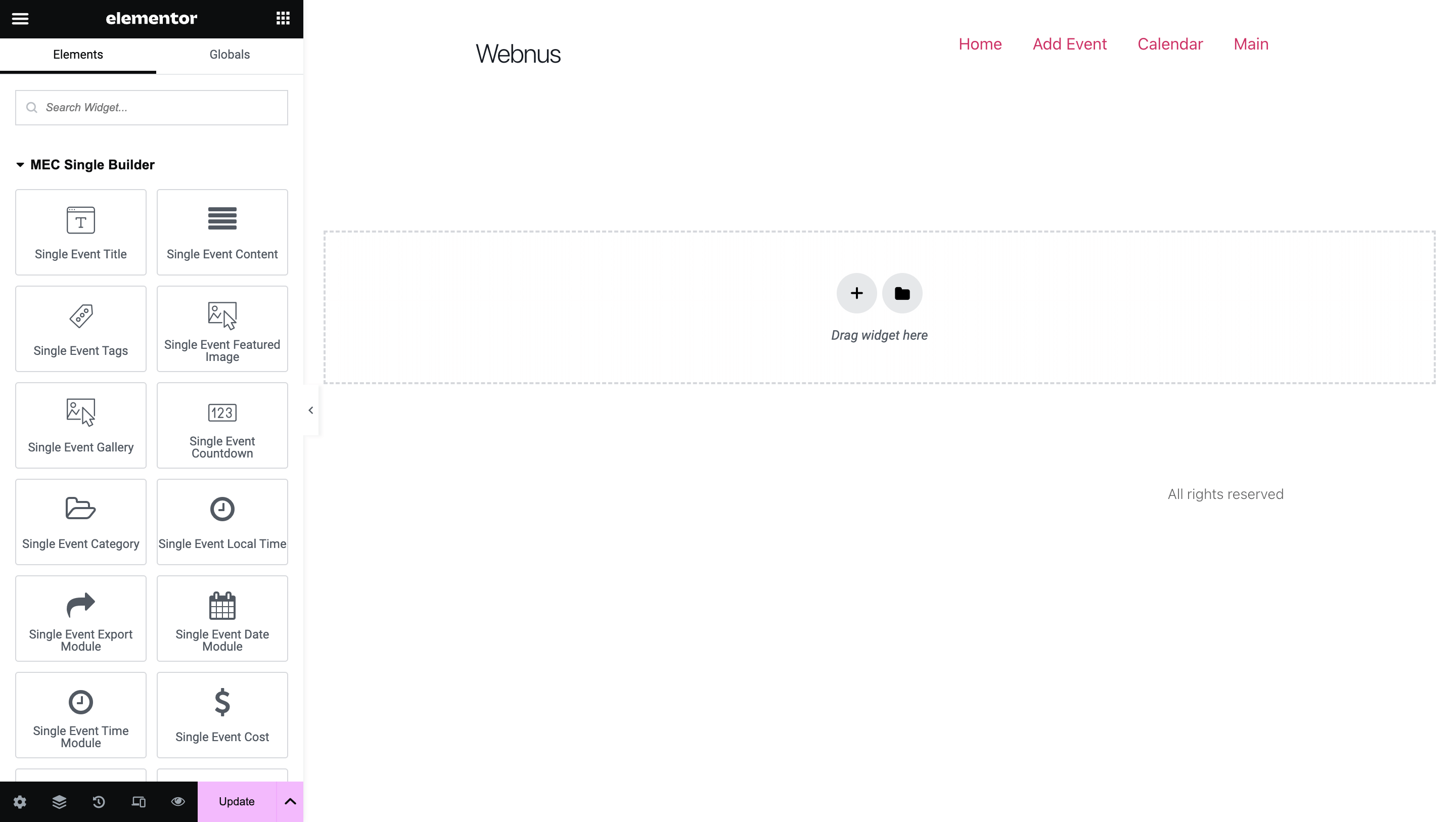
- Available Widgets: You can drag and drop elements such as Event Title, Event Date, Event Time, Event Description, Event Location, Event Tickets, and Venue Information.
- Customize colors, fonts, and sizes using Elementor’s standard styling panels.
Assigning Templates Globally
Once you have finished designing the single builder template, to set a Globally Templates for all events, go to MEC Settings > Single Event > Basic tab.
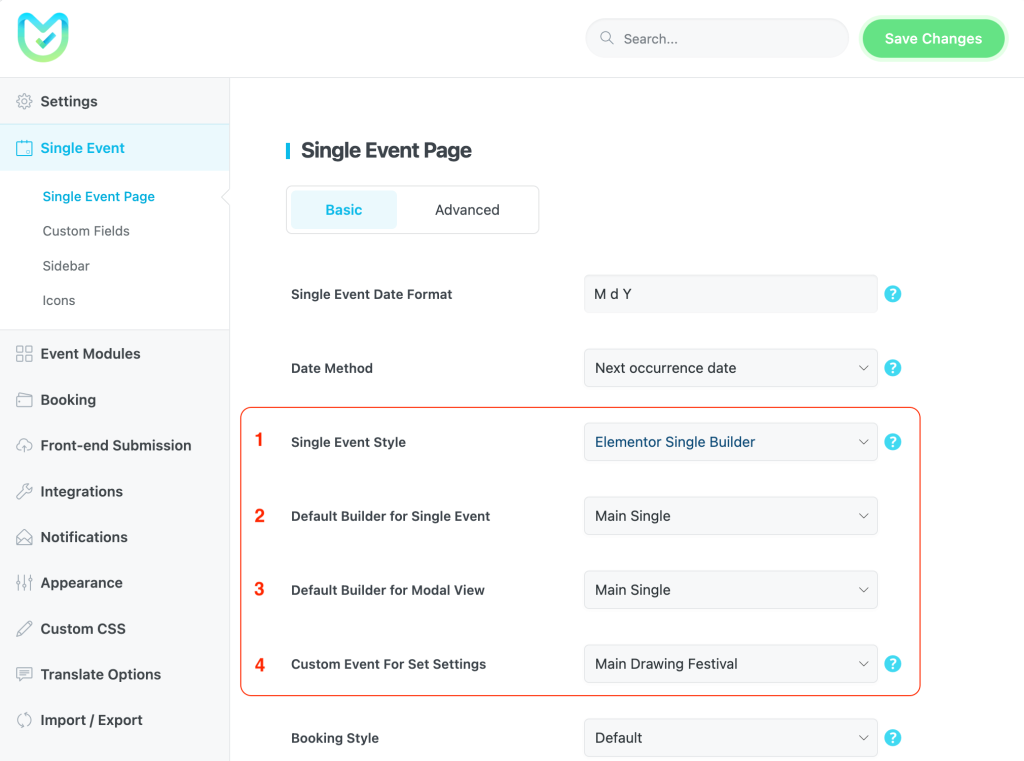
- Single Event Style: Select Elementor Single Builder to override the default views.
- Default Builder for Single Event: Select your primary designed template from the dropdown.
- Default Builder for Modal View: If you use the modal popup for events, select a specific template here.
- Custom Event For Set Settings: Choose a specific event to act as the “live data” preview while you are designing in the editor.
Assigning Templates Individually
• Individual Events: You can create different layouts and assign them to specific events, such as a unique design for a flagship conference.
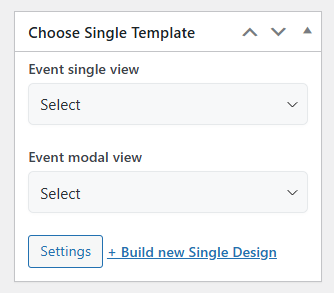
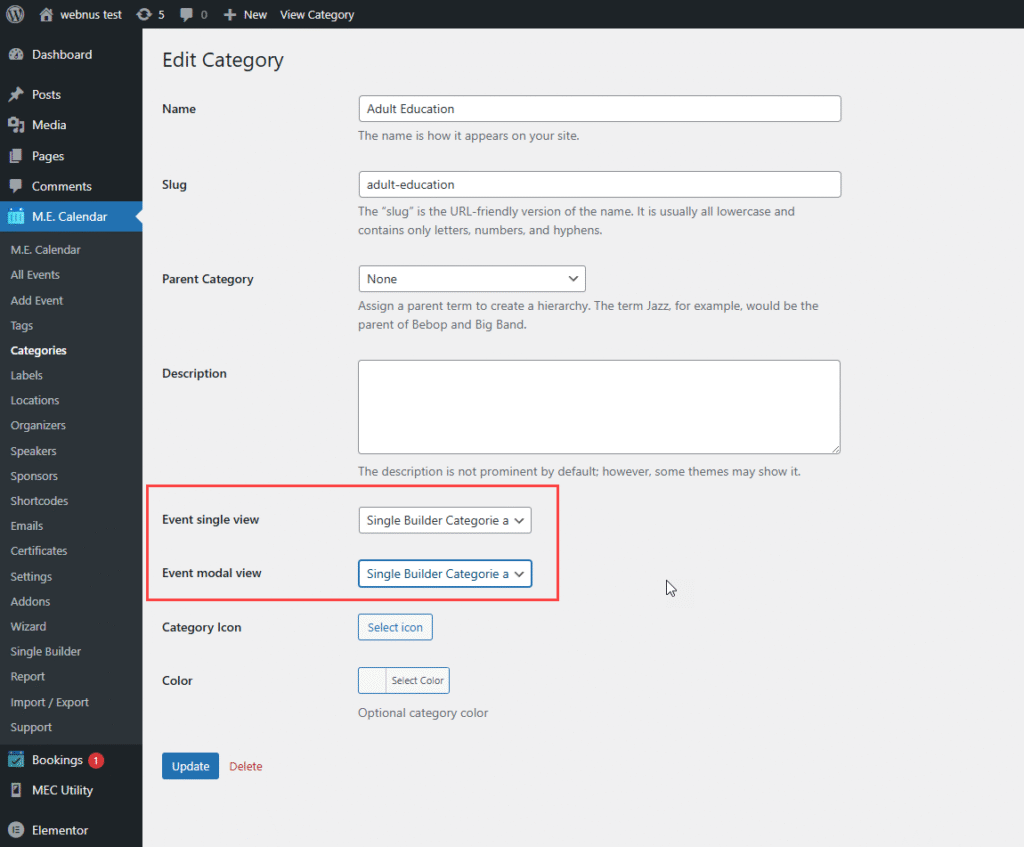
• Category-Based Layouts: Navigate to the Event Categories section in MEC. You can assign specific Elementor templates to entire categories (e.g., all “Workshops” use one design while “Webinars” use another).
- - -
Advanced Customization
Full-Width Event Pages
To create a truly immersive, edge-to-edge event page:
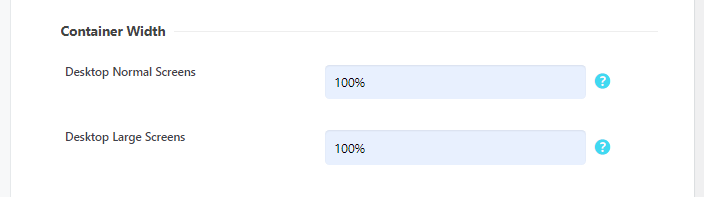
- Go to MEC Settings > Appearance > Container Width and set it to 100%.
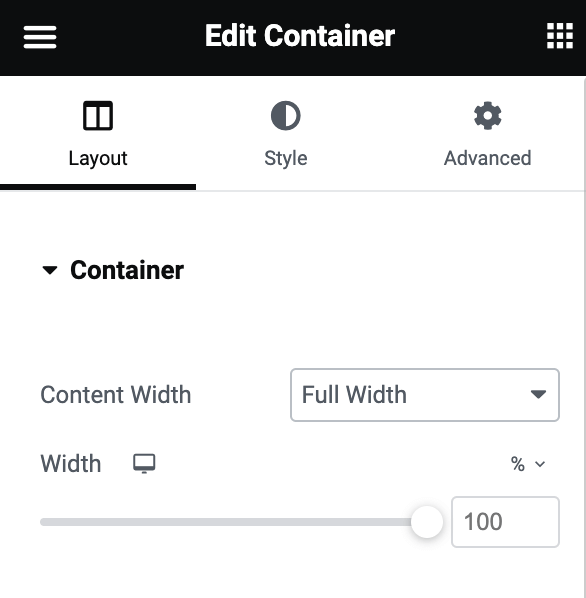
- In the Elementor Editor for your template, set the section Layout > Content Width to Full Width.
Using Pre-made Designs
If you prefer not to start from scratch, you can use the official pre-made styles:
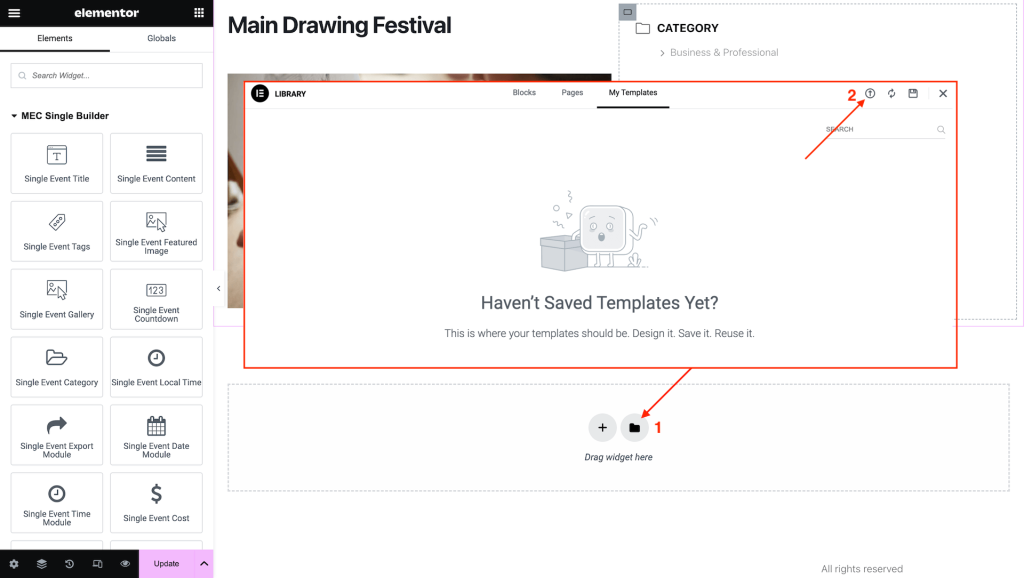
- Open the Elementor edit page and click the Add Template icon.
- Select Import Template and upload the provided JSON file for the pre-made design.
Download Elementor Single Event Styles.
Use Cases (When This Addon is Useful)
• Brand-Specific Event Design: Perfect for businesses that need their event pages to look exactly like the rest of their highly-styled website.
• Consistent Series Branding: Ensures that all instances of a recurring event maintain the same professional look and feel.
• Differentiated Event Types: Useful for organizers who host diverse events (like classes vs. concerts) and want distinct layouts for each category.
Situations This Addon May Not Be Ideal
• Alternative Page Builders: This addon is built exclusively for Elementor. It does not natively provide widgets for Divi or other builders, though Elementor can often be installed alongside them.
• Shortcode-Specific Layouts: You cannot currently create a unique single event layout that applies only when an event is viewed via a shortcode.
• Legacy Environments: It is not suitable for older sites running PHP versions below 7.4 or MEC versions below 6.0.
Troubleshooting for Beginners
• Missing Widget Preview: If you see a message instead of a preview when adding a widget, ensure the “example event” you selected in settings actually contains that data (e.g., has a location or tickets assigned). Also, ensure the module is enabled in MEC Settings > Event Modules.
• Changes Not Reflecting: After making design changes or assigning a new template, always clear your site cache to see the updates live.
• Layout Issues in Editor: If your event page layout does not appear correctly in the editor, try increasing your WordPress memory limit to 512MB in your wp-config.php file. If the issue persists, clear your browser cache or deactivate other plugins to check for conflicts.
FAQ
- How do I install the MEC Elementor Single Builder Addon?
To install the MEC Elementor Single Builder Addon, first ensure that both the Modern Events Calendar (MEC) plugin and the Elementor plugin are installed and active. Afterward, install the addon by uploading the plugin ZIP file. Once installed, activate the addon from the WordPress dashboard under the Plugins section.
- What are the system requirements to use the MEC Elementor Single Builder Addon?
The MEC Elementor Single Builder Addon requires the Modern Events Calendar plugin (version 6.0 or higher) and Elementor (version 3.0 or higher). You also need a WordPress site running at least PHP 7.4 and WordPress 5.0.
- Do I need coding knowledge to customize event pages with the MEC Elementor Single Builder Addon?
No, you do not need any coding knowledge. The addon provides an intuitive drag-and-drop interface within Elementor, allowing you to customize event pages easily without writing any code.
- How can I customize the layout of a single event page?
After activating the MEC Elementor Single Builder Addon, navigate to the M.E. Calendar menu > Single Builder and then click on Elementor’s editor for the specific event page or create a new layout. From there, use the various MEC widgets to add event details like the title, date, and location. You can adjust the layout by dragging and dropping widgets and using Elementor’s styling options to match your design needs.
- What widgets are available in the MEC Elementor Single Builder Addon?
The addon provides several MEC-specific widgets for displaying event information, such as Event Title, Event Date, Event Time, Event Description, Event Location, and Event Tickets. These widgets allow you to present the event data clearly and stylishly on the event page.
- Is the Elementor Single Builder Addon mobile-friendly?
Yes, all event pages designed with the Elementor Single Builder Addon are fully responsive, meaning they will adjust to look great on both desktop and mobile devices.
- Can I modify event pages for recurring events using the MEC Elementor Single Builder Addon?
Yes, the addon fully supports recurring events. When you customize the layout for a single event, those changes will be applied to the recurring event instances as well, ensuring that all events in a series share the same design and layout.
- Can I use the MEC Elementor Single Builder Addon with third-party Elementor add-ons?
Yes, the Elementor Single Builder Addon is compatible with most third-party Elementor widgets and tools, allowing you to enhance your event page designs with additional functionality or visual elements from other addons.
- How does the MEC Elementor Single Builder Addon handle event metadata (like venue and ticket information)?
The addon provides specific widgets to display event metadata such as venue information, event tickets, and more. These can be styled and placed as needed on your event pages, giving you full control over how metadata is presented.
- What should I do if my event page layout does not appear correctly in the Elementor editor?
First, ensure that both the MEC plugin and Elementor are up to date.
If the issue persists, try clearing your browser cache and refreshing the page.
If the issue persists, please increase the memory limit to 512MB in the config.php file.
If the problem is still unresolved, deactivate other plugins to rule out conflicts and check whether the issue is resolved.
- Can I add booking or registration forms to event pages using the MEC Elementor Single Builder Addon?
Yes, the MEC Elementor Single Builder Addon works with MEC’s booking features. You can easily add booking forms, ticketing options, and registration buttons to event pages using the relevant widgets available in Elementor.
- Is there a way to preview changes in real-time while customizing event pages?
Yes, the addon offers a real-time preview feature that allows you to see changes as you make them. This helps you visualize the layout and design of your event page before making it live.
- How do I update the MEC Elementor Single Builder Addon?
To update the MEC Elementor Single Builder Addon, go to your WordPress dashboard and navigate to Plugins > Installed Plugins. If an update is available, you will see an option to update the plugin. Click the “Update Now” button to ensure you are using the latest version with bug fixes and improvements.
Updated on: 22/02/2026
Thank you!