
Event API Addon
The Event API Addon is a powerful utility designed for Modern Events Calendar that allows you to seamlessly display your events on external web applications and platforms. By generating scripts or JSON files, you can synchronize event data across multiple domains without manual re-entry.
Initial Setup & Requirements
Installation
Before you begin, ensure you have the following requirements met:
Activation: Navigate to your WordPress plugins menu and ensure both MEC and the Event API Addon are active.
MEC Lite or Pro: Unlike some addons, the Event API works with both versions of Modern Events Calendar.
Using the Event API
You can generate an API for either a specific group of events (via shortcodes) or for an individual event page.
Event API for Shortcodes
To display a specific calendar view on another website:
- Navigate to MEC > Shortcodes.
- Locate your desired shortcode and click Create API.
Event API for Single Events
To display a single event’s details on another website:
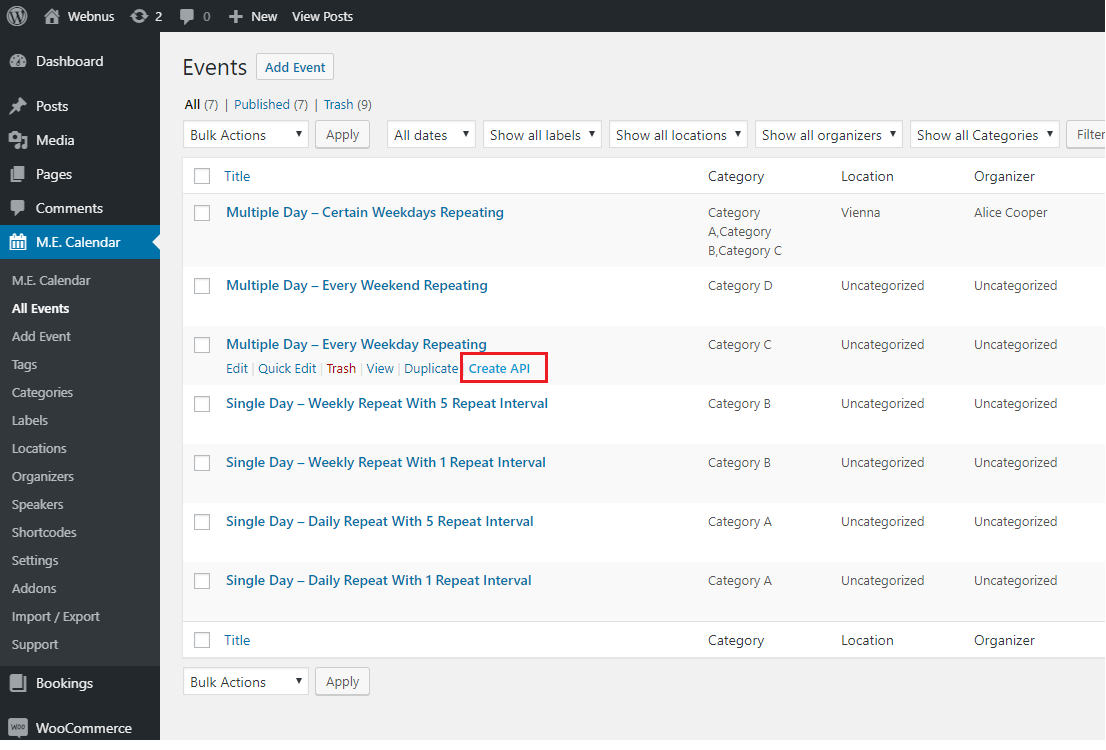
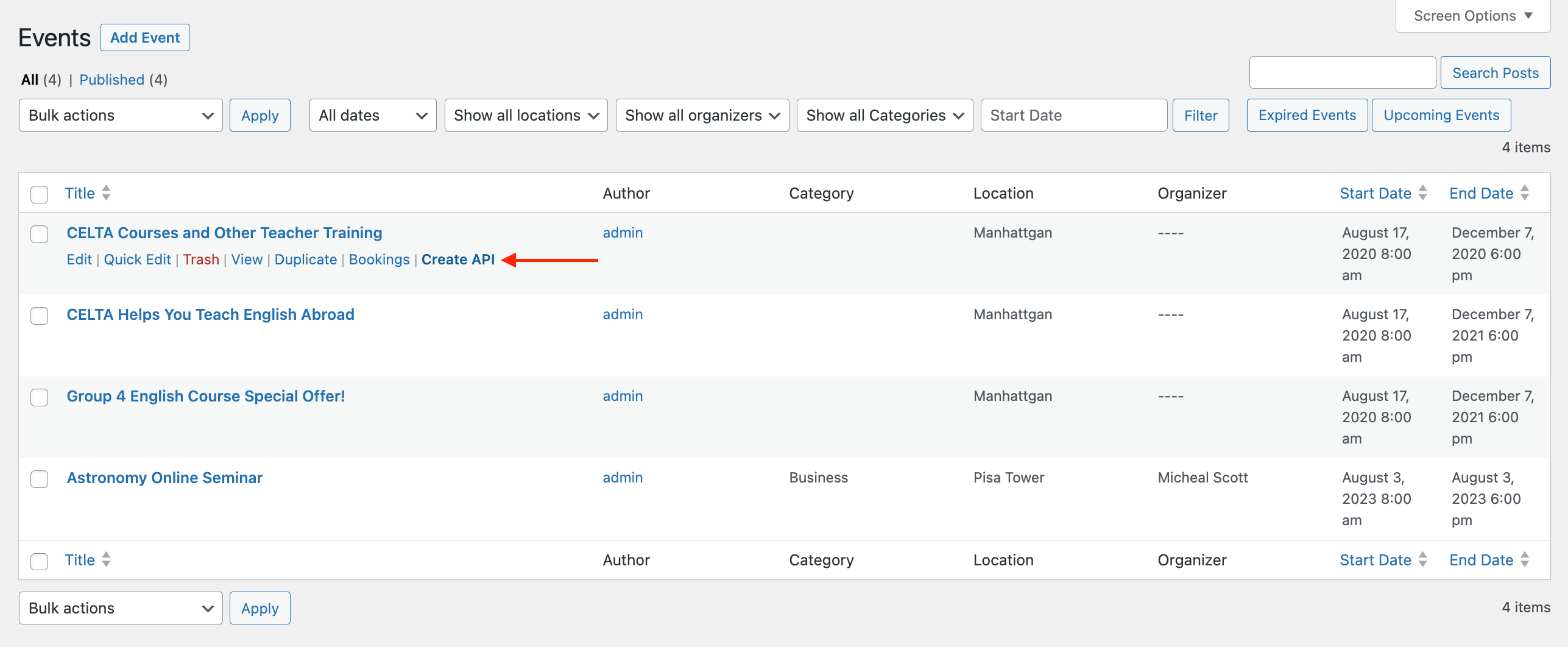
- Navigate to MEC > All Events.
- Find your chosen event and click Create API.
Managing the API Hub
Once you click “Create API,” you will be directed to the management interface. This page is divided into two main sections:
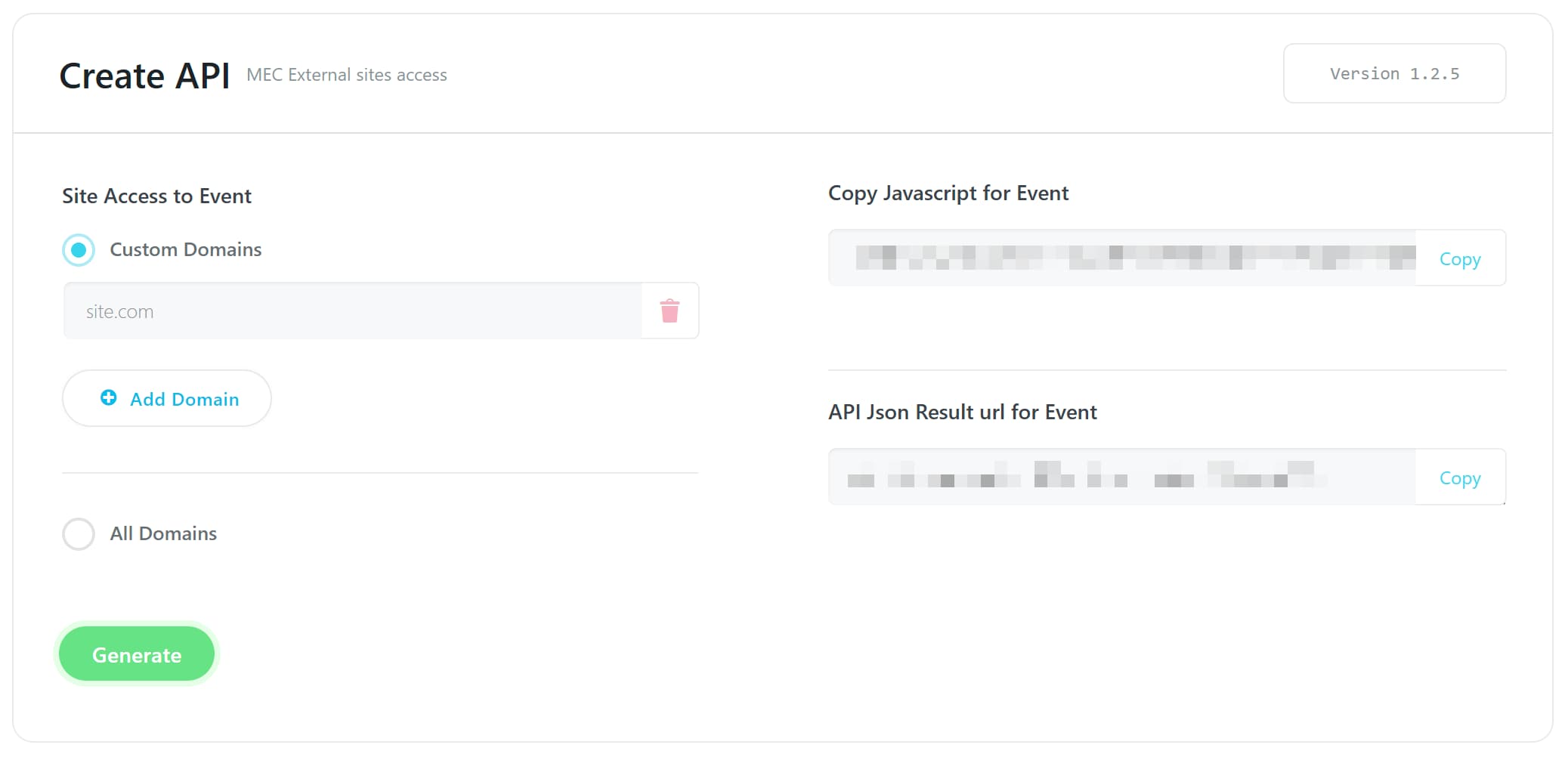
Domain Management (Left Side)
- Domain Authorization: Enter the specific domain(s) where you want the event to be displayed. You can also set the API to work on All Domains.
- Removing Access: To revoke access, select the domain(s) and click the Trash Icon. This immediately disables the API for those specific locations.
- Finalize: Always click the Generate Button once your domain settings are configured.
Data Extraction (Right Side)
The right side provides the tools needed for your destination website:
- Script Field: Contains a script you can copy to your clipboard. Use this to embed the content directly into another site’s HTML.
- JSON Field: Provides event data in JSON format, ideal for developers who want to pull raw data into a custom web application.
You can see samples of the used API below:
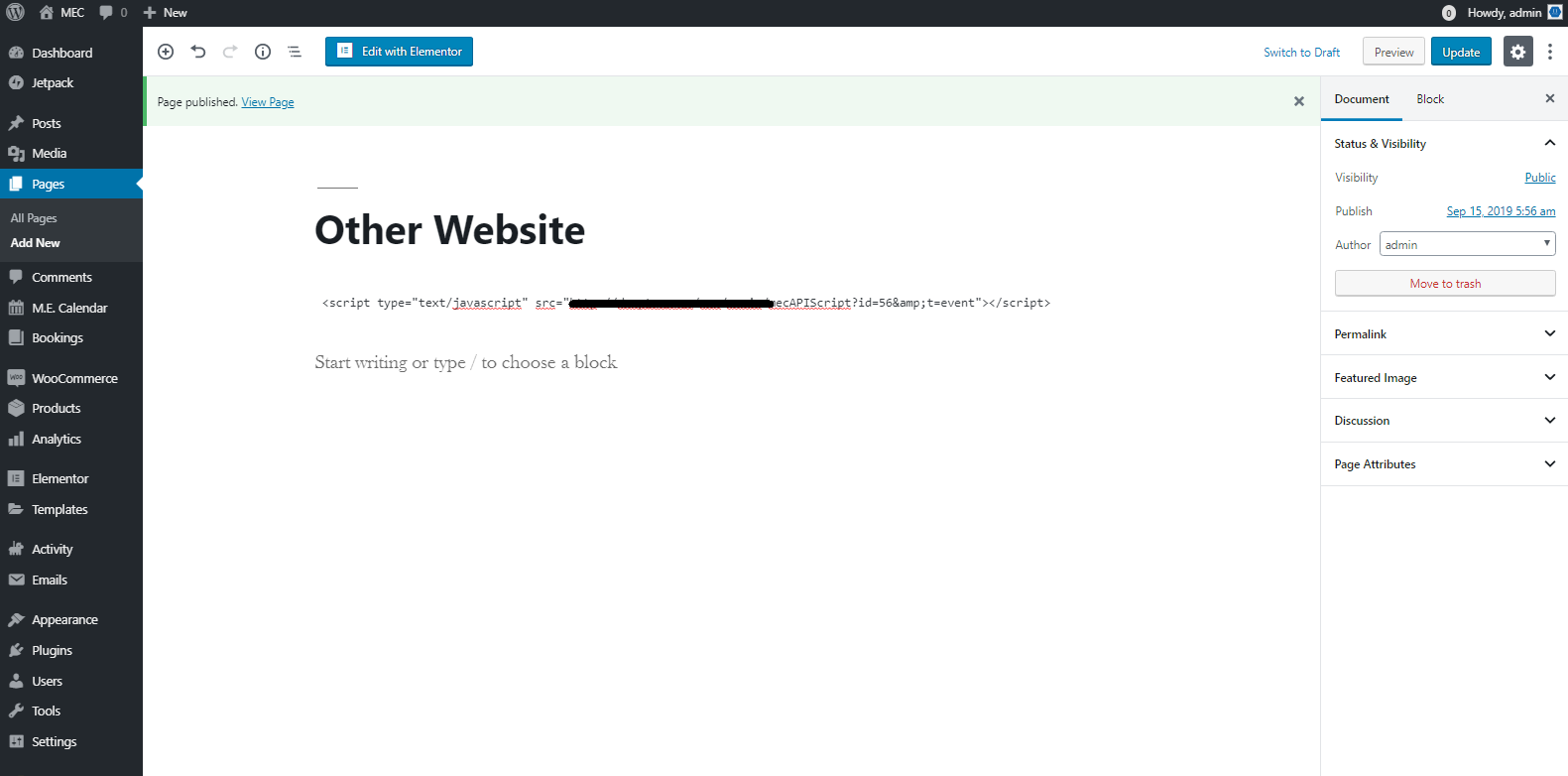
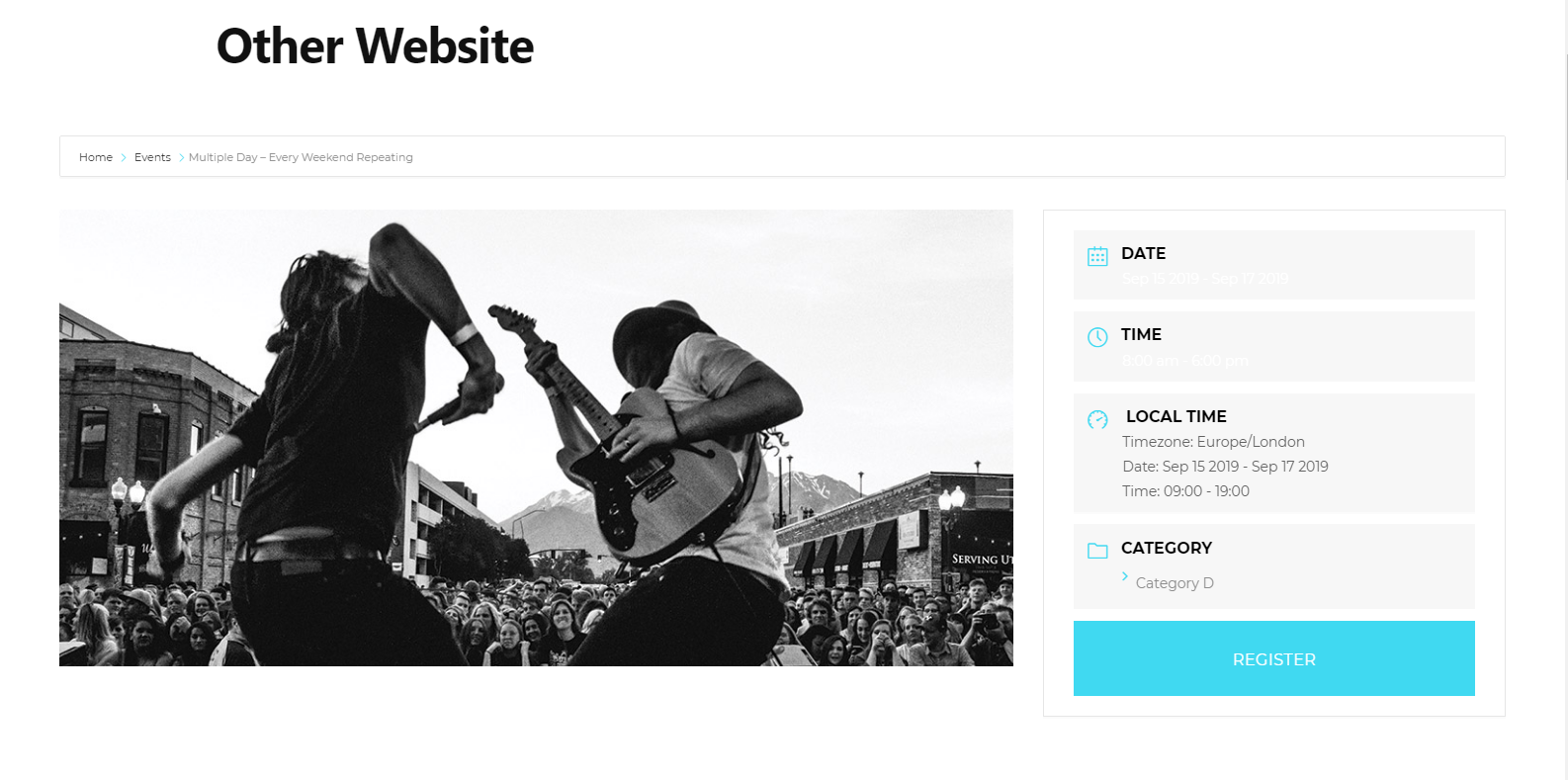
Pro Tip: Ensure your host provider has iframes enabled on your website, as the script requires this functionality to display content properly.
Global Settings & Customization
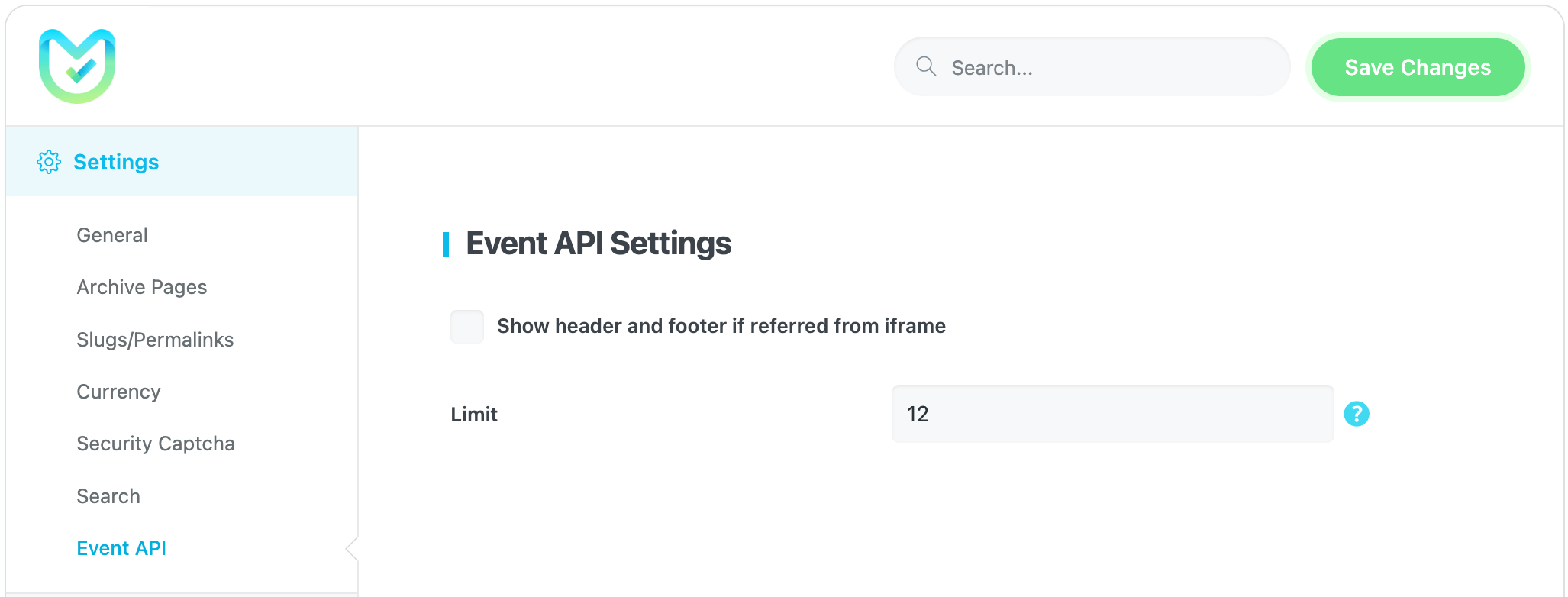
You can find global configuration options by navigating to MEC Settings > Settings > Event API.
- Source Integration: You can choose to include your source website’s Header and Footer in the destination website’s output.
- Event Limits: Control the number of events displayed in the shortcode output to maintain layout consistency.
Use Cases (When This Addon is Useful)
- Cross-Platform Syndication: Perfect for organizations that manage one main event calendar but need to display specific schedules on partner websites or subdomains.
- Mobile App Integration: Ideal for developers using the JSON format to feed real-time event data into a native mobile application.
- Centralized Management: Useful for agencies managing multiple client sites who want to update an event once in a central hub and have it reflect everywhere instantly.
Situations This Addon May Not Be Ideal
- Host Restrictions: If your hosting provider strictly blocks iframes, the standard script method will not function.
- Heavy Optimization Sites: If the destination site uses aggressive speed optimization plugins, they may block the external script links required for the API to load.
- Strict GDPR Compliance: Third-party cookie consent plugins on the source site may sometimes carry over to the destination site, which may require additional technical styling to resolve.
Troubleshooting for Beginners
- Events Not Loading? If you use optimization plugins (like WP Rocket or Autoptimize), you must exclude “external links” within those plugins so the API script is not ignored.
- Script Not Functional? Double-check that you have clicked the Generate Button after adding your domains; otherwise, the API remains inactive.
- Formatting Issues? If the display looks “broken” on the new site, try toggling the Header and Footer options in the Event API settings to see which fits the destination’s CSS better.
FAQ
What is the purpose of the MEC Event API Addon?
The MEC Event API Addon enables easy copying of events, exporting scripts, and downloading JSON files. It allows you to retrieve event or single event page data in JavaScript or JSON format and use it in web applications or display it on another WordPress site (even without MEC access) or a simple HTML page using an iframe.
Is the Event API Addon compatible with both MEC Lite and Pro?
Yes, you can use the Event API Addon with either MEC Lite or Pro.
How do I use the Event API Addon to display events on another website?
The easiest way to use the Event API Addon for shortcodes and single event pages on another website is to copy the JavaScript code, configure the domain option, and paste it into a plain HTML document. The event or shortcode will be displayed via iframe.
Where can I find the “Create API” option for shortcodes and single events?
For shortcodes, Navigate to the shortcodes page of MEC and click “Create API” on your chosen shortcode. and For single events, Navigate to the All Events page of MEC and click “Create API” on your chosen event.
What domain configurations are available when creating an API?
You can specify particular domains to display events on or set the API to be used for all domains. To manage domain access, enter specific domains or set the API for all domains.
How do I remove an API from a domain?
To remove an API, select the domain(s) or ‘All Domains’ and click the trash icon.
What type of data outputs are available from the Event API Addon?
1. JavaScript code to display any shortcode or single event page via iframe, 2. the entire calendar in JSON format, and 3. only the events in JSON format.
Where can I configure the Event API settings?
After installing the Event API Addon, you can access its settings by going to MEC Settings > Settings > Event API. From there, you can include your source website header and footer in the destination website and limit the number of events in the shortcode output.
What should I do if the external script links are not loading on my web pages?
If you’re using website loading speed optimization plugins, they might be the reason for the external script links not loading. You need to exclude “external links” in those plugins so they won’t get ignored and can work properly.
What are the basic requirements to ensure the script is functional?
To ensure your script is functional, verify that the script is enabled on all domains or a specific domain. Additionally, confirm with your host provider that the ability to create iframes on your website is enabled.
How can I customize the display of events on the destination website using the Event API Addon?
You can include the source website’s header and footer on the destination website and limit the number of events displayed in the shortcode output.
Updated on: 07/04/2026
Thank you!