
User Dashboard Addon
The User Dashboard Addon is a powerful tool designed to create a personalized experience for your attendees and organizers. It provides a dedicated dashboard where users can manage their bookings, purchased tickets, access reports, and update their profile information.
By integrating this addon, you provide a seamless experience for users to log in, purchase tickets, manage their events, and stay connected with your event platform. The latest version introduces a completely redesigned interface with modern navigation, an interactive dashboard, calendar view, improved organizer tools, and enhanced customization options.
Requirements
- MEC Pro or Lite: The addon works with both versions. However, advanced booking management, reporting, and organizer features require MEC Pro
- Activation: Ensure both Modern Events Calendar and the User Dashboard Addon are installed and activated.
Initial Setup
To begin using the User Dashboard, follow these steps:
1. Generate the Shortcode
Navigate to:
MEC Settings → User Dashboard
Copy the generated shortcode:
[MEC_user_dashboard]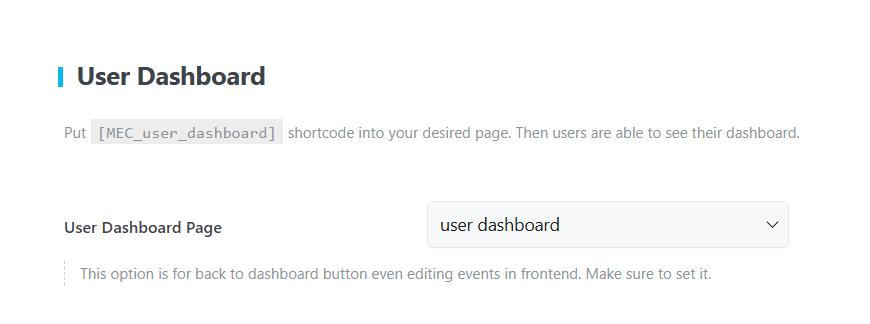
2. Create the Dashboard Page
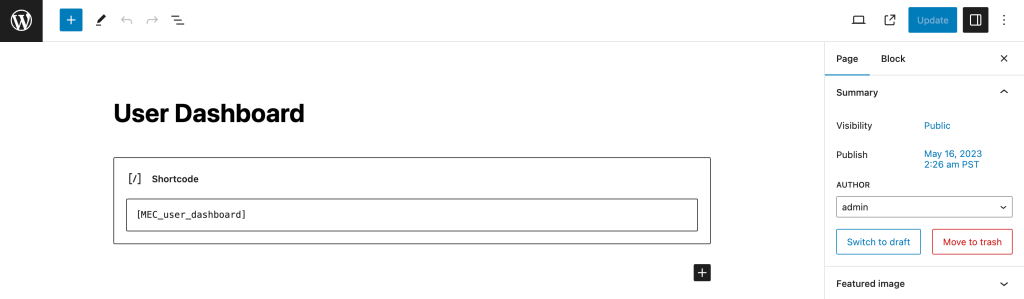
Create a new WordPress page (a full-width layout is recommended) and paste the shortcode into the page content.
3. Select the Dashboard Page
Go back to:
MEC Settings → User Dashboard
Choose the page you created from the User Dashboard Page dropdown.
4. Save Changes
Click Save Changes.
If you have just created the page, refresh it once to ensure all settings are applied correctly.
Configuring Your Dashboard
After completing the initial setup, you can customize the dashboard layout and control which sections are available to users.
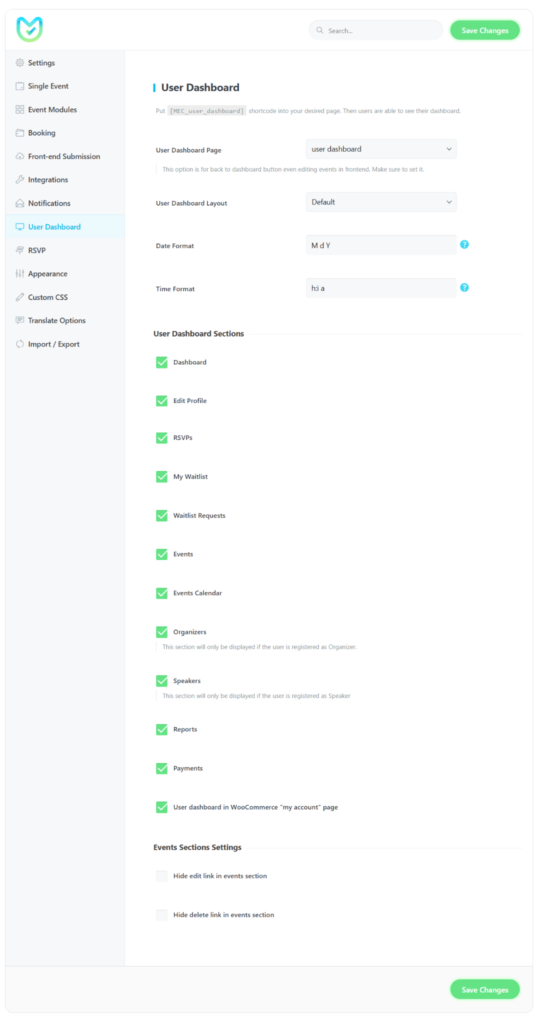
User Dashboard Layout
Choose one of the following layouts:
- Default – Displays the dashboard using the standard layout.
- Full Screen – Expands the dashboard to use the full browser width.
Date & Time Format
Customize how dates and times appear throughout the dashboard.
- Date Format
- Time Format
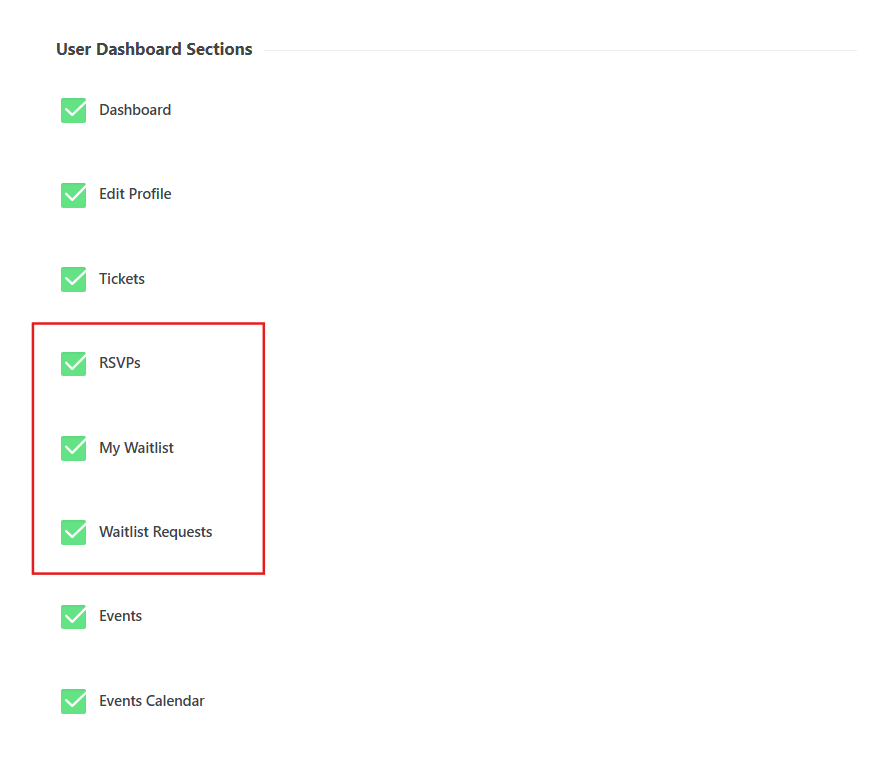
User Dashboard Sections
Choose which sections should be available to your users.
You can enable or disable:
- Dashboard
- Edit Profile
- RSVPs
- My Waitlist
- Waitlist Requests
- Events
- Events Calendar
- Organizers
- Speakers
- Reports
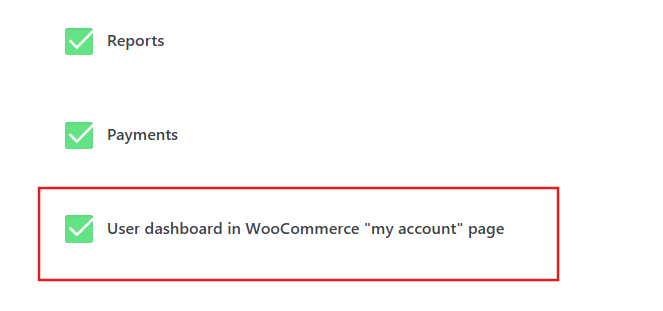
- User Dashboard in WooCommerce My Account
Note: Some dashboard sections depend on additional MEC addons or user permissions. For example, My RSVPs and RSVP Responses require the RSVP Addon, while My Waitlist and Waitlist Requests require the Waiting List Addon. These sections are only available when the corresponding addon is installed and activated.
Events Sections Settings
This setting controls which actions are available in the Events List.
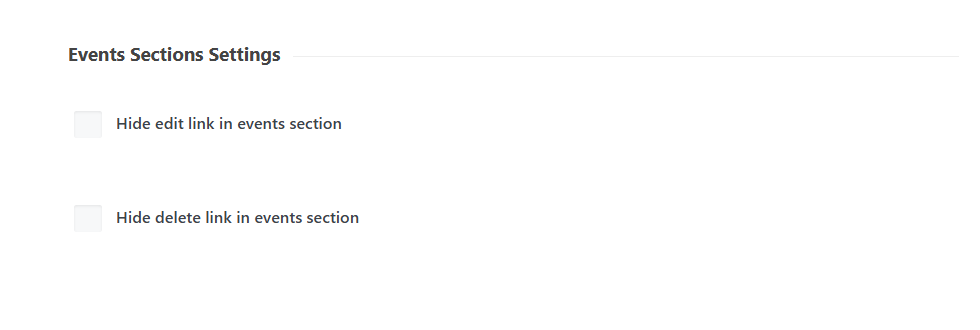
You can enable or disable actions such as:
- Edit
- Duplicate
- Remove
- Publish / Unpublish
The View and Report actions are always available.
Using the User Dashboard
The redesigned dashboard features a modern sidebar navigation. Available sections automatically adapt based on the logged-in user’s role and enabled MEC features.
The new interface is fully responsive and provides an optimized experience across desktop, tablet, and mobile devices.
Sidebar Navigation
The dashboard is organized into four main sections:
- Dashboard
- My Activity
- My Events
- Account
- Logout
Dashboard
The Dashboard provides a quick overview of your activity and event performance.
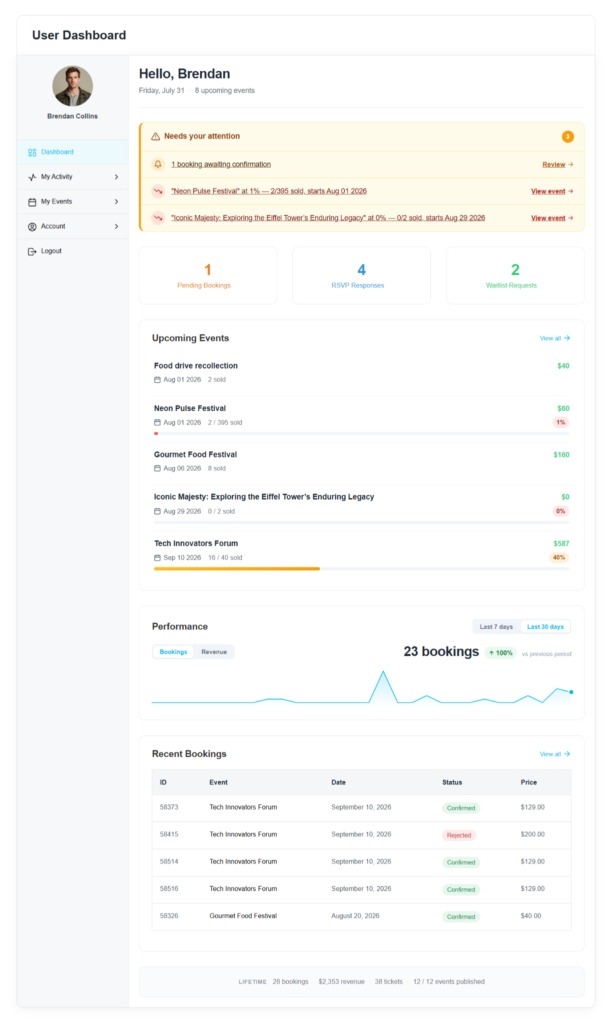
It includes:
- Personalized greeting with the current date and the number of upcoming events.
- Needs Your Attention panel for pending actions such as booking confirmations.
- Interactive statistics cards for:
- Pending Bookings
- RSVP Responses
- Waitlist Requests
- Each card provides quick access to its corresponding management page.
- Upcoming Events list displaying:
- Event date
- Ticket sales progress
- Performance chart with switchable Bookings and Revenue views, including Last 7 Days and Last 30 Days filters.
- Recent Bookings table for quick access to the latest bookings.
My Activity
The My Activity section contains information related to the logged-in user’s own participation in events.
My Tickets
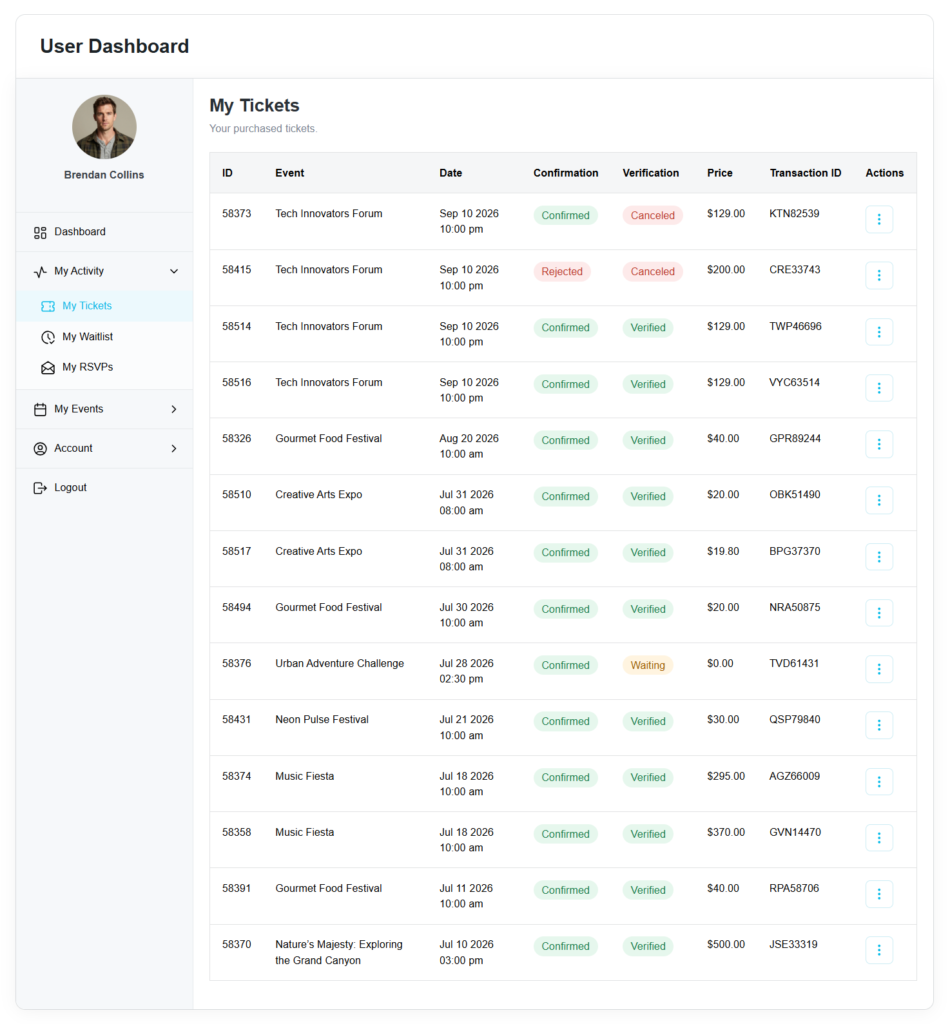
Displays all purchased tickets.
Available information includes:
- ID
- Event
- Date
- Confirmation Status
- Verification Status
- Price
- Transaction ID
Available actions:
- Cancel
My Waitlist
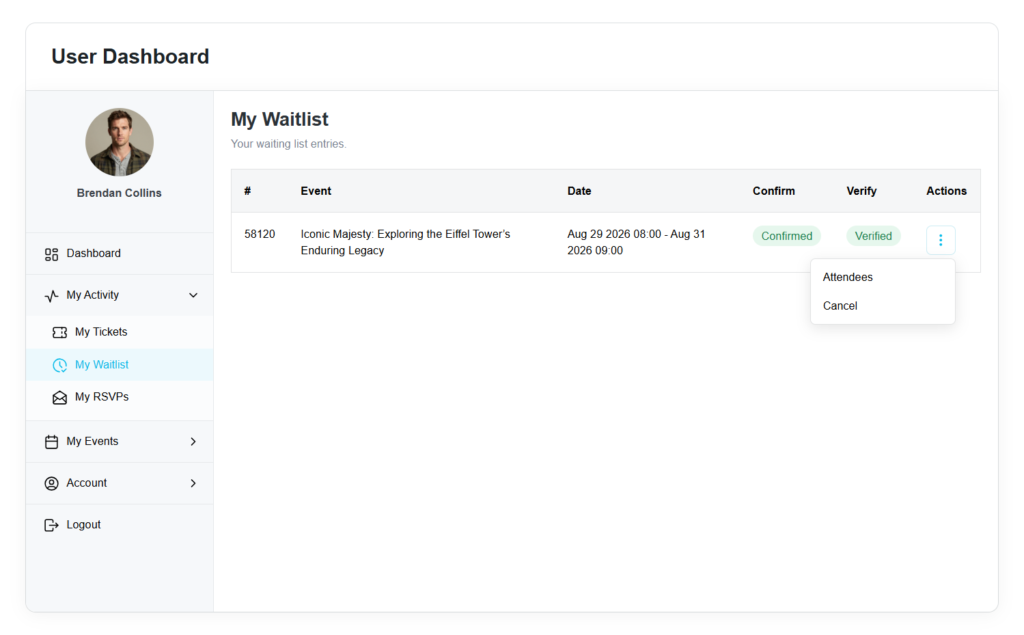
Displays all waitlist requests submitted by the logged-in user.
Available actions include:
- Attendees
- Cancel
My RSVPs
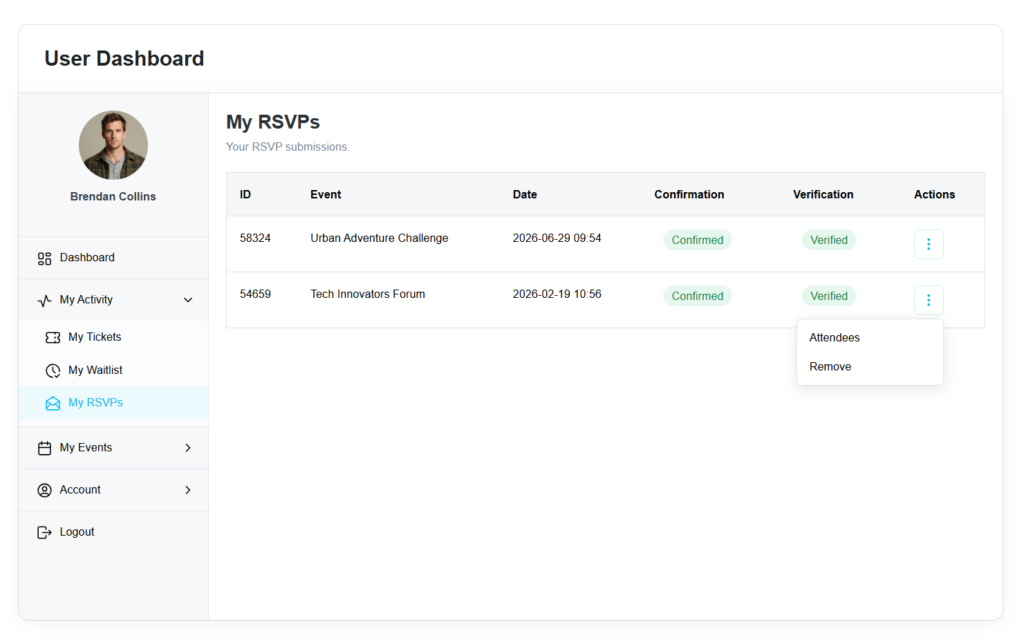
Displays all RSVP submissions.
Available information includes confirmation and verification status.
Available actions include:
- Attendees
- Remove
My Events
The My Events section is available for event organizers and authors.
It provides complete event management tools directly from the dashboard.
Events List
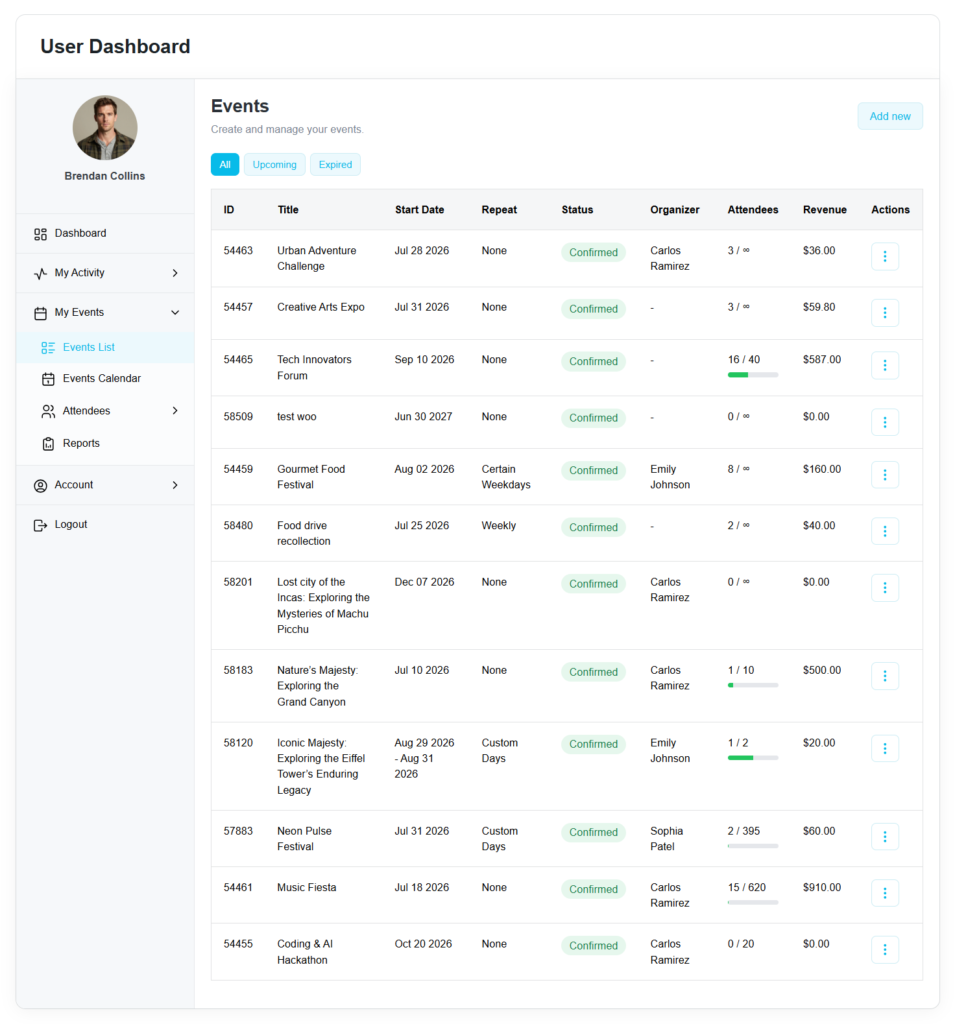
Displays events managed by the current user.
Available columns:
- ID
- Title
- Start Date
- Repeat
- Status
- Organizer
- Attendees
- Revenue
- Actions
Available actions include:
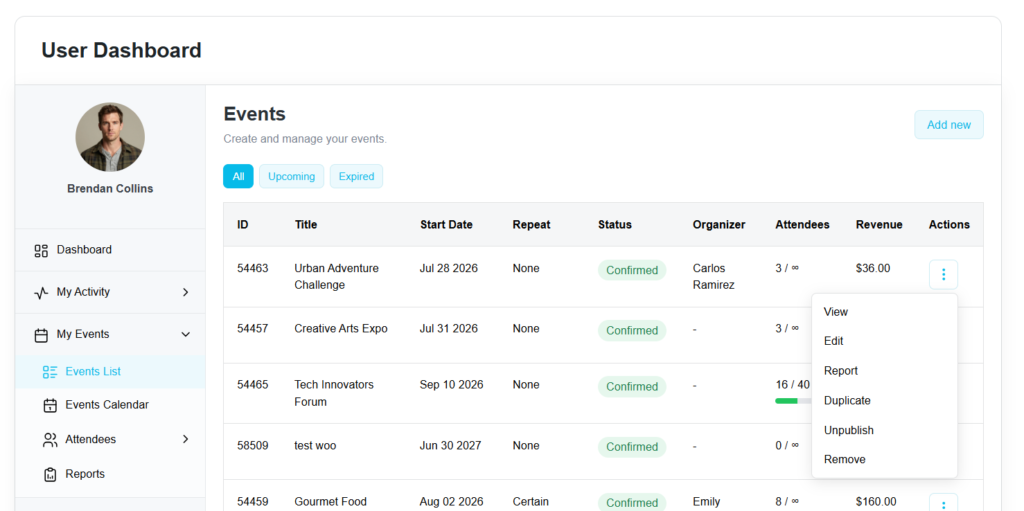
- View
- Edit
- Report
- Duplicate
- Unpublish
- Remove
An Add New button opens the Front-end Event Submission (FES) form, provided Front-end Event Submission is enabled in MEC settings.
Users can also switch between:
- Upcoming Events
- Expired Events
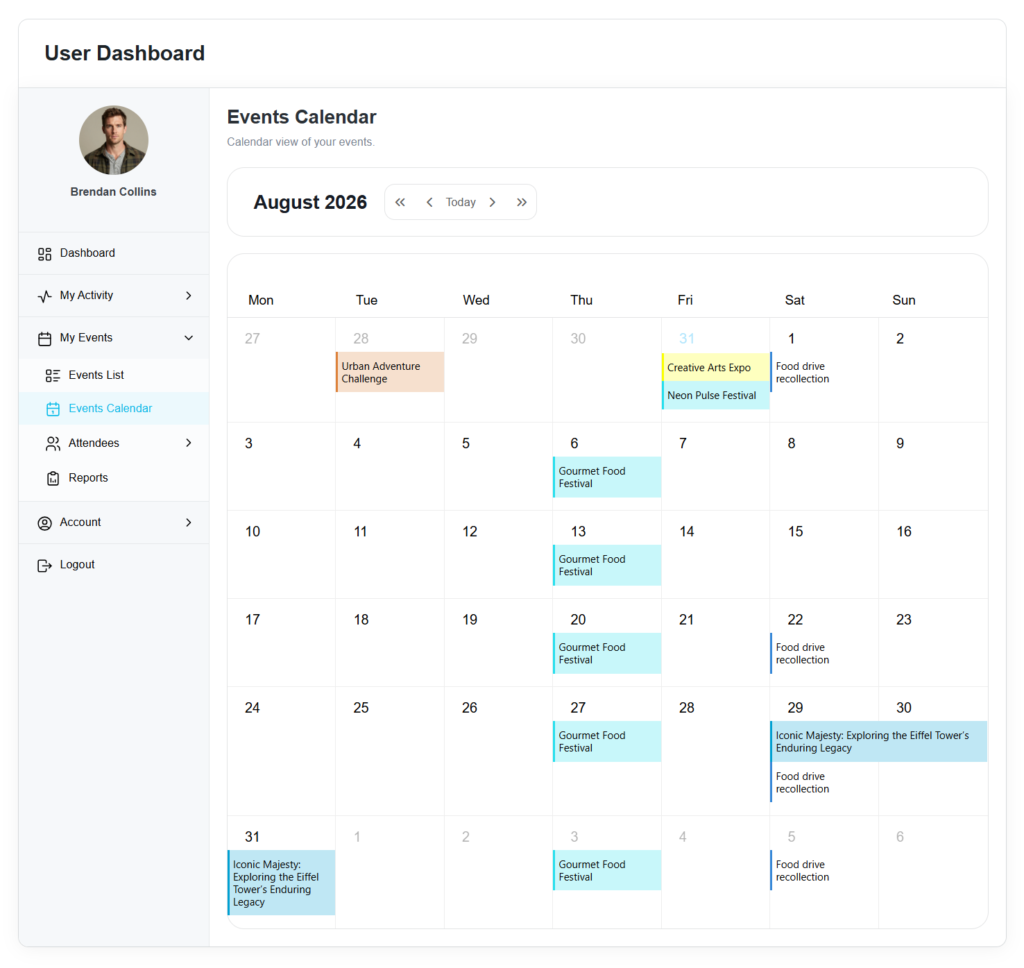
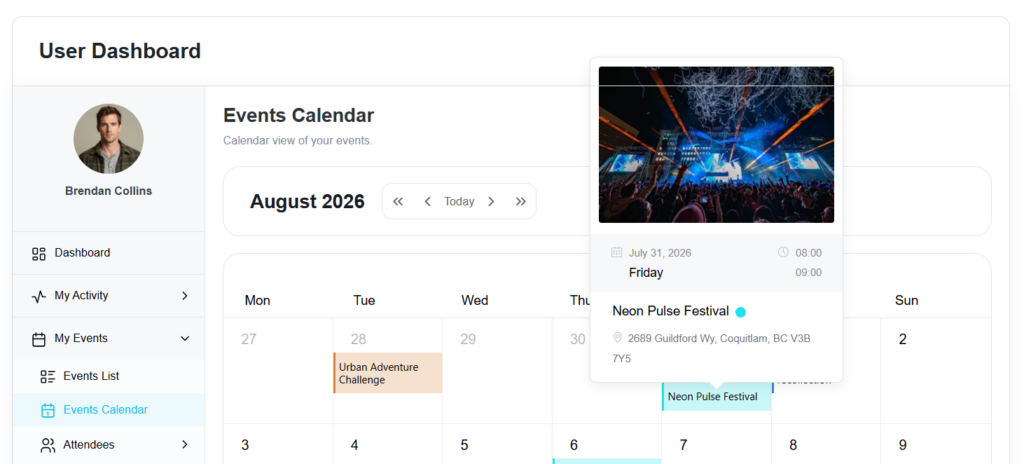
Events Calendar
Displays all user events in a calendar view with month navigation and event popups displaying event details.
Attendees
Bookings
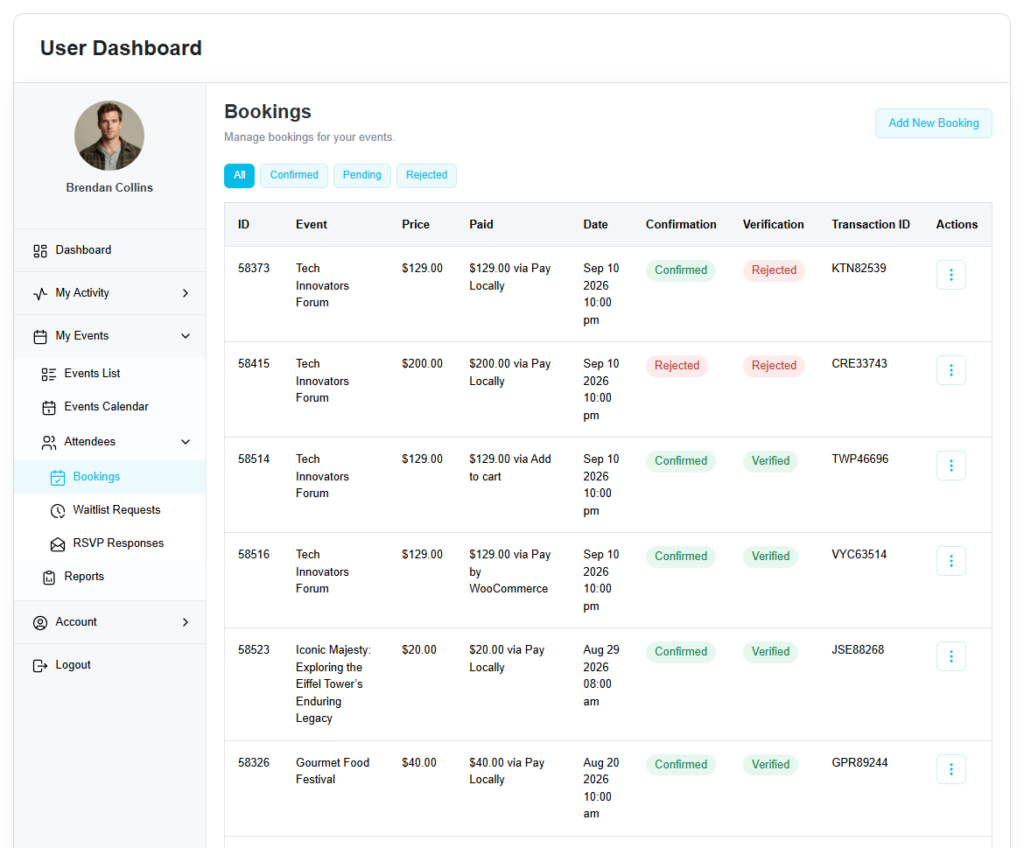
Manage bookings for your events.
Available filters:
- Confirmed
- Pending
- Rejected
Displayed information includes:
- ID
- Event
- Price
- Paid
- Date
- Confirmation
- Verification
- Transaction ID
Available actions:
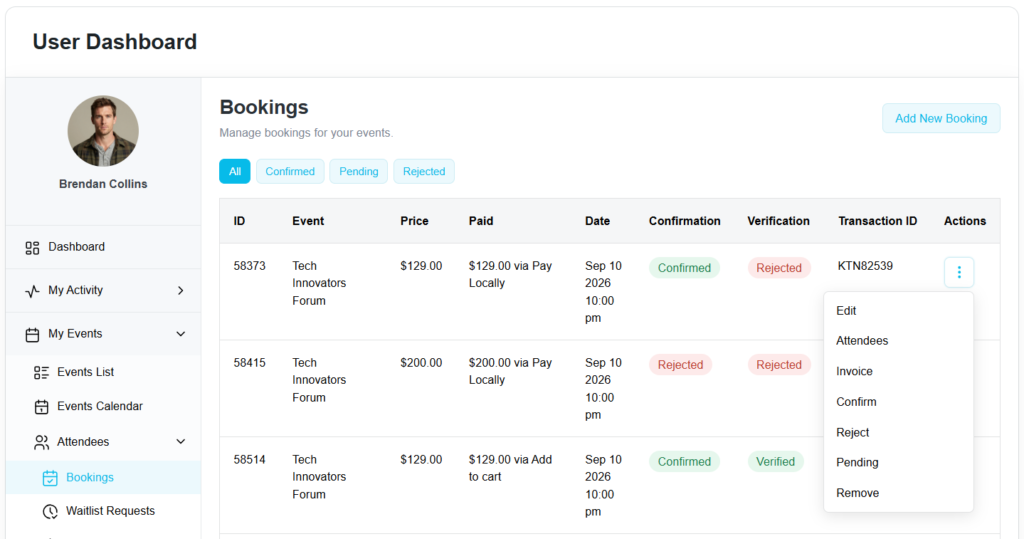
- Edit
- Attendees
- Invoice
- Confirm
- Reject
- Pending
- Remove
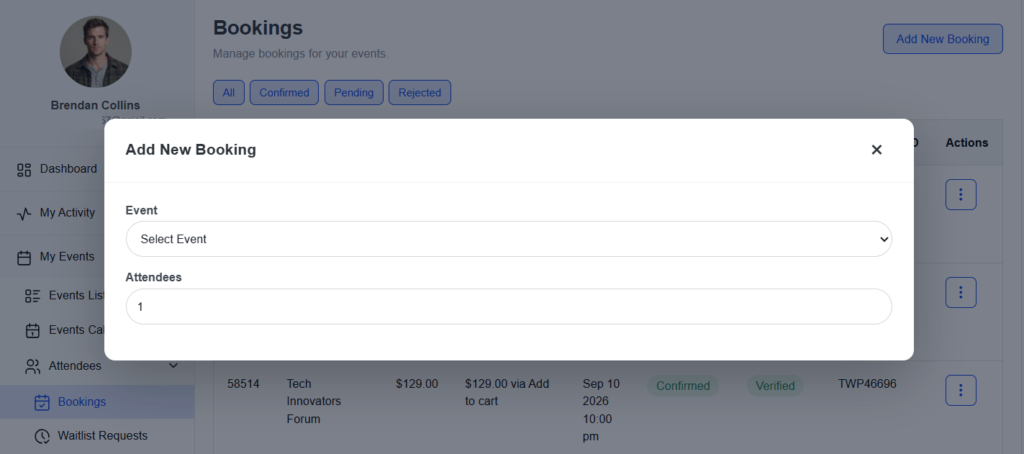
The Add New Booking button opens a modal that allows organizers to manually create a booking for any user.
Waitlist Requests
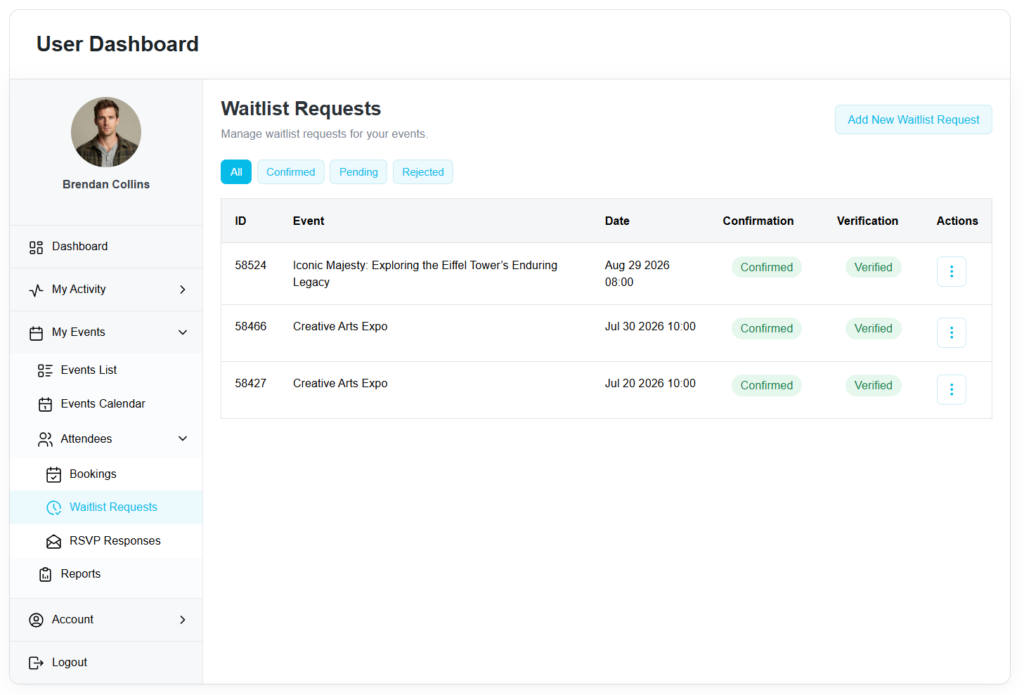
Displays waiting list requests submitted for events managed by the current user.
Available actions include:
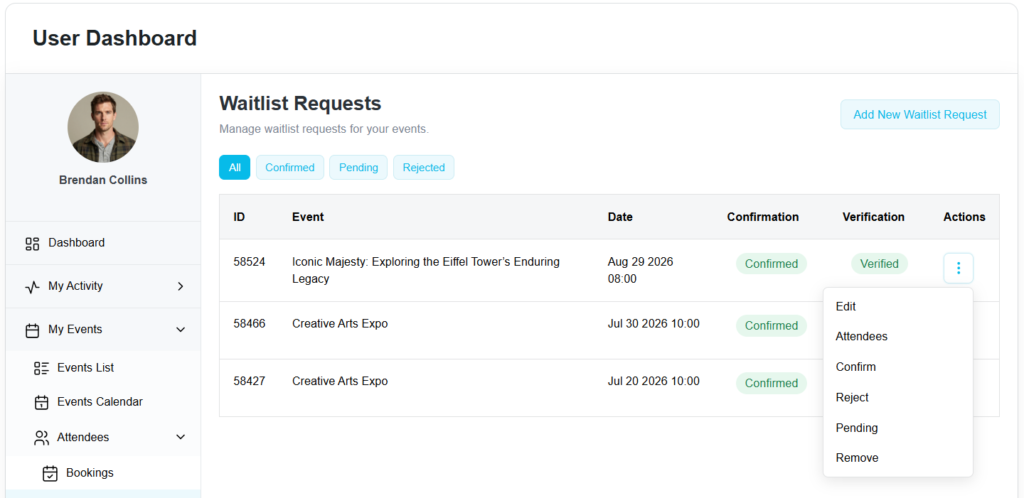
- Edit
- Attendees
- Confirm
- Reject
- Pending
- Remove
The Add New Waitlist Request button opens a modal for manually creating a new waitlist request.
RSVP Responses
Manage RSVP responses for your events.
Available actions include:
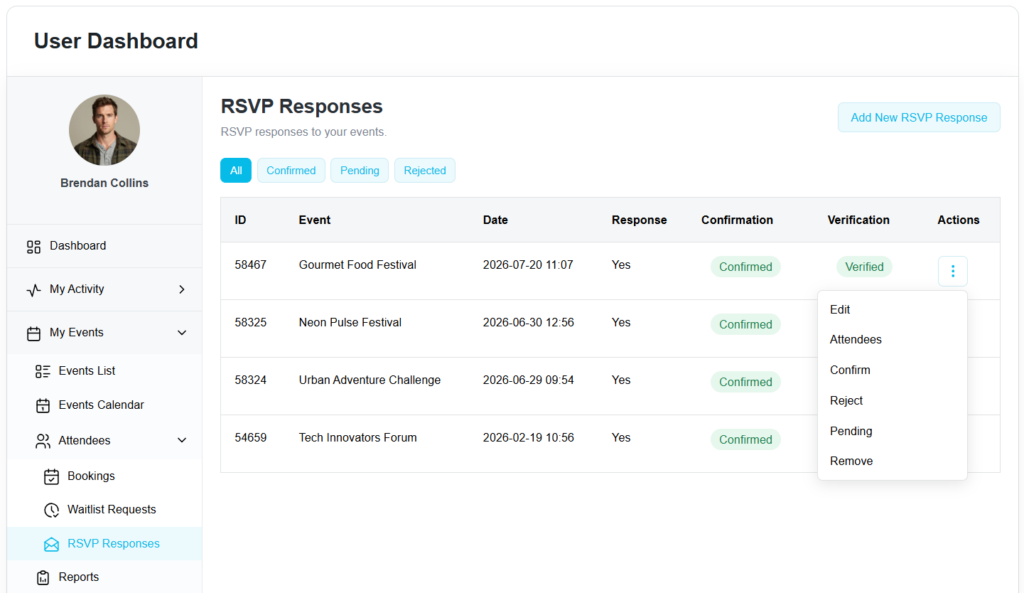
- Edit
- Attendees
- Confirm
- Reject
- Pending
- Remove
The Add New RSVP Response button opens a modal for manually creating a new RSVP response.
Reports
Analyze your event performance using built-in reporting tools.
Available filters:
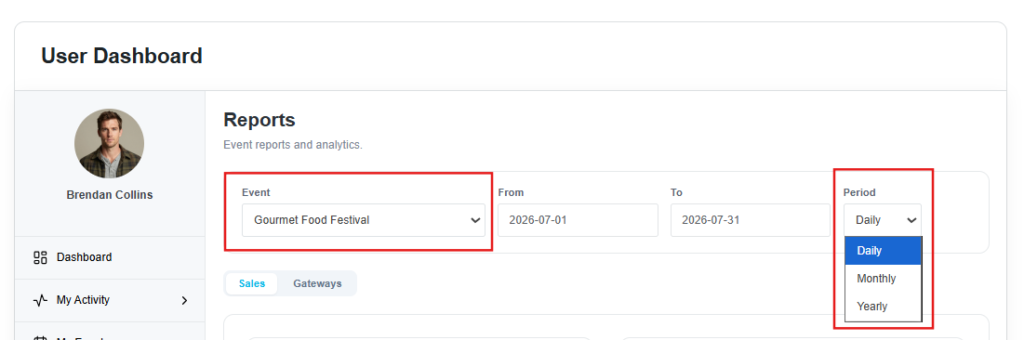
- Event
- Date Range (From / To)
- Period (Daily / Monthly / Yearly)
Two report tabs are available:
Sales
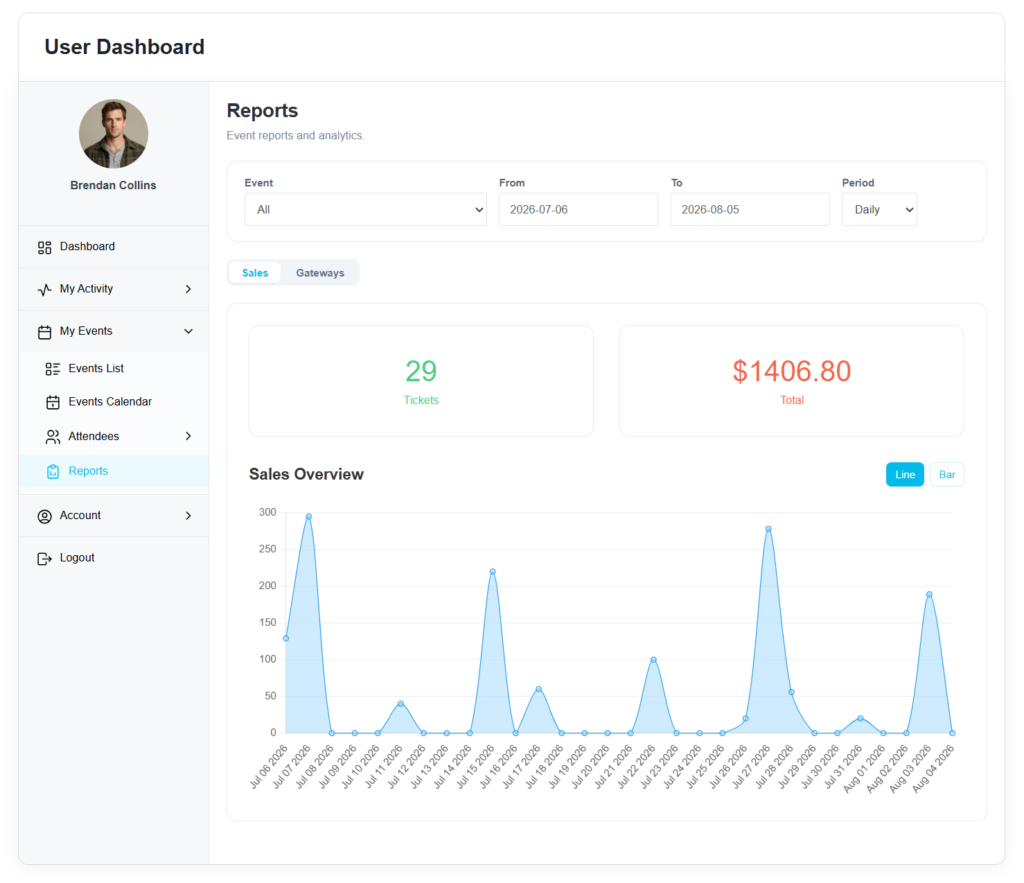
Displays:
- Tickets Sold
- Total Revenue
- Sales Overview Chart
Gateways
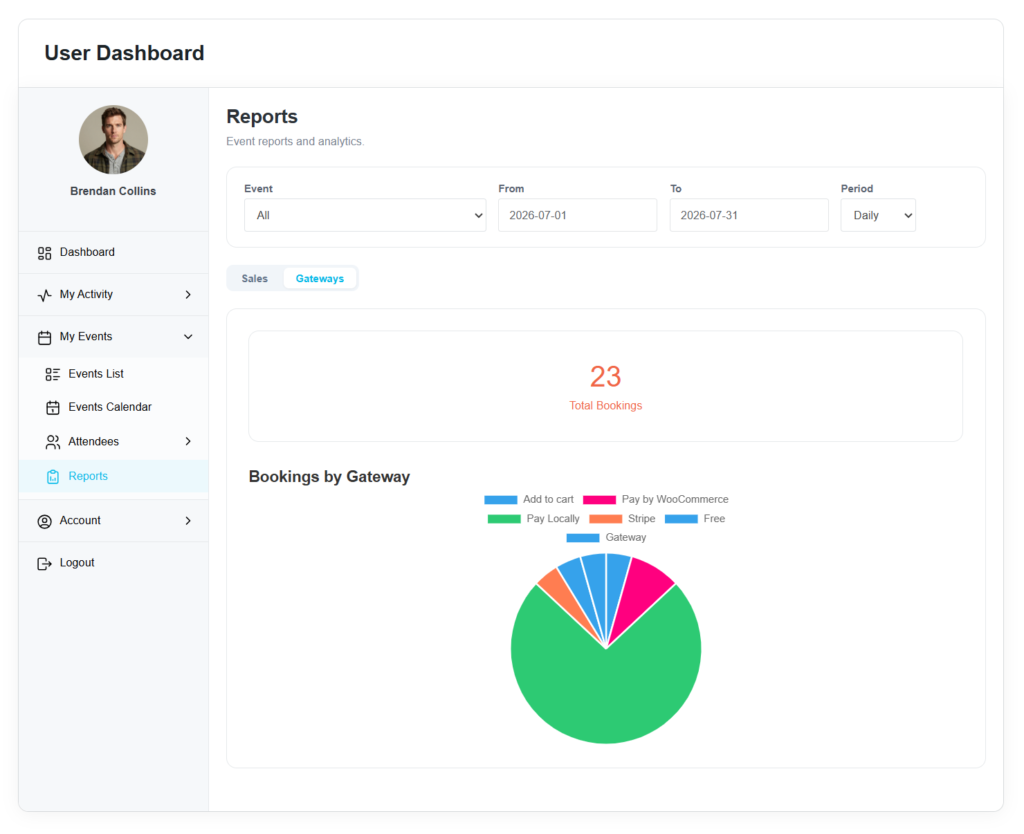
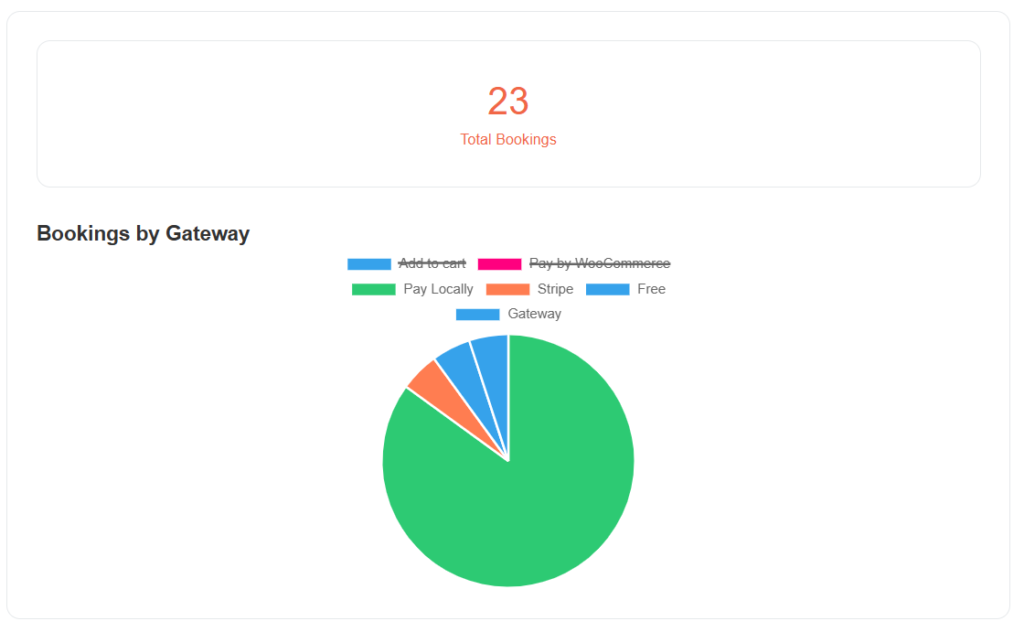
Displays a pie chart showing the number of bookings processed through each payment gateway.
Account
The Account section allows users to manage their personal profile and role-specific information.
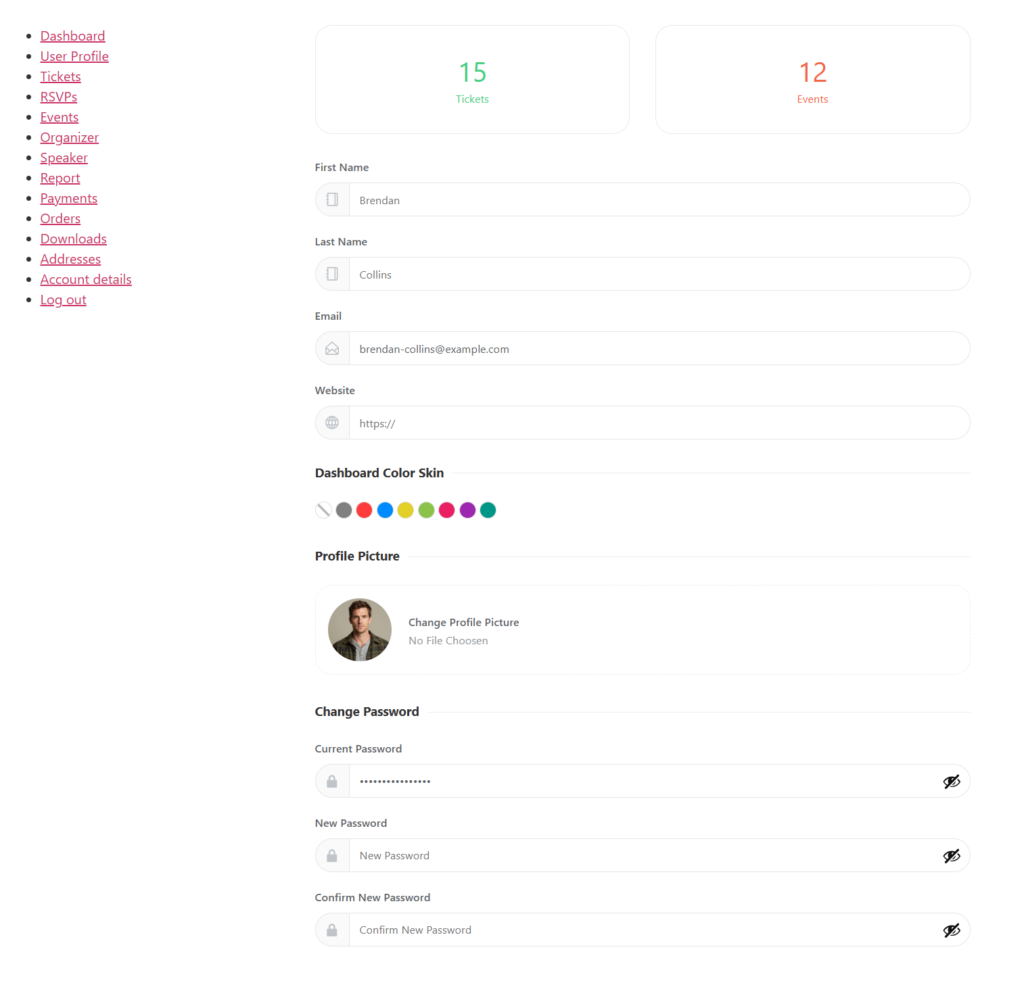
Edit Profile
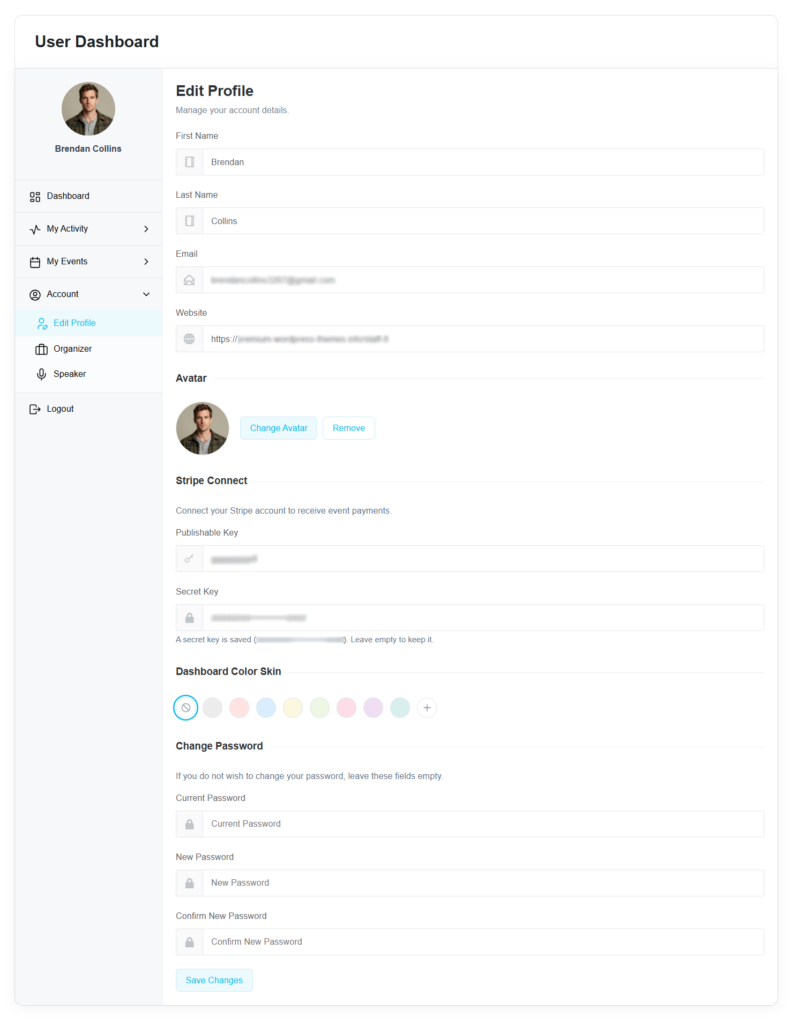
Users can update their personal information, including:
- First Name
- Last Name
- Email Address
- Website
- Avatar
Additional features include:
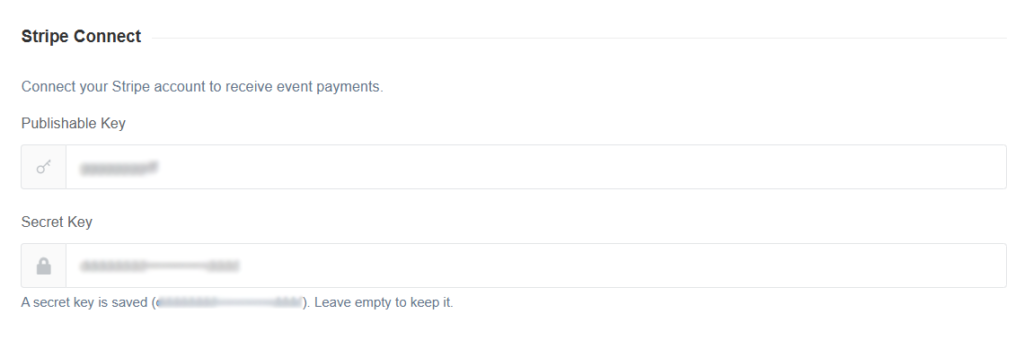
- Stripe Connect – Connect a Stripe account to receive event payments. The dashboard also displays the current connection status.
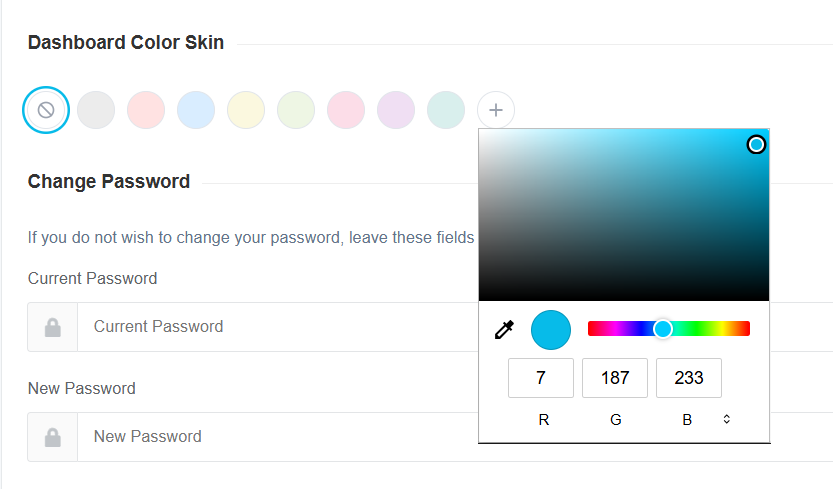
- Dashboard Color Skin – Personalize the dashboard by selecting a preferred color theme.
- Change Password – Update the account password directly from the dashboard.
Organizer
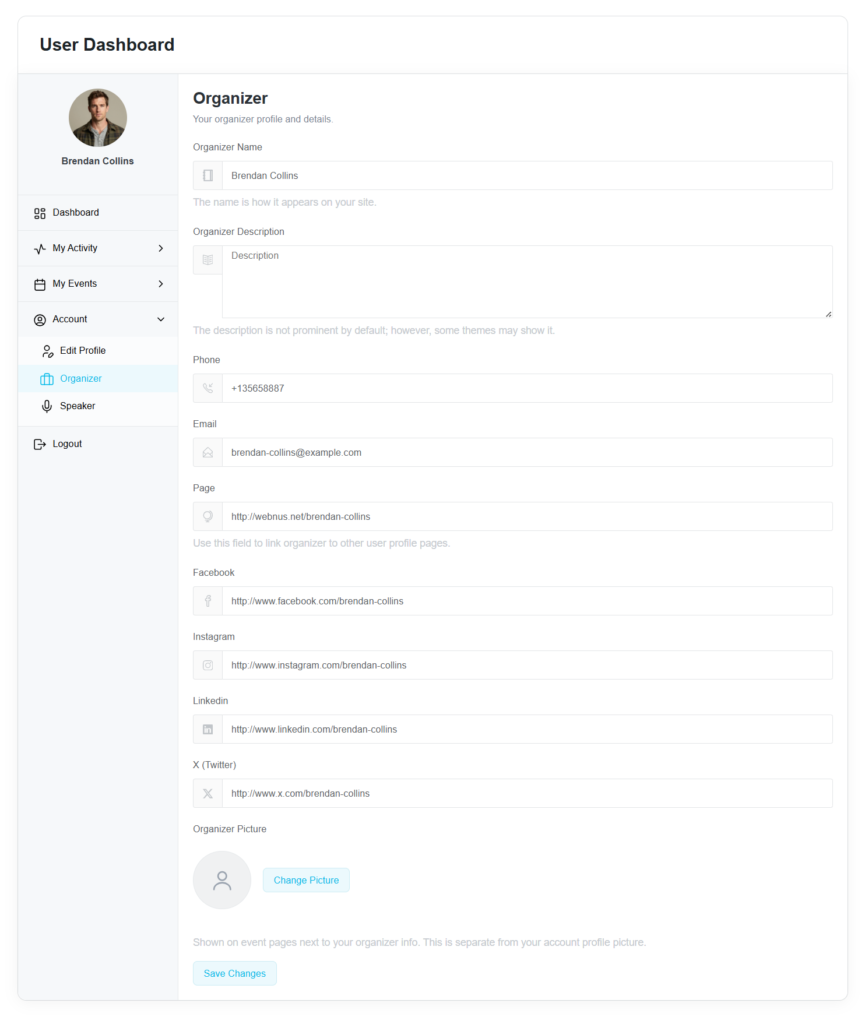
Users assigned to an Organizer profile can edit their organizer information, including:
- Name
- Description
- Phone
- Social Links
- Picture
Speaker
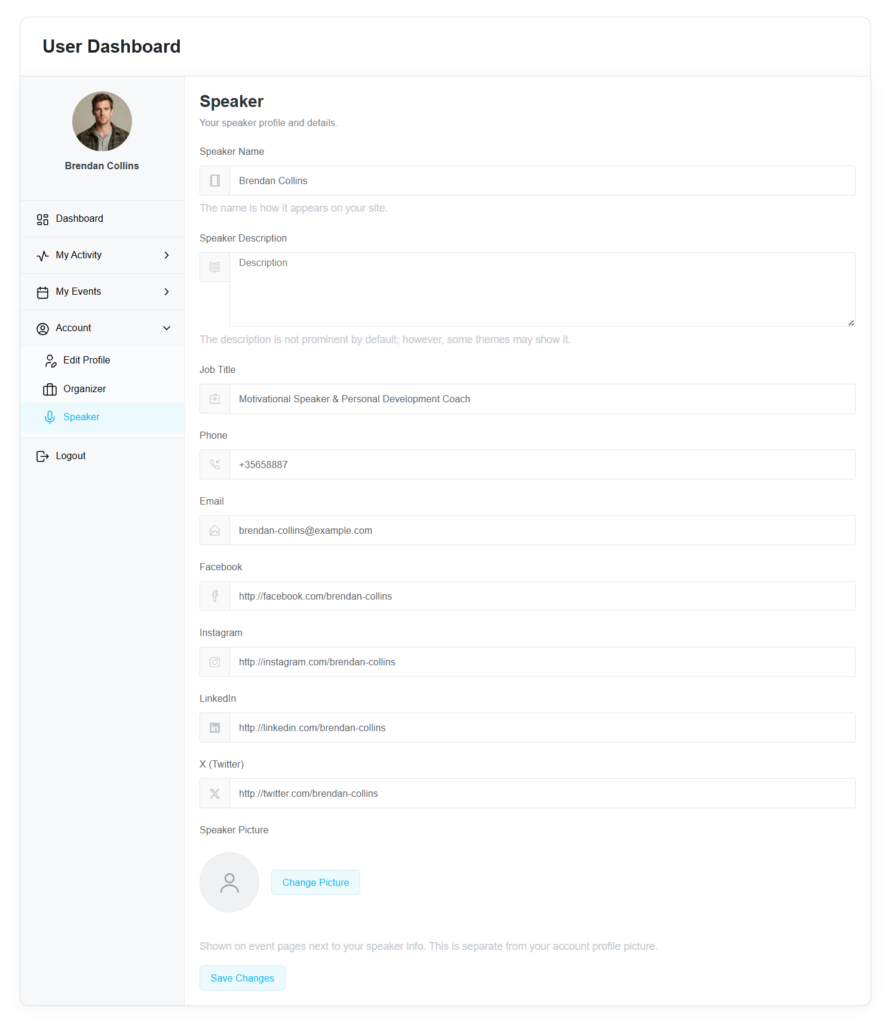
Users assigned to a Speaker profile can manage their speaker profile, including:
- Name
- Description
- Job Title
- Phone
- Social Links
- Picture
User Access & Permissions
Requiring Login Before Booking
To require users to log in before accessing the booking form:
- Navigate to MEC Settings → Booking → Advanced.
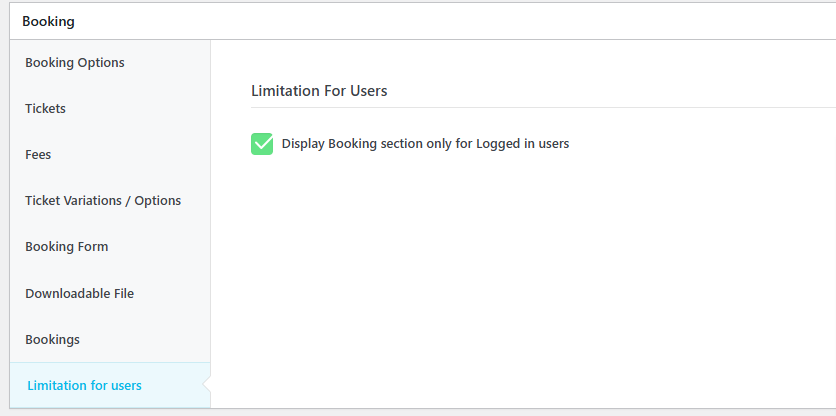
- Enable Display Booking section only for Logged-in Users on the Single Event Page.
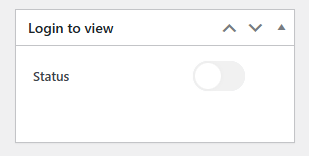
Alternatively, this restriction can be configured individually for each event through the Limitation for Users tab or applied to specific shortcodes.
Assigning Organizers and Speakers
To allow a user to manage their Organizer or Speaker profile from the User Dashboard:
- Go to the Organizer or Speaker menu in MEC.
- Create a new profile or edit an existing one.
- Assign an existing WordPress user to that profile.
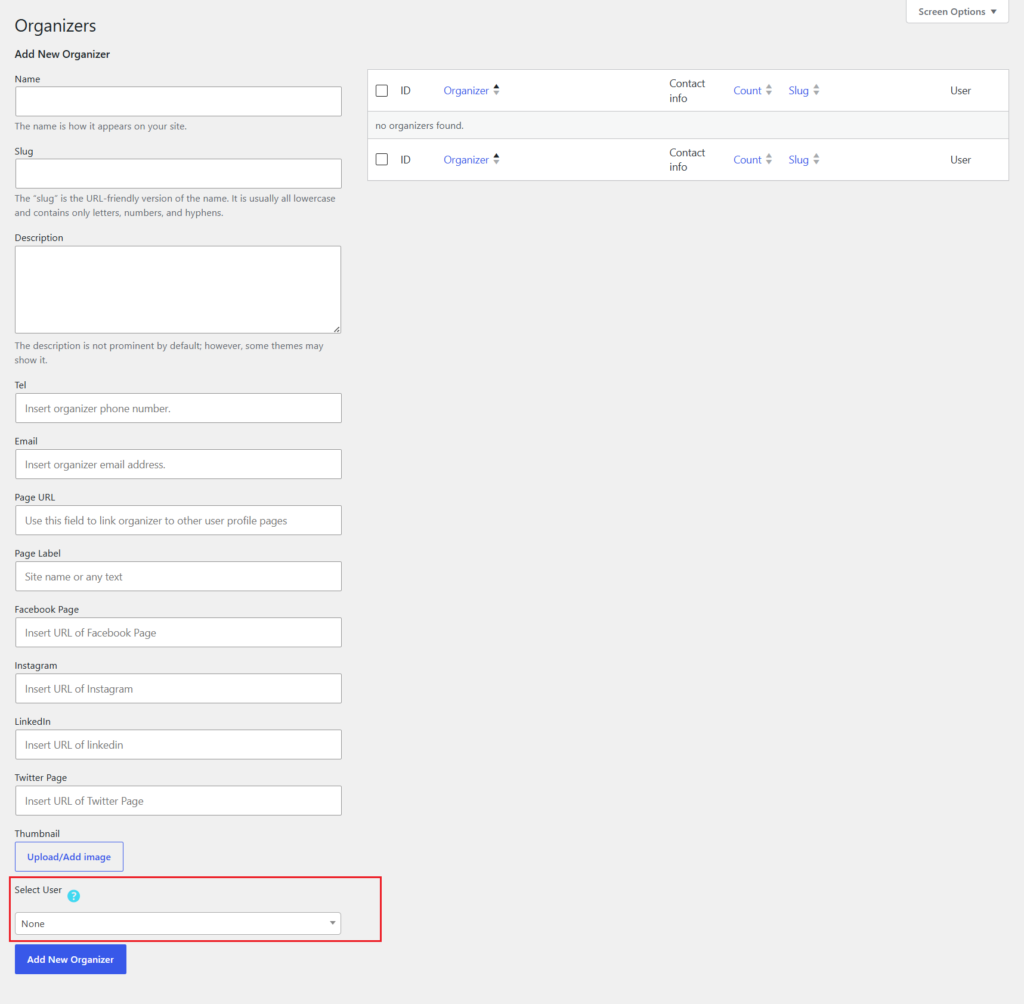
Once assigned, the user can access and edit their profile directly from the User Dashboard.
Important
To assign a different user to an existing Organizer or Speaker profile, you must first remove the currently assigned user before selecting a new one.
Integrations & Customization
RSVP & Waiting List Addons
The User Dashboard automatically integrates with other MEC addons.
When the RSVP Addon or Waiting List Addon is installed and activated, their corresponding dashboard sections become available automatically.
WooCommerce Integration
If you use WooCommerce, you can enable the User Dashboard in WooCommerce My Account option.
This allows users to access their MEC dashboard directly from the WooCommerce My Account page.
Stripe Connect
Organizers can securely connect their Stripe account from the Edit Profile section to receive payments directly through Stripe Connect.
The dashboard also displays the current connection status.
Dashboard Color Skin
Users can personalize their dashboard by selecting a preferred color theme from their profile settings.
Use Cases
The User Dashboard Addon is especially useful for:
- Membership and subscription websites
- Multi-organizer event platforms
- Websites using Front-end Event Submission
- Events with high demand using the Waiting List Addon
- RSVP-driven events
- Organizers who need to manage bookings, waitlists, and RSVP responses from the front end
Situations Where This Addon May Not Be Ideal
The User Dashboard may not be necessary for:
- Simple one-time events where users do not need an account
- Websites that do not require attendee interaction after registration
- Non-WordPress environments
- Advanced accounting workflows outside the MEC ecosystem
Troubleshooting
Dashboard is Empty
Make sure the User Dashboard shortcode is placed on the selected page and that you are logged in.
Missing Dashboard Sections
Navigate to MEC Settings → User Dashboard and verify that the required sections are enabled.
Missing RSVP or Waiting List Sections
Ensure the corresponding addons are installed and activated.
Organizer Features Are Not Available
Verify that the logged-in user is assigned as an Organizer or is the author of the event.
Edit or Delete Actions Are Missing
Check Events Sections Settings and ensure the corresponding actions are enabled.
FAQ
1. Where can I find the User Dashboard shortcode?
Navigate to MEC Settings → User Dashboard to copy the generated shortcode.
2. What is the difference between My Waitlist and Waitlist Requests?
- My Waitlist Displays all waitlist requests submitted by the logged-in user.
- Waitlist Requests displays waiting list requests submitted for events managed by the current user.
3. Can organizers manually create bookings, waitlist requests, or RSVP responses?
Yes. Organizers can use the Add New buttons available in the Bookings, Waitlist Requests, and RSVP Responses sections to manually create new entries.
4. Can I use the User Dashboard inside WooCommerce?
Yes. Enable the User Dashboard in WooCommerce My Account option to display the dashboard inside the WooCommerce customer account.
5. What is the difference between the Default and Full Screen layouts?
The Full Screen layout expands the dashboard to the full browser width, while the Default layout uses the standard page width.
6. Can users customize the appearance of the dashboard?
Yes. Users can select their preferred dashboard color from the Dashboard Color Skin option in the Edit Profile section.
7. How does Stripe Connect work?
Organizers can connect their Stripe account directly from the Edit Profile section. Once connected, they can receive event payments through Stripe Connect, and the dashboard displays the current connection status.
8. Why can’t I see the Organizer or Speaker sections?
These sections are displayed only when the logged-in user is assigned to an Organizer or Speaker profile.
Updated on: 24/08/2026
Thank you!