
Advanced Map Addon
The Advanced Map Addon is a professional tool designed to elevate your website’s map functionality by integrating interactive maps from Google Maps or OpenStreetMap. It provides a fresh user experience by offering advanced filtering by region, city, or street, alongside geolocation support to help users discover nearby events intuitively.
Initial Setup
Before you can utilize the advanced mapping features, you must ensure your environment meets specific technical standards.
Requirements
- MEC Pro: This addon strictly requires Modern Events Calendar Pro (version 6.0 or higher).
- System Specifications: Your website must be running at least PHP 7.4 and WordPress 5.0 4.
- Availability: Please note that MEC and its addons are exclusively available at webnus.net and cannot be downloaded from the WordPress repository.
- Activation: Ensure both MEC Pro and the Advanced Map Addon are installed and activated via the WordPress Plugins section.
Activating the Map Module
To unlock the addon’s features, you must first enable the core map functionality:
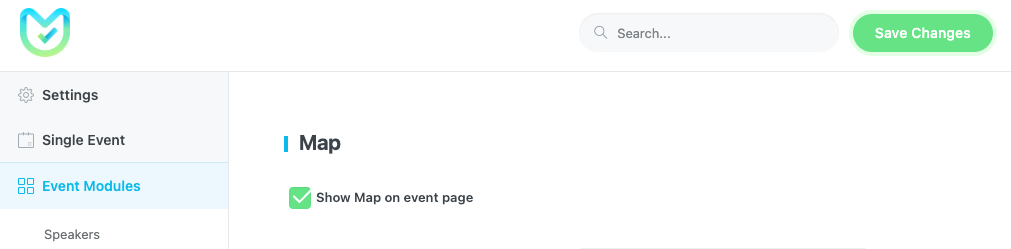
- Navigate to MEC Settings > Event Module.
- Enable the Map feature.
Advanced Map Settings
Once installed and activated, a new settings menu appears within MEC. Below is a complete breakdown of every available option:
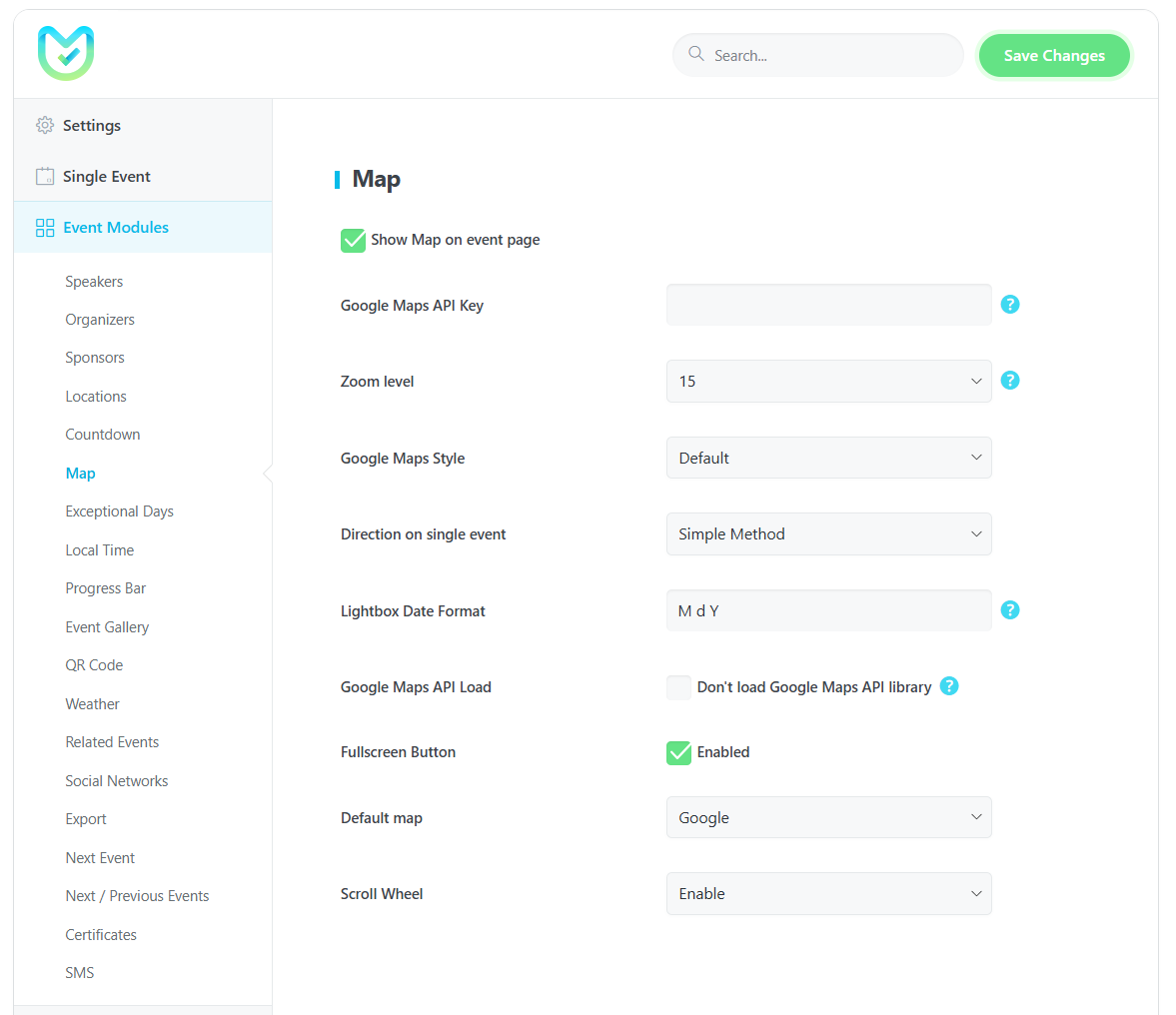
- Show Map on Event Page: This toggle controls the display of the map on the single event page.
- Getting the API Key: You must obtain an API key from Google and enter it here.
- Required APIs: You must enable the Maps JavaScript API (basic plan).
Read Also:
- Additional APIs: You can enable more services from the Google API Library, such as the Place API, Direction API, Geocoding API.
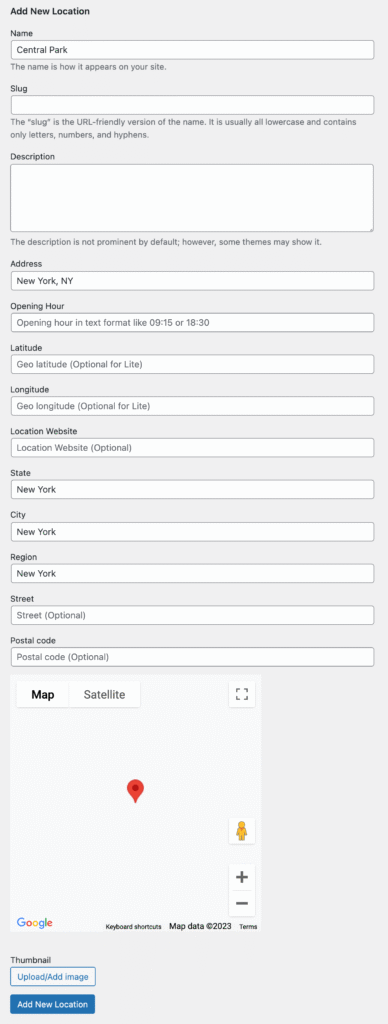
- GPS Coordinates: To use latitude and longitude, you must enable the Google Maps Geocoding API. You can use external tools like latlong.net to find these coordinates.
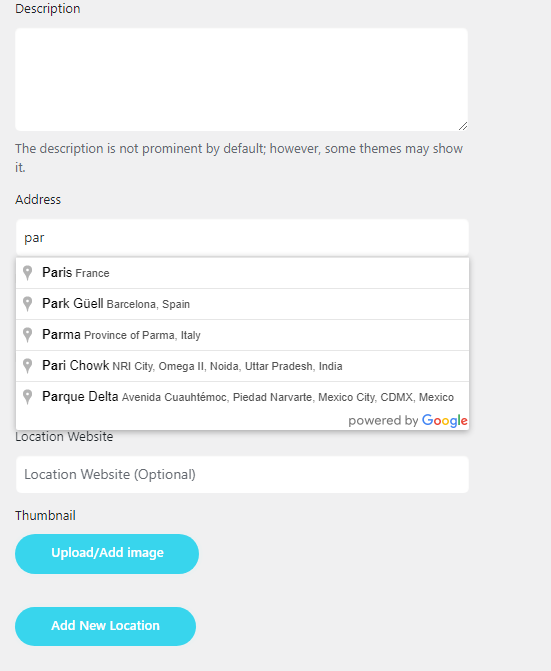
- Address Field: The address field can be used to automatically locate positions on the map when the Google Maps API is active.
- Zoom Level: Adjust the zoom level for the Google Maps module on single event pages, with values ranging from 5 to 21. If you use the Google Maps skin, the zoom level is calculated automatically based on event boundaries.
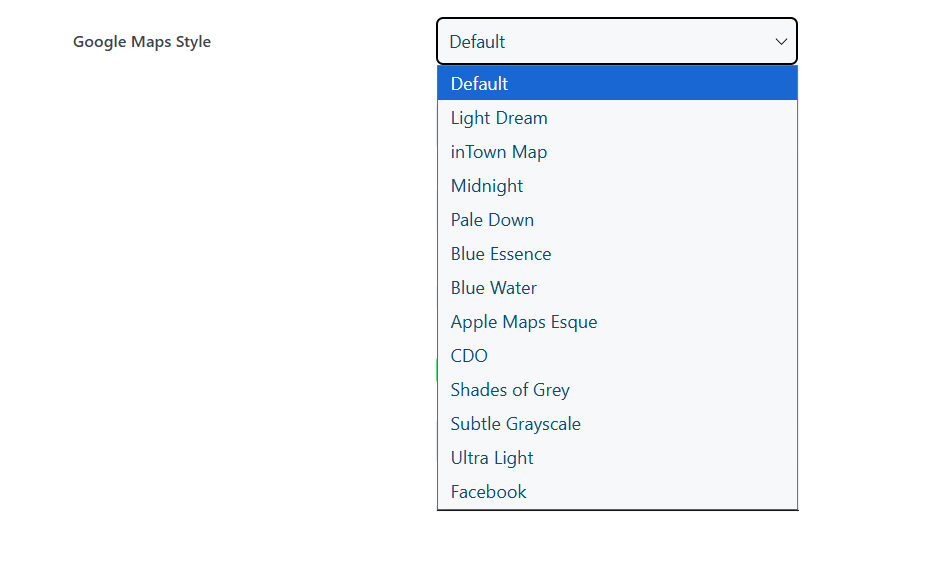
- Google Maps Style: You can set a specific visual style for your map on the single event page using standard Google map style names.
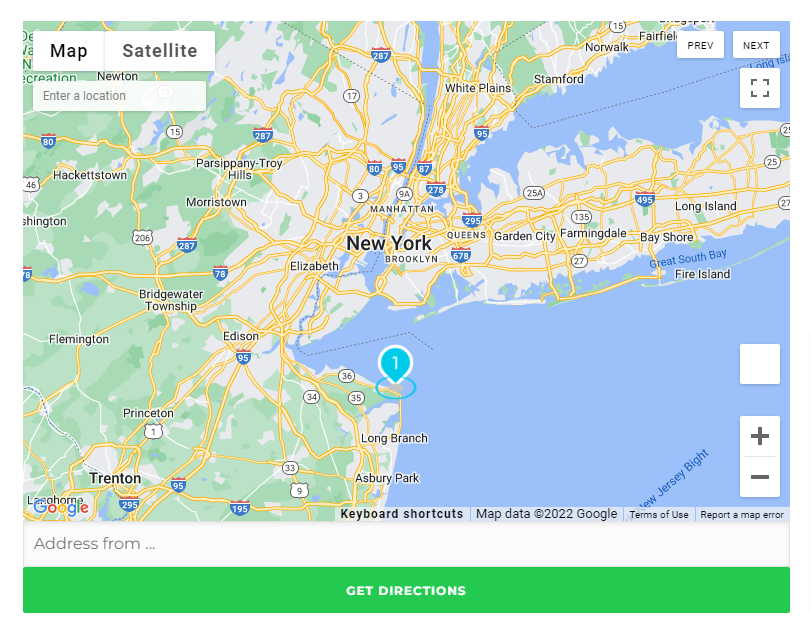
- Direction Style: There are two styles for showing your exact location on the map: Simple or Advanced.
- Lightbox Date Format: Define how dates appear in the lightbox; the default value is M d Y.
- Google Maps API Load: This option prevents the Google Maps API from loading globally. Use it with caution, as it may break map functionality if no other instance loads the API.
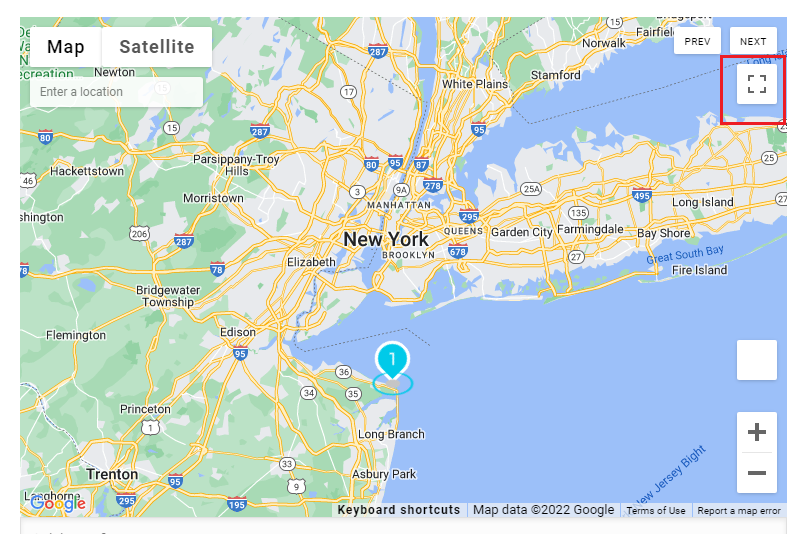
- Fullscreen Button: Enable this to add a button allowing users to view the map in full-screen mode.
- Default Map: Choose between Google or OpenStreetMap as your primary map provider.
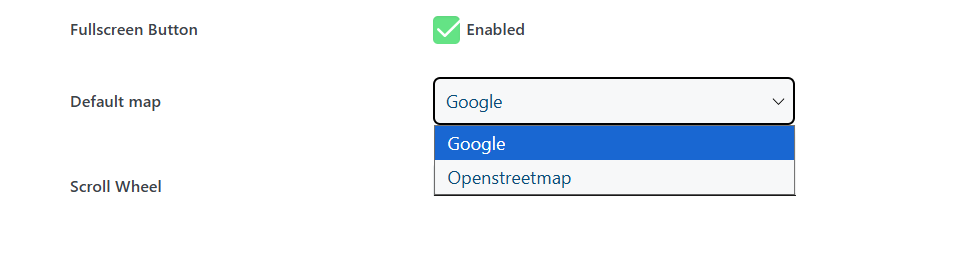
- Scroll Wheel: Enabling this allows users to zoom in and out of the map using their mouse scroll wheel.
Creating Shortcodes (Map View Skin & Directory Setup)
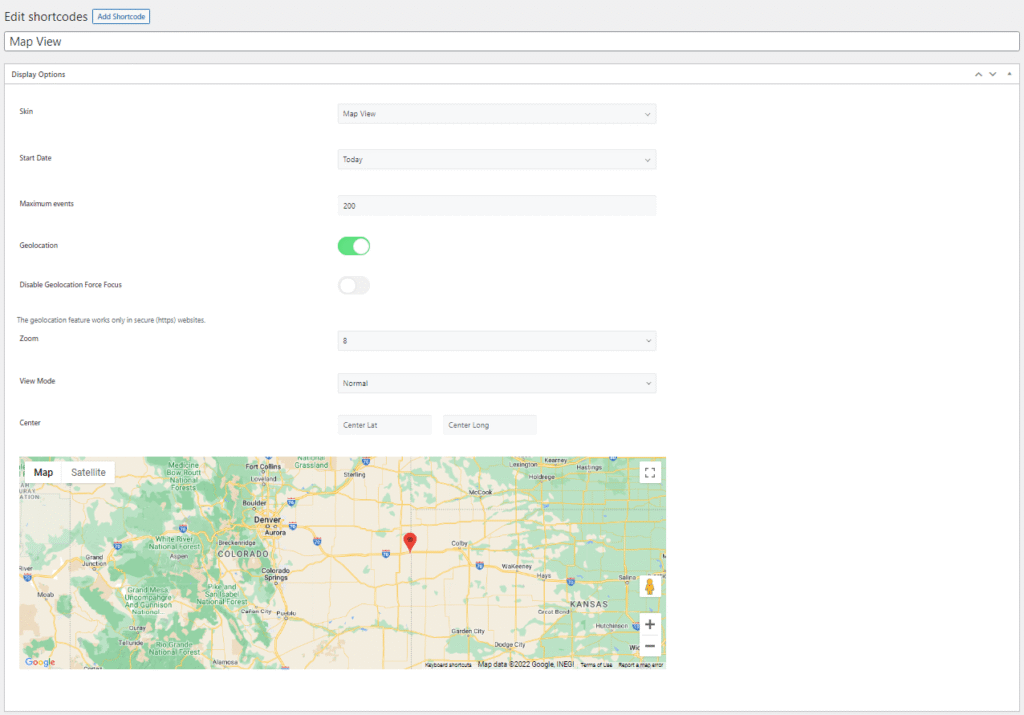
To create a full map directory, you must create a new shortcode with the Map View skin on the MEC Shortcode Page.
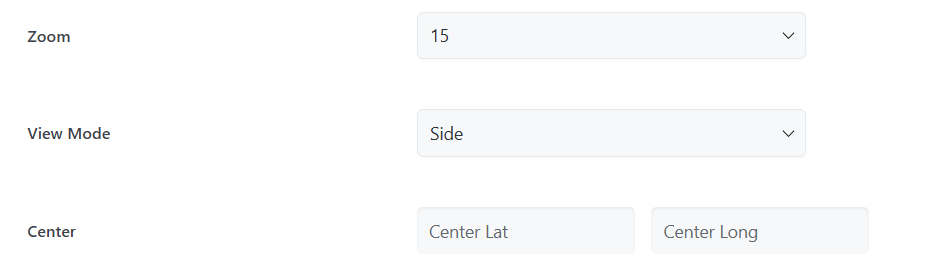
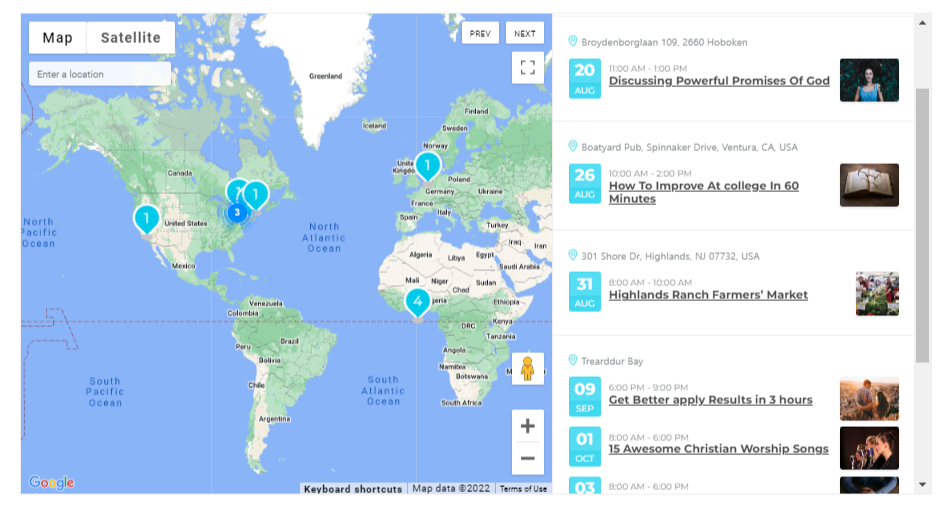
- View Mode (Side Style): A new style called Side is available, which displays filters and the event list directly next to the map.
- - -
- Geolocation Options: This feature uses the browser’s Geolocation API (with user permission) to display nearby events.
- Crucial Note: Geolocation only works on websites with SSL (HTTPS).
- Functionality: Users can zoom out from their proximity to see events at other coordinates.
- Center Option: This allows you to select a fixed point of your choice as the map’s center, directing users to event locations from that specific point.
- Display Options: You can configure the Calendar Start Date and the Maximum Events to be displayed in the shortcode.
Search, Filtering & Geocoding
The addon enhances event discovery through high-precision search filters and geographic navigation.
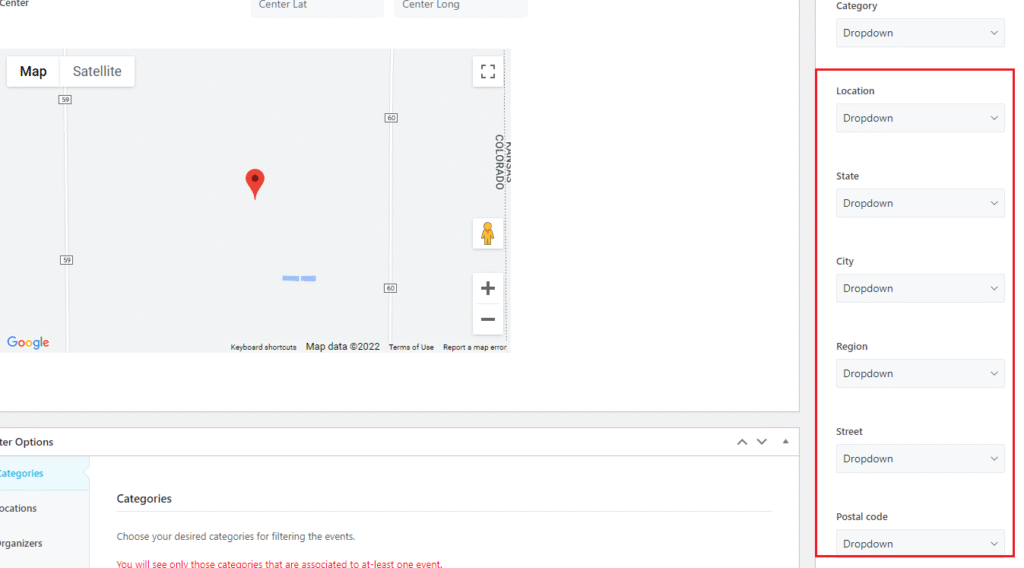
- Address Filters: You can add search functionality to your map by filtering events by State, City, Region, Street, and Postal Code.
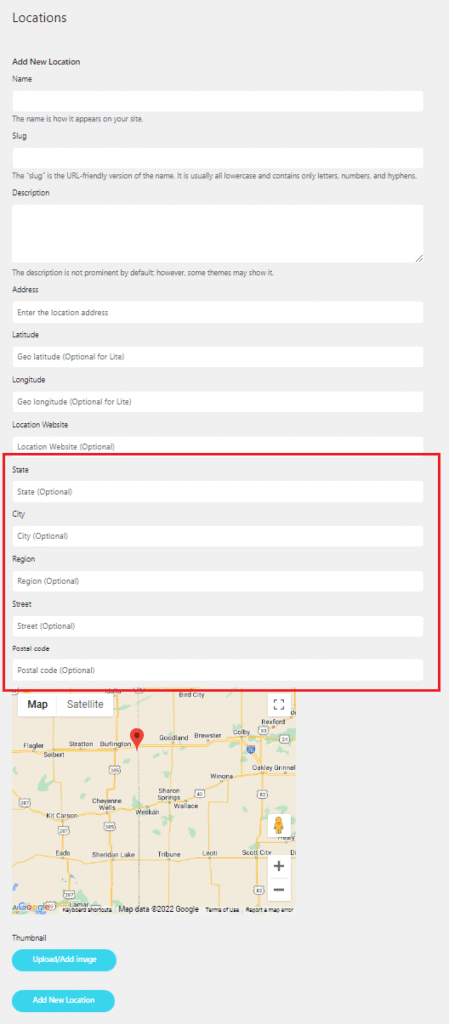
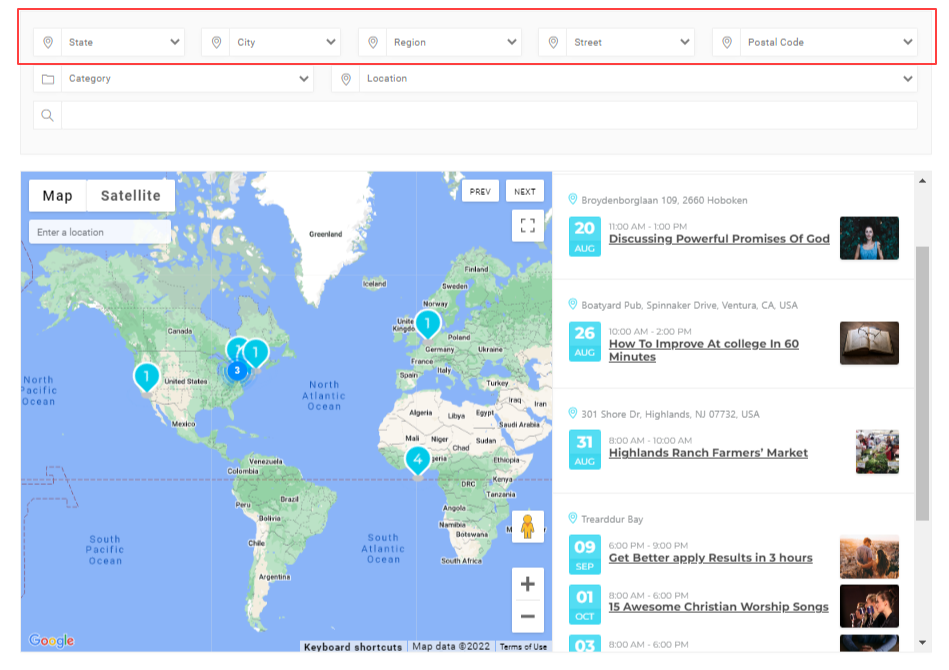
- Data Entry: For these filters to appear, you must define this data for each event in the MEC > Location menu. These values will then be added to the locations accordingly.
- Visibility Logic: Search filter fields only appear if the location has already been used in an active event. Location fields are optional and do not fill in automatically.
- Address Suggestions: Using Google Maps geocoding features, the map provides address suggestions to facilitate finding event locations anywhere a map shortcode is placed.
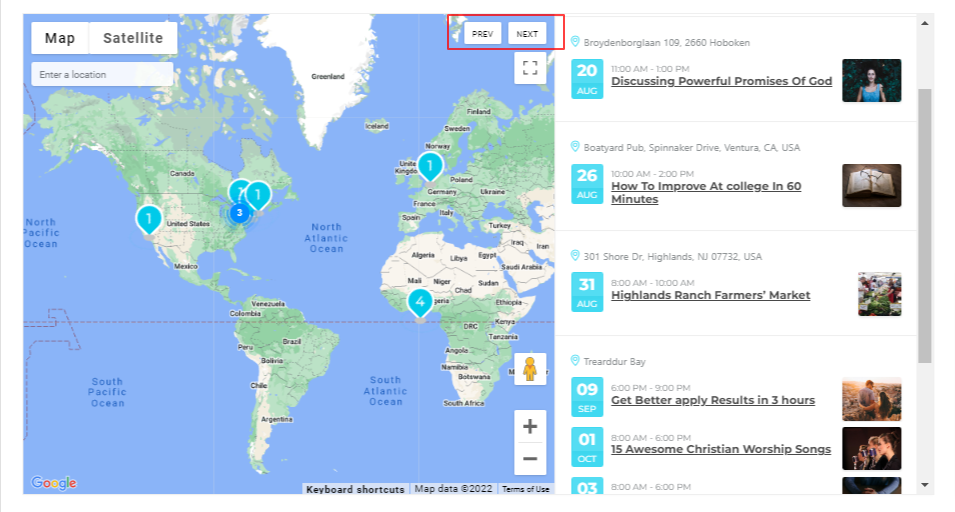
- Navigation Buttons: The Next and Previous buttons navigate between events based on geographic proximity, not chronological order.
Use Cases (When This Addon is Useful)
- Local Community Directories: Perfect for searching events by specific street or neighborhood using Region and Street filters.
- Travel & Proximity Apps: Ideal for showing users the nearest upcoming events based on their current location via Geolocation.
- Comprehensive Event Portals: Useful for creating a full directory page using the Side View Mode to show maps, filters, and event lists simultaneously.
- Privacy-Conscious Mapping: A great alternative for users who prefer OpenStreetMap over Google Maps for privacy or API cost management.
Situations This Addon May Not Be Ideal
- Non-SSL Environments: The Geolocation feature is strictly restricted to websites with SSL certificates.
- MEC Lite Users: This addon cannot be used without MEC Pro.
- Complex Custom Field Filtering: While the addon offers detailed address filters (Street, City, etc.), it does not currently support filtering by custom fields.
- Restricted Hosting: Websites running older versions of PHP (lower than 7.4) or WordPress (lower than 5.0) are not supported.
Troubleshooting & FAQ
- How do I update? Navigate to Plugins > Installed Plugins. If an update is not available, ensure your license is activated correctly or manually download the latest version from the Webnus dashboard and reinstall.
- Map Not Loading? Ensure the Maps JavaScript API is enabled in your Google Library and your API key is correctly pasted into the MEC settings.
- Filter Fields Missing? Ensure you have assigned those specific locations to active events; fields will not show in the search list unless they are currently in use.
- API Issues? Activating the Google Maps API Load setting may cause conflicts if other plugins are also trying to load map libraries.
How do I install and activate the MEC Advanced Map Addon?
To install the MEC Advanced Map Addon, first ensure that the Modern Events Calendar Pro (MEC Pro) plugin is installed and active. Afterward, install the addon by uploading the plugin ZIP file. Once installed, activate the addon from the WordPress dashboard under the Plugins section. Then navigate to the MEC Settings > Event Modules and enable the Map feature to use the addon features.
What are the system requirements for using the MEC Advanced Map Addon?
The MEC Advanced Map Addon requires the Modern Events Calendar Pro plugin (version 6.0 or higher). You also need a WordPress site running at least PHP 7.4 and WordPress 5.0.
How can I create a map view shortcode using the Advanced Map Addon?
To create a map view shortcode, go to the MEC Shortcode Page and create a new shortcode with the Map View skin. Familiarize yourself with the available options, such as skin selection, calendar start date, maximum events display, and geolocation settings, to customize the map view according to your preferences.
What is the geolocation feature, and how does it work?
The geolocation feature, activated on websites with SSL, accesses your geolocation data through browser cookies to display events nearest to your location. Users can zoom out to view events in other areas as well. This feature enhances user experience by providing location-based event information.
How can I filter events by street or region using the Advanced Map Addon?
The addon introduces new filtering options, allowing users to search for events by street, region, and other address fields. This detailed filtering enhances the precision of event searches, making it easier for users to find events in specific locations.
Can I display filters and events alongside the map?
Yes, the Advanced Map Addon provides a new view that displays filters and events next to the map. This layout offers a comprehensive and user-friendly interface, allowing users to easily navigate and find events based on their preferences.
How do I obtain and configure the Google Maps API key for the addon?
To use Google Maps with the Advanced Map Addon, you need to obtain an API key from Google.
Once you have the key, navigate to MEC Settings > Event Modules, enable the Map feature, and enter the API key in the designated field to integrate Google Maps into your event calendar.
Is it possible to set a default location on the map?
Yes, you can specify a default location on the map by dragging the map to your desired location during the shortcode creation process. This feature ensures that the map centers on a specific area when initially displayed to users.
Can I customize the zoom level on the map for single events and shortcodes?
Yes, the Advanced Map Addon allows you to select zoom levels for single-event maps and shortcode maps. This customization ensures that the map displays at an appropriate scale, providing users with a clear view of event locations.
What is the purpose of the MEC Advanced Map Addon?
The MEC Advanced Map Addon enhances the Modern Events Calendar (MEC) by integrating interactive maps using What is the purpose of the MEC Advanced Map Addon ? or OpenStreetMap, enabling users to discover events more intuitively. It offers advanced filtering by region, city, or street, along with geolocation support to display nearby events. The addon improves user experience with an interactive map view, event clustering, and customizable zoom levels. It also facilitates seamless event navigation and supports default map locations.
How do I update the Advanced Map Addon?
To update the Advanced Map Addon, go to your WordPress dashboard and navigate to Plugins > Installed Plugins. If an update is available, you will see an option to update the plugin. Click the Update Now button to ensure you are using the latest version with bug fixes and improvements. If a plugin update is unavailable, you may not have activated the addon license correctly, or you might be using an outdated version and need to manually download this addon through the Webnus dashboard and reinstall it.
Updated on: 30/03/2026
Thank you!