
Advanced Speaker Addon
The Advanced Speaker Addon is a professional organizational tool designed to enhance your event management by providing dedicated profile pages for every speaker. It allows you to display comprehensive speaker lists and their associated events anywhere on your site using versatile shortcodes. With this addon, you can tailor speaker displays to meet specific branding requirements while offering a seamless experience for your attendees.
Enabling the Module: Navigate to MEC Settings > Event Module and ensure the Speaker feature is enabled.
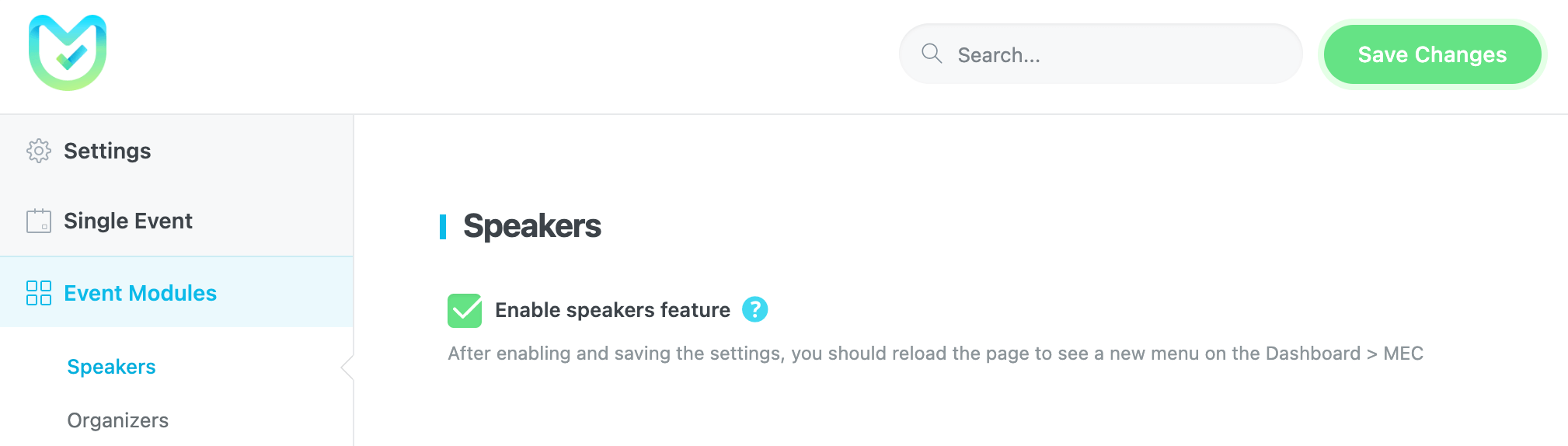
Global Configuration
The settings menu allows you to define the default behavior for how speakers and their events are displayed across your website.
Single Page Settings
This section defines the destination page for individual speaker profiles.
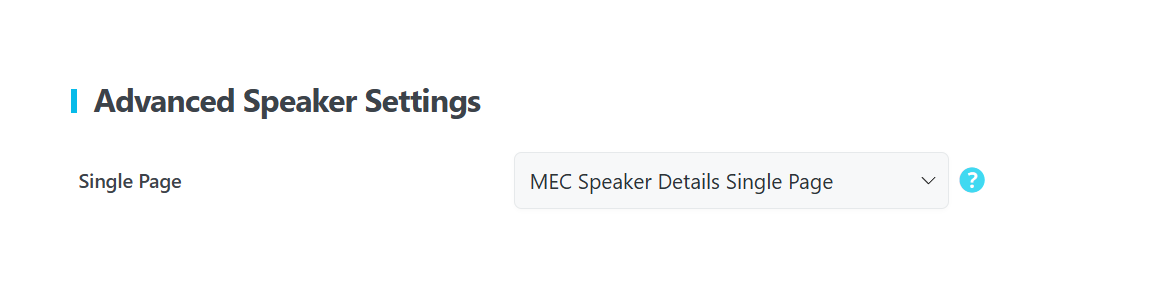
Choose a designated WordPress page to act as the speaker profile. This page will be created automatically after installation, but if it doesn’t, you need to insert the \[advanced-Speaker-single-public\] shortcode into a custom page and then select that page to display.
Speaker Default Settings
These options apply to your shortcodes if no specific attributes are set.
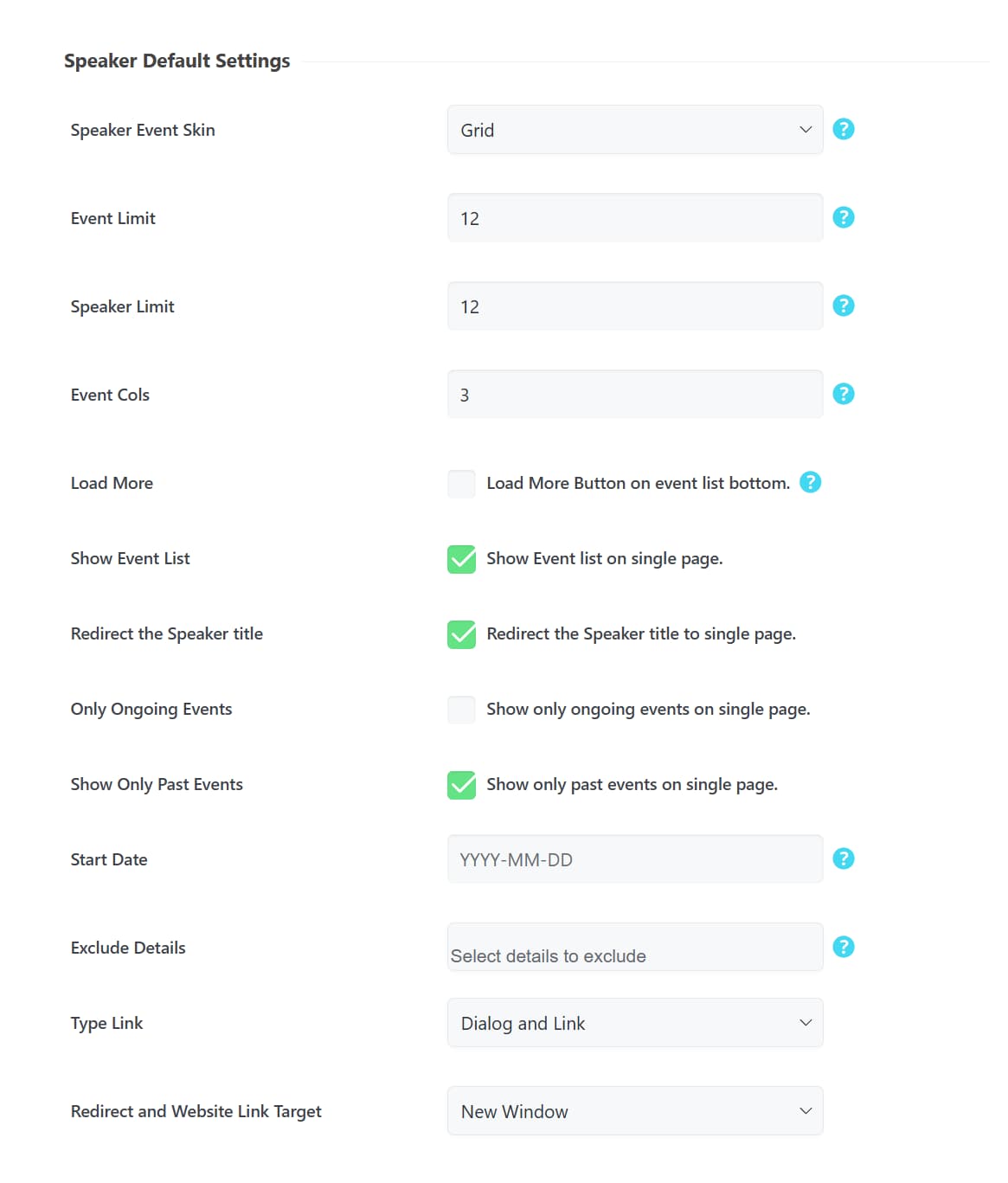
- Speaker Skin: Choose the visual layout used to display the Speaker list.
- Speaker Event Skin: Select the skin used for the list of events associated with a specific speaker.
- Event Limit: Set the maximum number of events displayed on a speaker’s individual list.
- Speaker Limit: Define how many speakers appear on a list page by default.
- Event Cols: Set the number of columns for the speaker’s event list.
- Load More: Enable this to show a “Load More” button on event list pages.
- Show Event List: Toggle this to show or hide the associated event list on a speaker’s single page.
- Event Visibility: Choose to show Only Ongoing Events or Only Past Events on the profile page.
- Start Date: Filter the display to only show events occurring from a specific date onwards.
- Exclude Details: Use this to hide specific contact information, including Job title, Tel, Email, Website, Facebook, Instagram, LinkedIn, or Twitter .
- Redirect the Speaker Title: Enable this to turn the speaker’s name into a clickable link to their profile.
- Type Link: Choose if the speaker profile appears as a direct Link, a Dialog (popup), or Both.
- Redirect Link Target: Choose whether links open in a New Window or the Current Window.
Using Shortcodes
The Advanced Speaker Addon utilizes three primary shortcode types: Single (one event), List (all items), and Featured (items marked as featured).
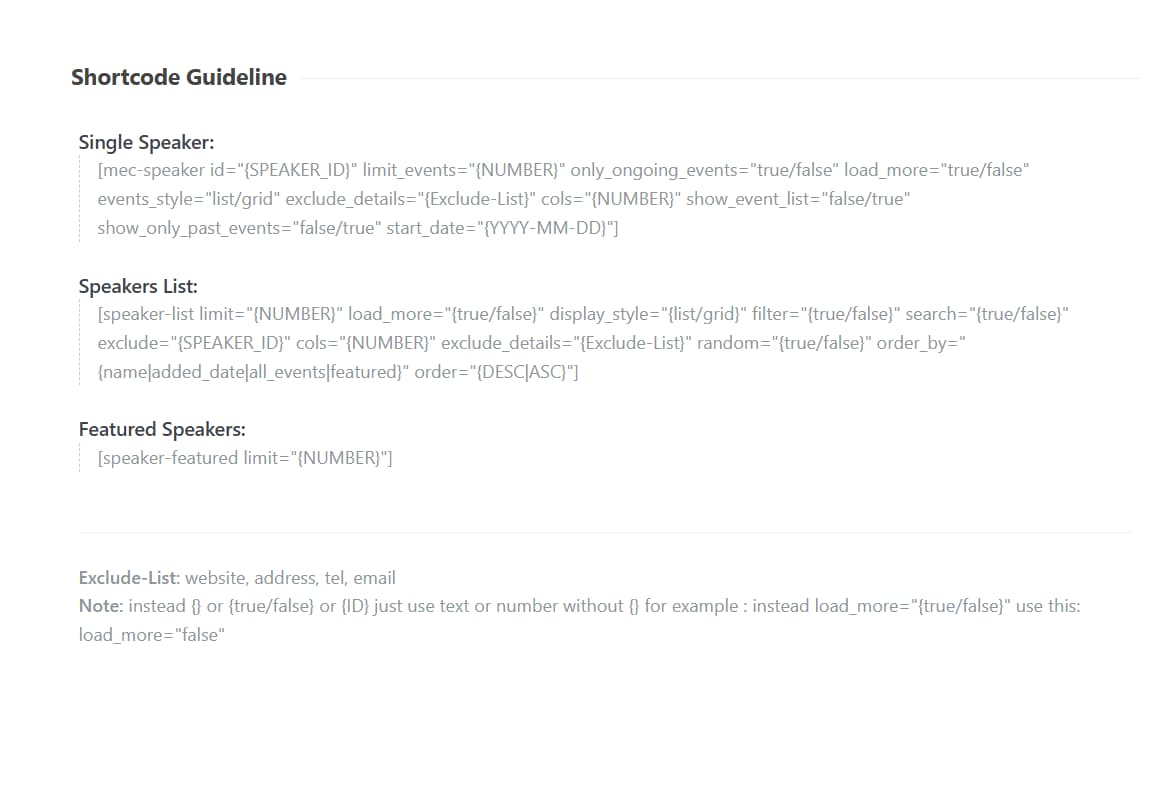
\[mec-speaker\] Attributes
Use this shortcode to display a specific speaker’s details.
- id=”{SPEAKER_ID}”: Display a specific speaker by their numerical ID found in the taxonomy list.
- limit_events=”{NUMBER}”: Limit events shown for this speaker.
- only_ongoing_events=”{true/false}”: Toggle ongoing event visibility.
- load_more=”{true/false}”: Enable or disable the “Load More” button.
- events_style=”{list/grid}”: Choose the layout for the speaker’s events.
- exclude_details=”{Exclude-List}”: Hide specific fields (e.g., Tel, Email) using a comma-separated list.
- cols=”{NUMBER}”: Set columns for grid layouts.
- show_event_list=”{true/false}”: Toggle the associated event list.
- show_only_past_events=”false/true”: Display only past events.
- start_date=”{YYYY-MM-DD}”: Filter events by a specific start date.
\[speaker-list\] Attributes
Use this shortcode to create a directory of all speakers.
- limit=”{NUMBER}”: Set the number of speakers to display.
- load_more=”{true/false}”: Enable/disable the “Load More” option.
- display_style=”{list/grid}”: Set the layout for the speaker list.
- filter=”{true/false}”: Enable or disable filter options.
- search=”{true/false}”: Enable or disable a search bar for the list.
- exclude=”{SPEAKER_ID}”: Hide a specific speaker from the list by ID.
- cols=”{NUMBER}”: Set columns for grid layouts.
- exclude_details=”{Exclude-List}”: Hide specific contact details.
- random=”{true/false}”: Display speakers in a random order.
- order_by=”{name|added_date|all_events|featured}”: Set the sorting criteria.
- order=”{DESC|ASC}”: Set the sort order to ascending or descending.
Pro Tip: Always ensure you open and close double quotations in your shortcodes (e.g., load_more=”true”) and avoid extra spaces to prevent the code from breaking.
Use Cases (When This Addon is Useful)
- Professional Speaker Directories: Perfect for large conferences or summits where attendees need to browse a complete list of experts and their bios.
- Individual Expert Portfolios: Ideal for showcasing a specific speaker’s upcoming and past contributions on a dedicated profile page.
- Highlighting Featured Guests: Useful for marketing specific high-profile “Featured” speakers on your homepage or landing pages.
Situations This Addon May Not Be Ideal
- Non-WordPress Sites: This addon is built specifically for WordPress and requires the Modern Events Calendar to function.
- Static Page Environments: If your page builder or theme cannot process standard WordPress shortcodes, the speaker lists will not display.
- Simple Event Needs: If your events do not require individual speaker profiles or detailed contact information, the standard MEC speaker module may be sufficient.
Troubleshooting for Beginners
- Shortcode Not Working? Ensure you have included the square brackets \[\] and that there are no missing or extra spaces within the code. Check that all attribute values are enclosed in double quotations “”.
- Speaker Not Appearing in List? Ensure the specific speaker profile actually has content. The addon may not display speakers with empty profiles.
- Widget Not Visible? If you are using the widget via Appearance > Widgets, ensure your specific page builder is compatible with MEC widgets.
- Contact Info Still Showing? If you are trying to hide multiple details (like email and phone), ensure you have used a comma , as a separator in the exclude_details attribute.
Updated on: 08/03/2026
Thank you!