
Virtual Events Addon
The Virtual Events Addon is a professional tool designed to help you organize and manage online gatherings with precision and security. Whether you are hosting public webinars or private workshops, this addon allows you to tailor event visibility, share secure links and passwords, and embed live streams directly onto your event pages.
Initial Setup
To begin hosting virtual events, ensure your environment meets the necessary requirements and follow these activation steps:
Requirements
- MEC Pro or Lite: This addon is compatible with both the Pro and Lite versions of Modern Events Calendar. Note that certain advanced booking features may vary depending on your base MEC version.
- Activation: Ensure both Modern Events Calendar and the Virtual Events Addon are installed and activated on your WordPress site
Step-by-Step Activation
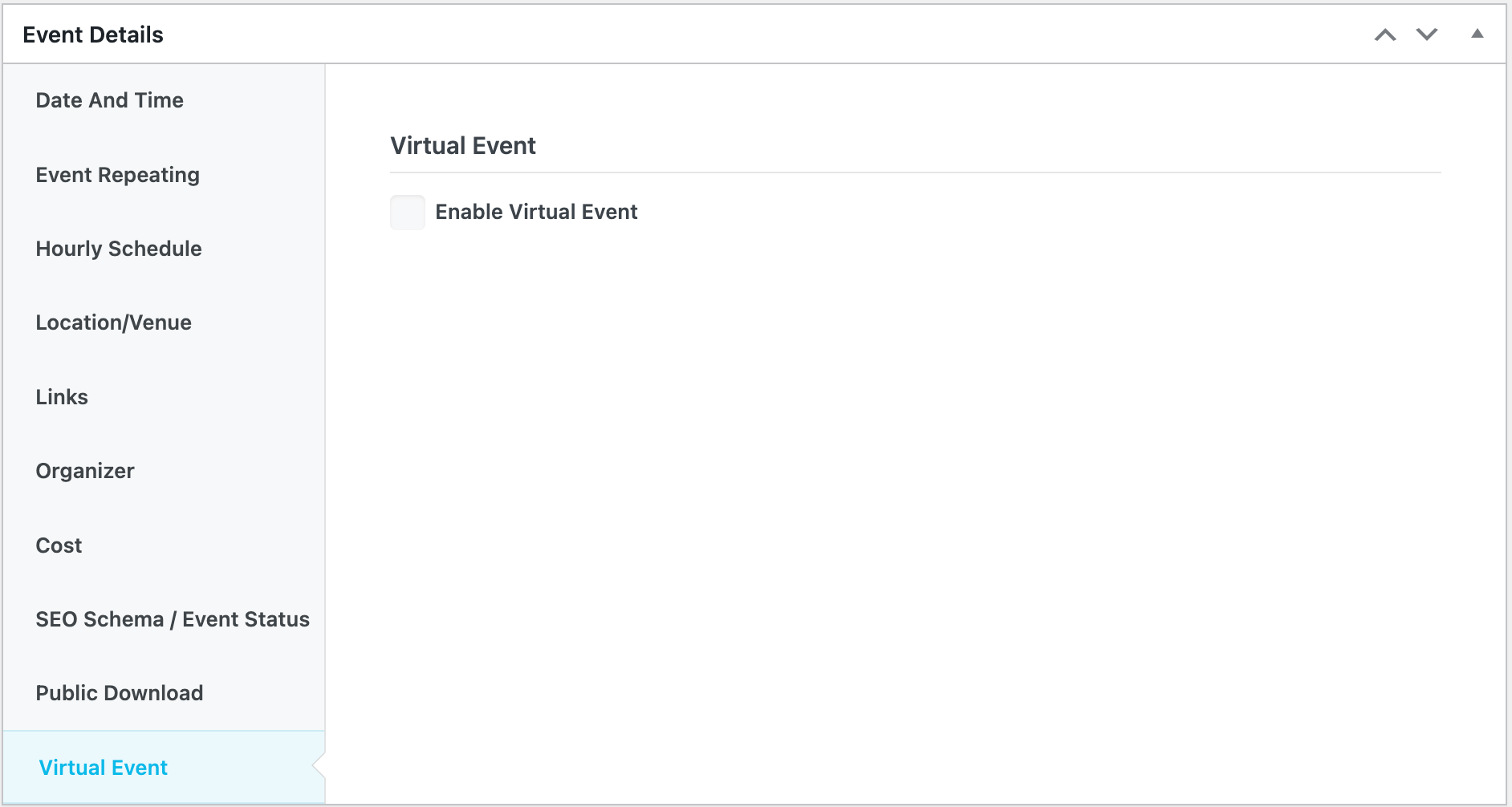
- Select an Event: Navigate to MEC > All Events and open the backend of a single event.
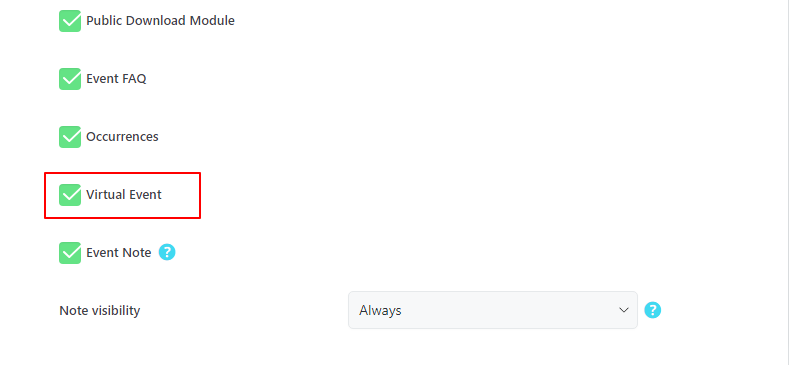
- Locate Menu: Proceed to the Event Details section and find the Virtual Event menu.
- Enable Feature: Toggle the activation switch to enable virtual functionality for that specific event.
Configuring Virtual Event Settings
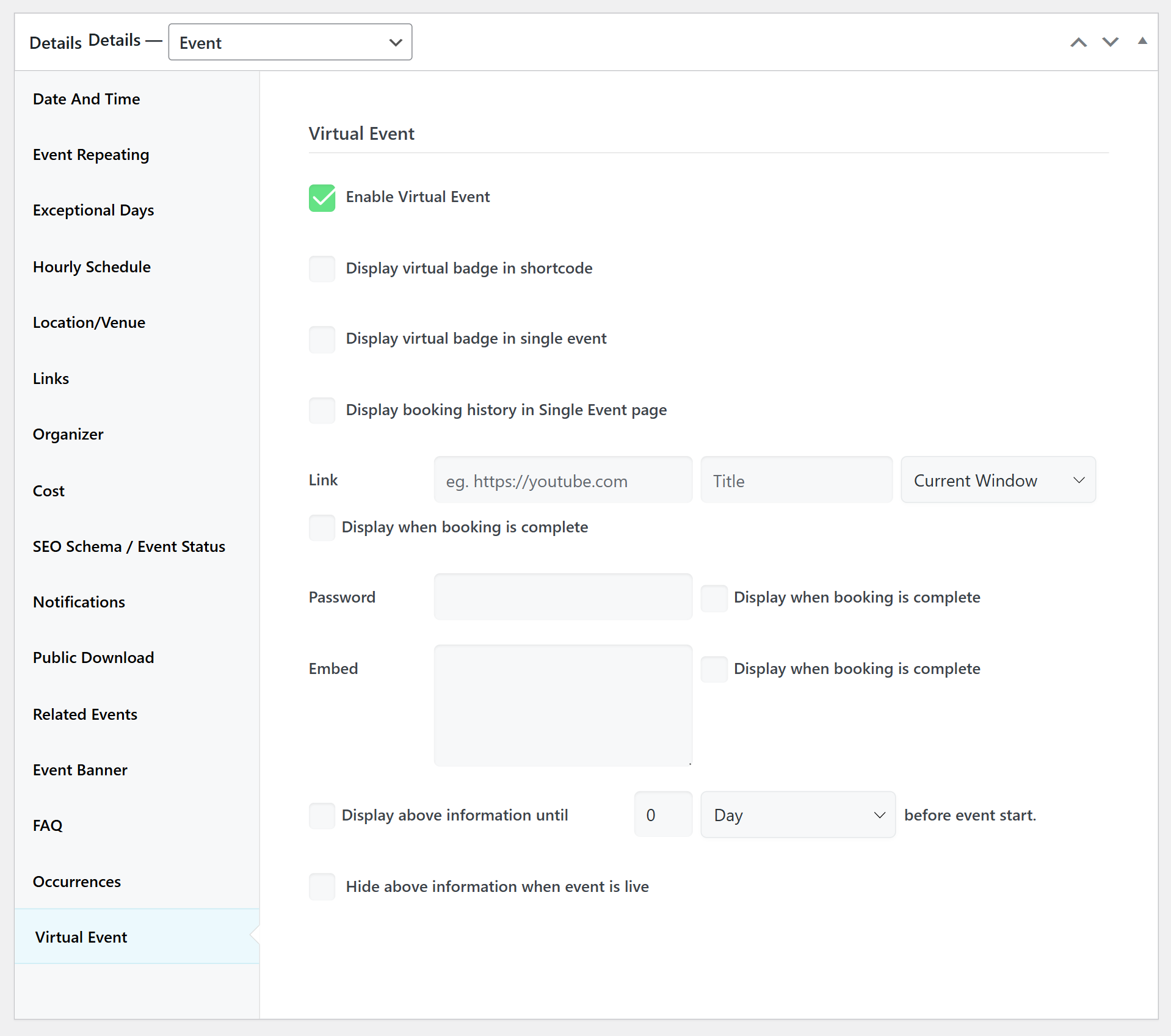
Once the feature is enabled, you can configure how the virtual details are displayed to your audience.
Visual Branding & Badges
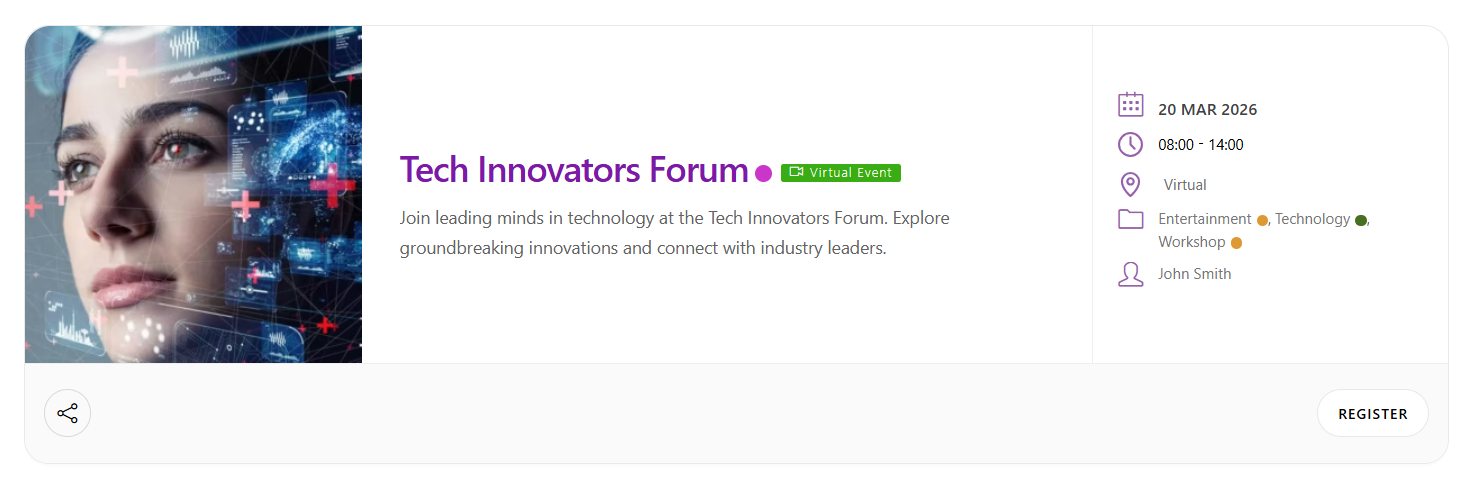
- Shortcode Badges: Enable the virtual event icon to appear as a badge in all MEC shortcodes for easy identification.
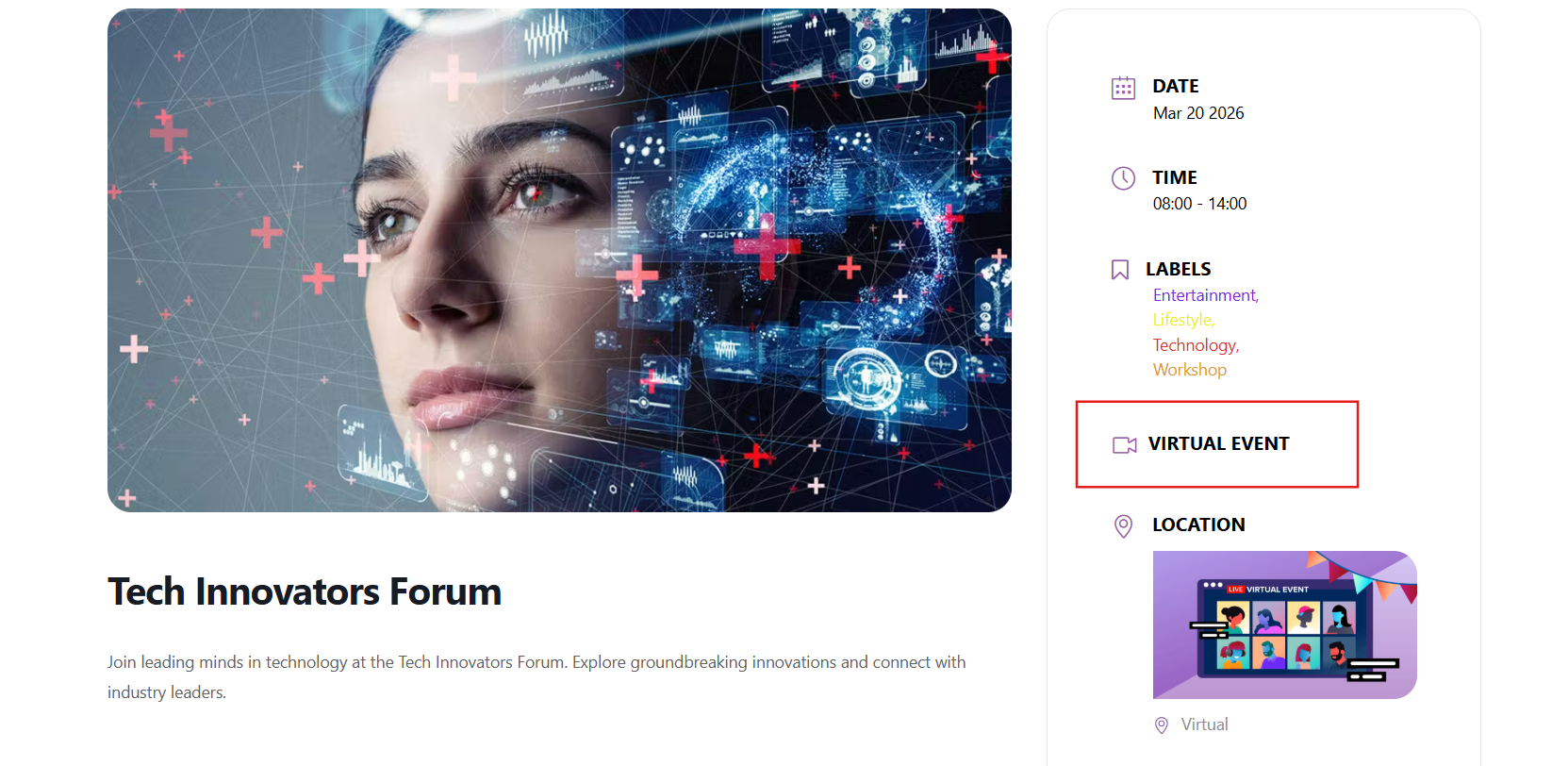
- Sidebar Badge: Display a dedicated virtual event badge in the sidebar of the Single Event page.
Event Access & Links
- Info link: In addition to the title for the link, you can set a specific URL for the virtual meeting.
- Link Behavior: Configure how the link opens (e.g., in a new tab) immediately following the title option.
- Password: Set a secure password for attendees to join the gathering. Note: By default, the addon uses the same password for all users.
- Embed code: Paste embed codes (such as YouTube or Vimeo videos) to display the live stream directly on the event page.
Visibility & Booking Integration
The addon provides advanced logic to control when and how sensitive event data is displayed to your users.
Visibility Logic
- Timed Visibility: Use the Display above info at a certain interval before the event starts option to specify a time frame before the event begins for the virtual details to become visible.
- Live Concealment: Enable Hide above information when event is live to automatically conceal secure details as soon as the event starts.
User Experience & Access
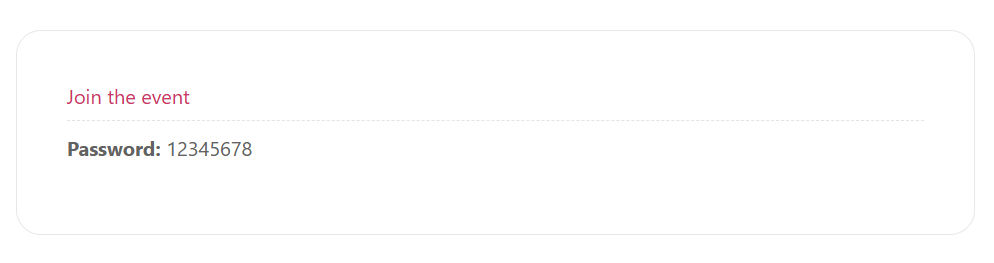
- Display booking history on the Single Event page: When enabled, this option provides a special box on the event page for logged-in users who have previously booked the virtual event. In this section, the system displays only the data related to the Link, Password, and Embed fields; it does not display the registration data the user entered during checkout
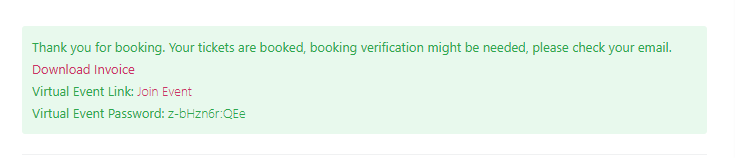
- Display when booking is complete (Checkbox next to fields): By selecting the checkbox located next to the Link, Password, and Embed fields, you enable an immediate, temporary display of those details within the booking form itself right after a successful registration. This is designed for the immediate user experience and disappears once the form is closed.
Advanced Access Controls
Per-Occurrence Customization (Only in the Pro version)
If you have a recurring event but need different links or passwords for each date:
- Navigate to the Occurrences menu within the event backend.
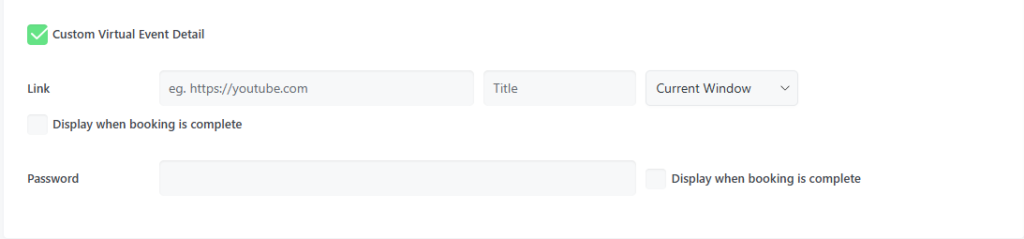
- Enable the Custom Virtual Event Detail option for the desired occurrence.
- Edit the link and password for that particular instance independently of the main event settings.
Notifications & FES Integration
Email Communication
The addon automates the delivery of secure access details through your existing notification system:
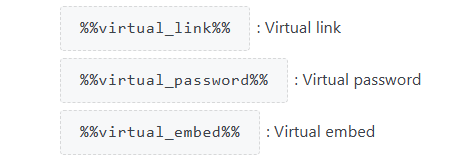
- Placeholders: Use dedicated email placeholders to automatically insert the secure link and password into attendee emails.
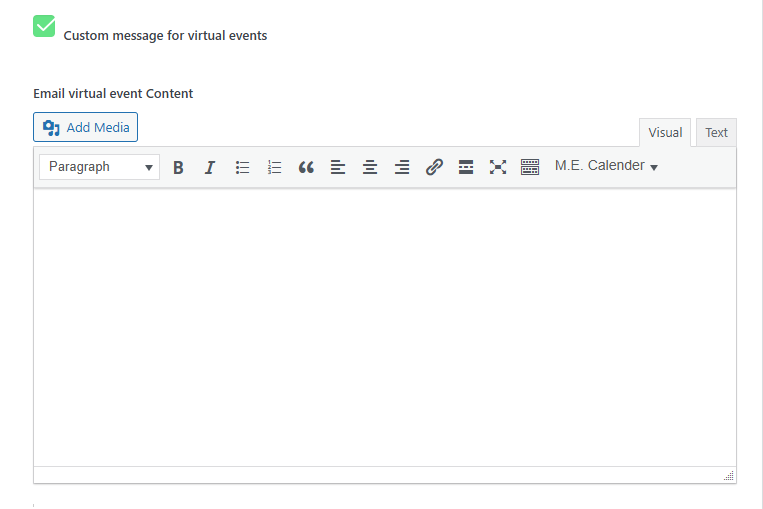
- Custom Virtual Message: After installation, a new Custom message for virtual events option is added to MEC Notification Settings. This allows you to create specific content for virtual events without modifying the content for other events.
Frontend Event Submission (FES)
If you allow users to submit events from the frontend:
- Enable the Zoom Event option within the FES Form settings.
- This is activated via the Zoom Event option in the FES configuration.
- Users can then mark their own submissions as Zoom and provide the necessary links and passwords during the submission process.
Use Cases (When This Addon is Useful)
- Paid Webinars: Combine with the MEC Booking system to sell tickets and automatically email secure Zoom or Google Meet links only to confirmed attendees.
- Recurring Online Classes: Use the Custom Virtual Event Detail per occurrence to provide unique meeting IDs for every weekly session.
- Live Stream Premieres: Embed a YouTube Live or Twitch stream directly onto the event page and set it to appear only a few minutes before the event starts.
Situations This Addon May Not Be Ideal
- Unique Attendee Passwords: By default, the addon uses the same password for all users for a specific event or occurrence. If your workflow requires unique, individualized passwords for every single user, this addon may not be suitable.
- Physical-Only Events: For events with no online component, virtual badges and link fields are unnecessary and should remain disabled.
- Non-WordPress Environments: This addon is built specifically for WordPress and requires Modern Events Calendar.
Troubleshooting for Beginners
- Badge Missing from Sidebar: Confirm that the View the badge in the sidebar option is enabled in the Virtual Events configuration menu.
- Placeholder Not Working in Emails: Verify that you are using the exact placeholder strings provided in the MEC Notification Settings.
- FES Users Can’t See Virtual Options: Ensure the Virtual Item option is activated within your specific FES Form configuration.
- Access Details Not Visible on Event Page: Ensure the Display booking history on the Single Event page is enabled and that the user is logged in with a prior confirmed booking.
- Access Details Not in Booking Form: Ensure the checkboxes next to the Link, Password, or Embed fields are selected to trigger the “Display when booking is complete” behavior.
FAQ
What is the main purpose of the MEC Virtual Events Addon?
The MEC Virtual Events Addon allows you to easily organize and manage virtual events, providing options for private or public visibility and secure access for attendees.
How do I install and activate the Virtual Events Addon for MEC?
First, ensure that MEC Pro is installed. Then, install and activate the Virtual Events Addon. After activation, navigate to a single event’s backend, locate the Virtual Event menu in the Event Details section, and enable the feature.
How can I enable a virtual event for a specific event?
In the backend, open the event’s details. Under the Virtual Event menu, toggle the feature on. This marks the event as virtual and enables additional customization options for virtual event settings.
Is there a way to visually distinguish virtual events on my website?
Yes. The addon provides options to display a virtual event badge in shortcodes and on the sidebar of the Single Event page, making it easy for visitors to identify virtual events.
How can I display booking history on the Single Event page?
An option in the Virtual Events settings allows you to enable the display of booking history on the Single Event page. This helps in tracking event participation and managing registrations effectively.
How can I prevent users from accessing the virtual event before booking?
You can set the virtual event link and password to only show after booking confirmation.
How do I embed a video link for a virtual event?
You can add an embed code (e.g., for YouTube) in the virtual event settings to display on the single event page.
What options do I have for controlling the visibility of virtual event details?
The settings allow you to display details (such as the link and password) at specific intervals before the event starts, and you can also choose to hide these details once the event goes live.
How can I adjust the display settings for the virtual event information on the event page?
In the Virtual Events settings, you can configure how the information is displayed, such as adding an info link next to the event title, choosing how the link opens, and setting options for when to display the secure details after a booking is made.
Can I customize the virtual event password for each occurrence?
Yes, you can customize the virtual event link and password for specific occurrences. To do this, enable the “Custom Virtual Event Detail” option for the desired occurrence in the Occurrences menu. This allows you to edit the link and password for that particular instance.
How does the Virtual Events Addon integrate with the Frontend Event Submission (FES) process?
The addon can be enabled within the FES form by activating the Virtual Item option. This integration simplifies the submission process for events that are to be held virtually.
How are virtual event details communicated to attendees via email?
The addon utilizes email placeholders that automatically insert and send the secure link and password to attendees once they complete a booking, ensuring they have the necessary details to join the event.
How can I ensure the security of my virtual events?
Each event will have a secure link and password for attendees, ensuring only authorized access.
Will all users have the same password, or can each user have a unique password?
By default, the Virtual Events Addon uses the same password for all users.
Updated on: 08/03/2026
Thank you!