
WooCommerce Integration Addon
The Modern Events Calendar (MEC) WooCommerce Integration Addon is a professional solution for streamlining the event purchase process. It allows attendees to treat event tickets as virtual products, enabling them to add multiple tickets for various events to a single WooCommerce cart and checkout alongside other products on your website.
Initial Setup
Before you begin, ensure you have the following requirements:
- MEC Pro: This addon utilizes the booking feature exclusive to the Pro version and is unavailable in MEC Lite.
- Installation: Ensure both MEC and the WooCommerce Integration Addon are installed and activated.
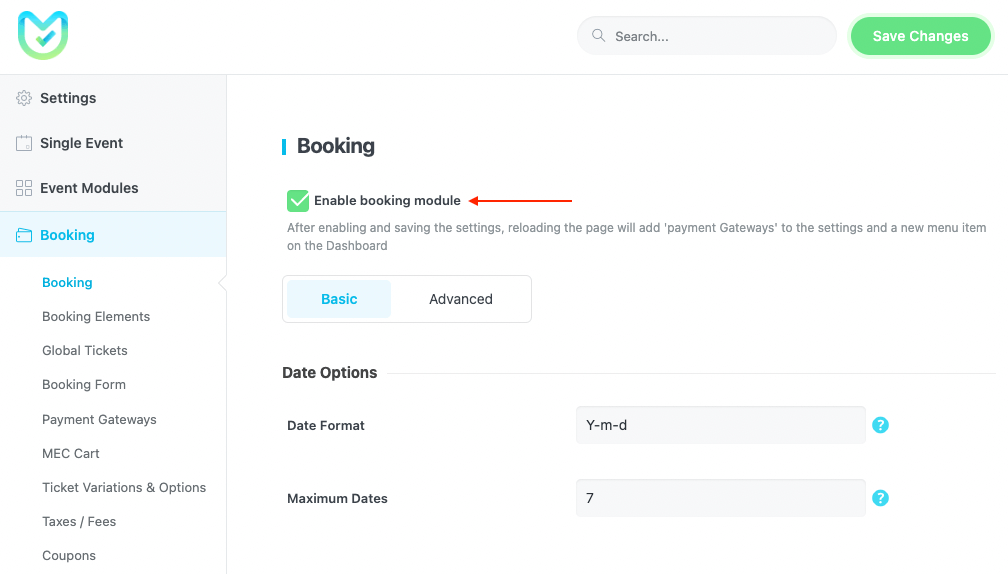
Payment Gateway Activation: Go to MEC Settings > Booking > Payment Gateways and activate the Add to WooCommerce Cart payment method.

Configuration Settings
Once activated, find the customization options under MEC Settings > Booking > Payment Gateways > Add to WooCommerce Cart.
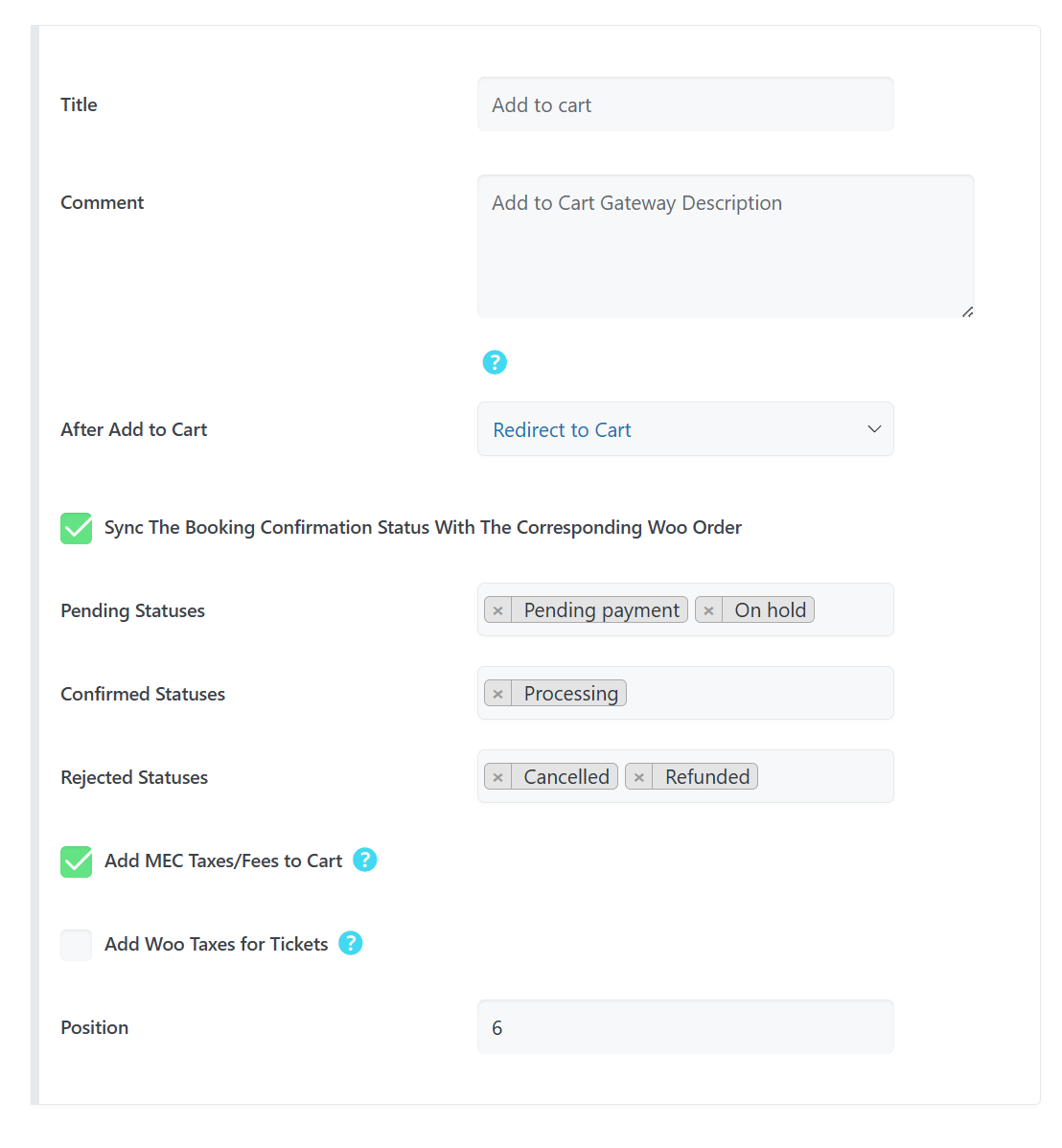
- Title: Change the “Add to Cart” button text to your preferred phrase.
- Comment: Add a description for the gateway (HTML is allowed).
- After Add to Cart: Choose the automated action when the button is clicked:
- Redirect to Cart: Directs users immediately to the WooCommerce Cart page.
- Redirect to Checkout: Sends users straight to the Checkout page.
- Optional View Cart Button: Displays a message with a “View Cart” button.
- Optional Checkout Button: Displays a message with a “View Checkout” button.
- Position: Set the display order of this gateway in the booking section compared to other payment methods.
Syncing Booking Statuses
The Sync the Booking Confirmation Status with the Corresponding Woo Order feature automatically updates your MEC booking statuses to match WooCommerce order changes.
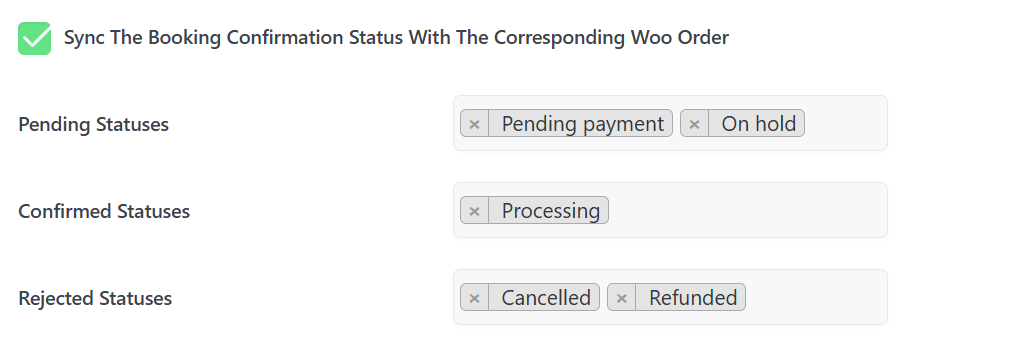
Pro Tip: Enabling this feature will override any auto-confirmation settings previously established in the general MEC Booking settings.
Map your WooCommerce statuses to the three MEC categories using these placeholders:
- Pending Statuses: Select statuses like Pending payment, Failed, On hold, or Draft.
- Confirmed Statuses: Select statuses like Processing or Completed.
- Rejected Statuses: Select statuses like Cancelled or Refunded.
Taxes and Fees Management
You can choose how to handle financial details between the two systems:

Add MEC Ticket Taxes/Fees to Cart: Applies tax settings from MEC Settings > Booking > Taxes / Fees to the WooCommerce cart.
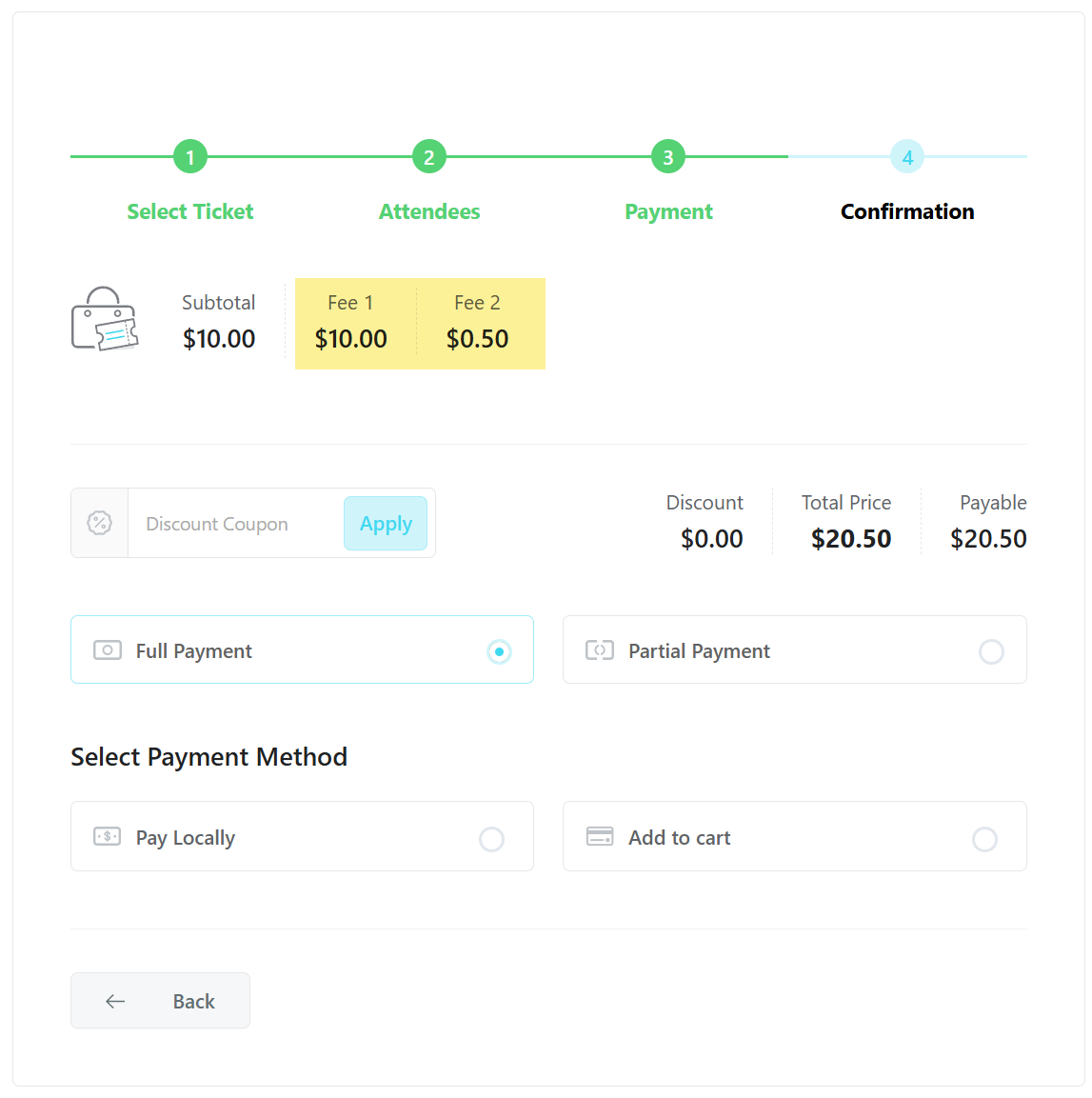
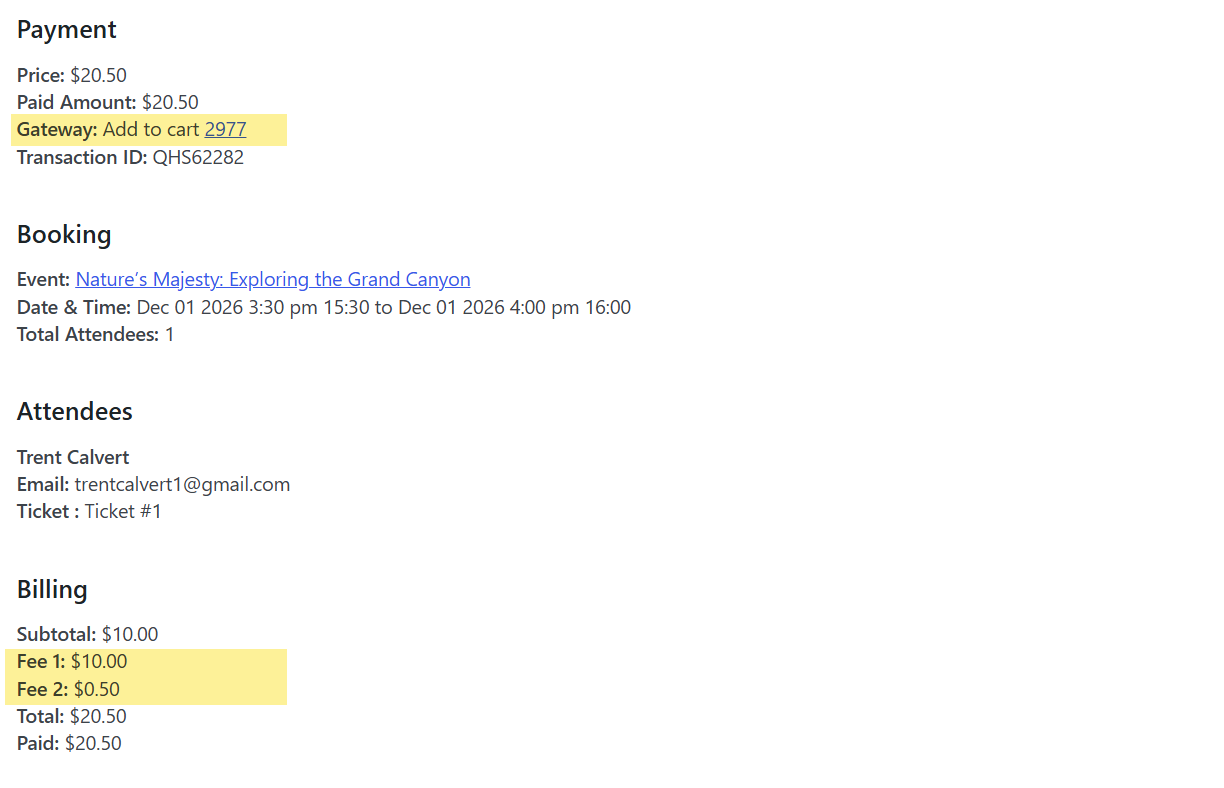
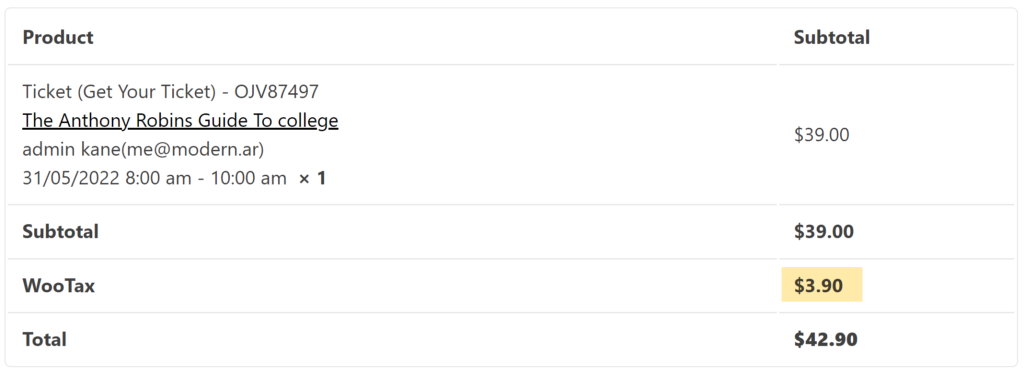
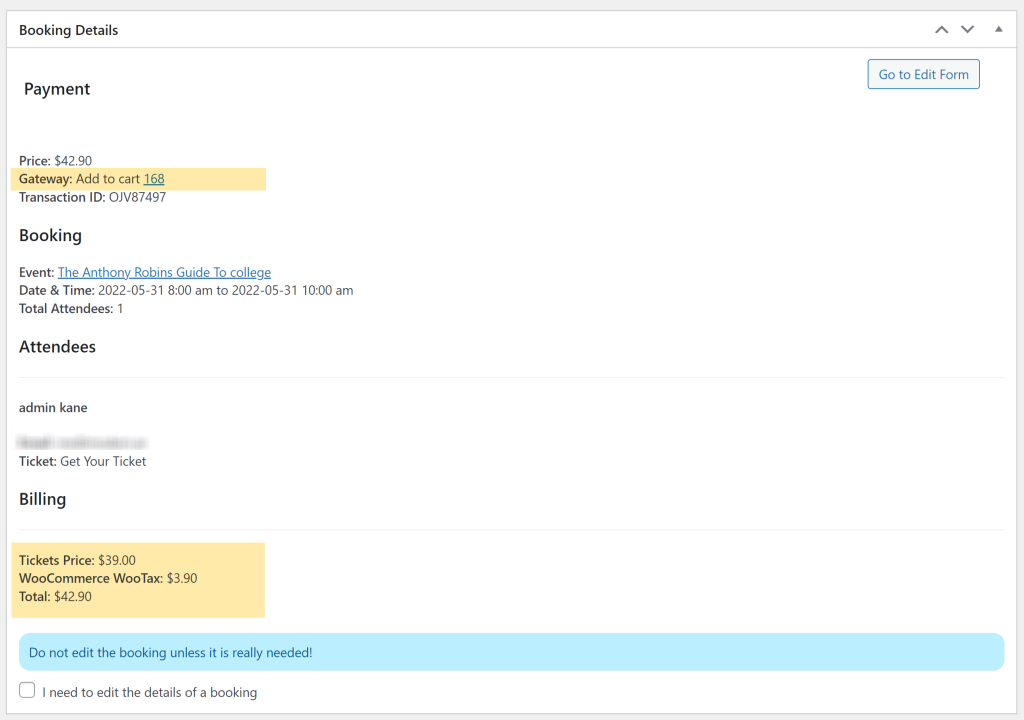
Add WooCommerce Standard Taxes to the Tickets: Transfers “Standard Tax” to MEC reservations so they appear on both WooCommerce orders and MEC invoices.
Pro Tip: If you use only the WooCommerce gateway, it is recommended to use the WooCommerce Standard Tax option to avoid managing two separate tax systems.

Advanced Features & Management
Also, users can use WooCommerce coupons on the cart page.
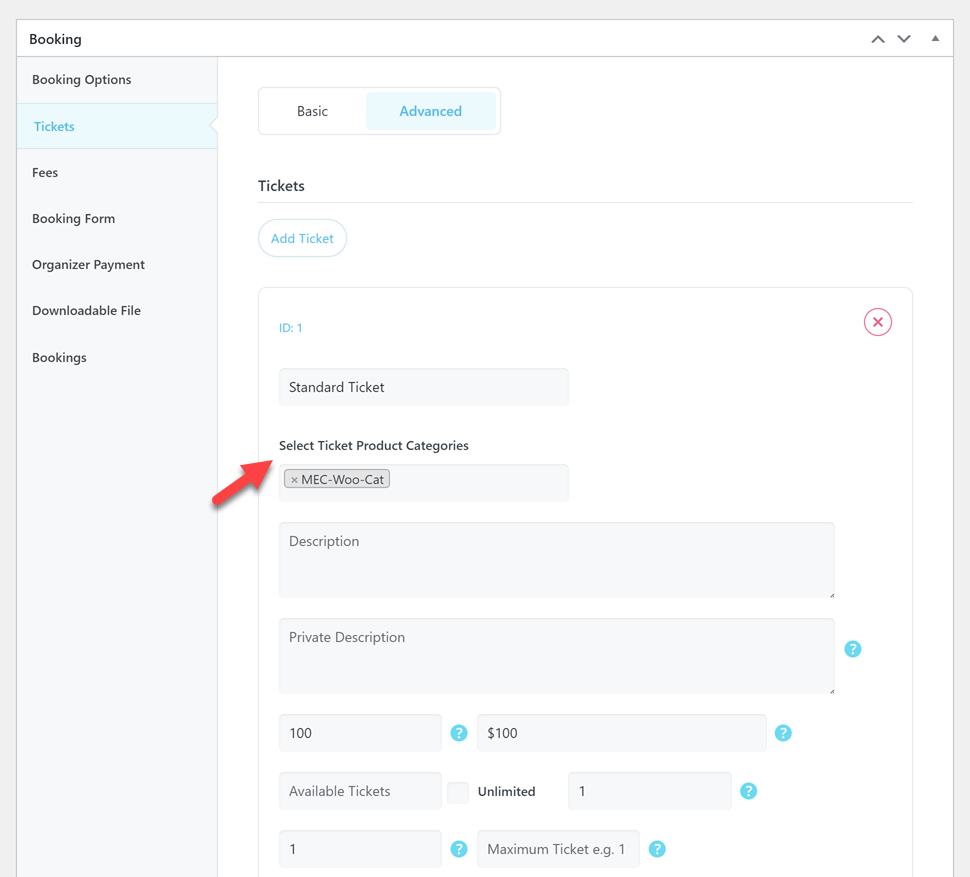
- Categories: Assign specific WooCommerce product categories to your tickets by navigating to the Tickets tab in your event settings and using the Select Ticket Product Categories field.
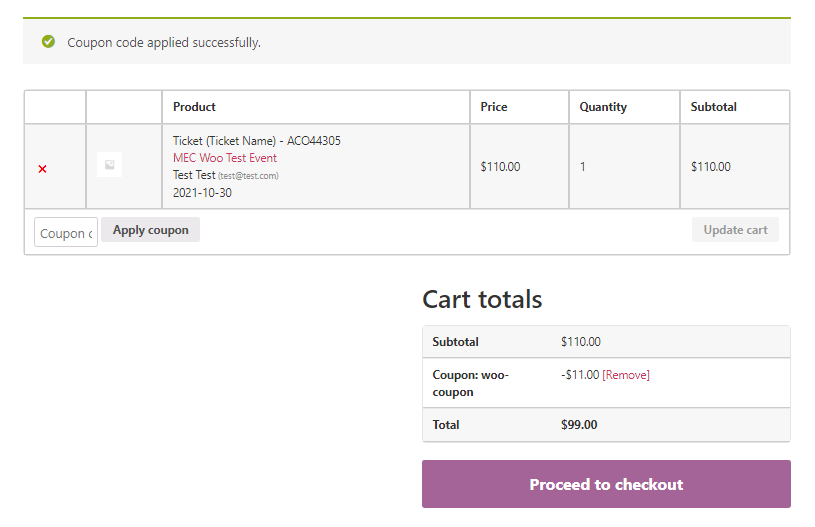
- Coupons: Attendees can use standard WooCommerce coupons on the cart page to receive discounts on their tickets.
- Emails: MEC and WooCommerce send emails separately. MEC booking notifications follow your Booking and Notifications configurations, while WooCommerce handles order-specific status emails.
Use Cases (When This Addon is Useful)
- Unified Shopping Experience: Perfect for sites selling merchandise (like t-shirts or books) alongside event tickets in one transaction.
- Standardized Payment Management: Ideal for businesses that want to use a familiar WooCommerce checkout flow and existing payment gateways.
- Complex Tax Compliance: Useful for international sellers needing to apply specific tax rules supported by the WooCommerce tax engine.
Situations This Addon May Not Be Ideal
- MEC Lite Users: This addon requires MEC Pro to function.
- Pre-filled Forms: It cannot currently use WooCommerce customer data to pre-fill participant registration fields.
- Dynamic Cart Edits: Users cannot change the quantity of tickets on the WooCommerce Cart page; they must delete the item and restart the selection.
- Protected Content: It does not inherently hide page elements (like videos) based on whether a user has purchased a ticket.
Troubleshooting for Beginners
- “Add to Cart” Option Missing: Ensure the gateway is enabled under MEC Settings > Booking > Payment Gateways.
- 500 Errors at Checkout: This is typically a server-side error; check your server logs or follow standard WordPress troubleshooting for internal server errors.
FAQ
1- I use the WooCommerce Integration Addon but don’t see the Add to Cart option. What’s the issue here?
Once this addon has been added and activated, you should go to MEC Settings > Bookings > Payment Gateway and make sure that the newly added option, Add to WooCommerce Cart, is activated.
02- I want to translate the WooCommerce Integration Addon. How can I do that?
Make sure to read this post on how to translate MEC.
3- Does the WooCommerce Integration Addon work with MEC Lite?
No, WooCommerce Payment Gateway utilizes the booking feature exclusive to MEC Pro and unavailable in MEC Lite.
4- I used the WooCommerce Integration Addon and wanted to know how I can change the order status of a booking**.
Navigate to the WooCommerce Integration Addon setting through MEC Settings > Booking > Payment Gateways and enable the “Sync WooCommerce Order Status with MEC Booking Status” option.
Updated on: 21/02/2026
Thank you!